
UpToDate is an online, peer-reviewed clinical decision support tool with topic reviews covering medical symptoms, tests, diagnosis and treatment options for over 8,500 conditions. UptoDate Overview (PDF)
Available to: Faculty | Students | Staff
Managed by: Education Technology
Funding: Institution
Authentication: No Username or Password for UpTodate, must be connected to BCM Wifi or VPN
UpToDate® is also available via the phone app (iOS | Android) using the same credentials.
- BCM IT Website
- BCM IT Software Catalog
- Access Up-to-Date support via the application or on the UpToDate website
- Search with auto-completion
- Earn and track free CME/CE/CPD credit
- Bookmarks and history
- Print and email topics or graphics to patients and colleagues
- Options for desktop access and mobile complete for remote use
- Tools that can increase patient safety: clinical calculators, detailed medical graphics and a select set of drug and drug interaction databases powered by Lexicomp
- UpToDate Help - includes a Getting Started guide, training videos and more
- Explore UpToDate Training Videos
- Live Online Learning
Materials and resources for this area are being developed by the Office of Academic Technology: Education Technology. They will be added to this section as soon as they are ready.
- If you have any questions about logging into UptoDate®, contact Ed-Tech, ed-tech@bcm.edu
- If you have any questions about the use of UptoDate®, contact the End-user Customer Support
Need Help? Contact the IT Help Desk at 713-798-8737 or https://it.bcm.edu (click ‘Report a Problem’).
Note: If you have forgotten your password, contact the BCM Helpdesk 713-798-8737 or visit https://password.bcm.edu.
Getting Started
Access Up-to-Date
Users may access the system via any internal hospital or clinic computer as well through phone/tablet app or from home computer. BCM employees and students will use the BCM Up-to-Date Link to access the subscription. Users must login using BCM SSO to get access.
Accessing UpToDate via Single Sign-On (SSO) (PDF)
The first time users log in to UpToDate through SSO, a new UpToDate account will be created. This requires ACTION by users who already have an UpToDate Account. Please see information below:
Cookie preferences should be viewed and set by the user. Wolters Kluwer gathers individual user’s web activity by tracking web pages users visit just before UTD, and those they visit after leaving UTD. This information is linked to individuals and is not anonymized.
Registration on the UpToDate platform is not mandatory. It is NOT NECESSARY to create an account unless a user wishes to earn CME credits through UTD usage.
Authentication is complete after a user logs in with BCM credentials and “Baylor College of Medicine” is visible in the upper right-hand corner of the screen.
- Users do NOT need to register for a new UpToDate account if already using an existing account (ie. CME credits or history/bookmarks attached to existing account).
- During the registration process, click the “sign in” link on the registration page to sign in with existing UpToDate account username & password
- Completing this step will auto-merge the existing account into a new SSO UpToDate account. This is the PREFERERED METHOD for merging accounts.
- This means the old UpToDate username (assuming it's not your BCM e-mail address) will become irrelevant and new username will be your BCM e-mail address.
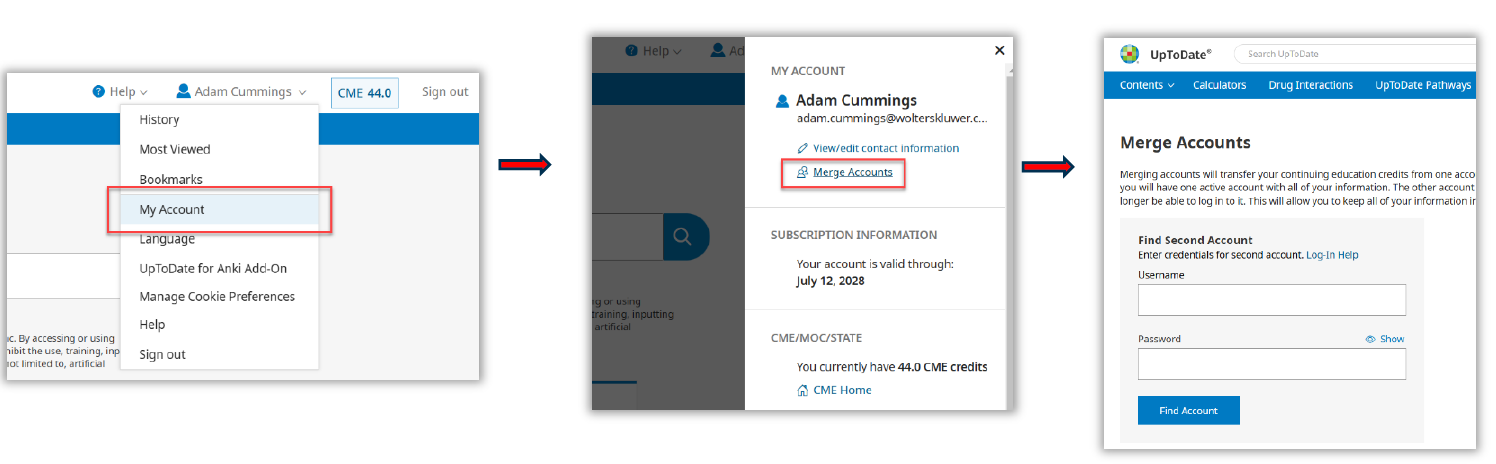
User completed first time SSO process, a new account was created but users already had an existing account and did not complete the auto-merge step during registration, follow directions to manually merge accounts:
- Log in to UpToDate through SSO
- Click “My Account” and then “Merge Accounts” [view screenshot]
- User will be prompted to log-in with their original account (using old username/password) to merge accounts.
- Complete all the fields on the registration form to create a brand-new SSO account.
There are certain situations when account merge may not work or produces an error, for example:
- Non-matching last names: If the user’s last name on the two accounts attempting to merge does not match, it will produce an error.
- Please contact UpToDate Customer Service to assist in updating the name on the account, or other merge account questions.
More information about Merging Accounts
- If already using the UpToDate app, log out and log back in with new username (BCM email address) then log in through SSO. Reaffiliating every 90 days is no longer necessary
- Never used app? Login with username (BCM email address) then go through SSO.
Users must go to Access UptoDate, log in through SSO using your BCM email and password.