
The Learning Object Repository [LOR] allows us to create items centrally for colleagues to copy into their courses and organizations. LOR items can be updated, applying changes to content items across all courses and organizations.
Click here to view the Blackboard Learning Object Support page.
The LOR is ideal for standardized content that is required across many courses. For example:
- Standard items to be included in courses
- Policies
- Support information
- Generative AI statements
- Skills guidance and support
The Learning Object Repository has options to create, upload, search, filter, edit, and delete. You can also sort objects by number of associations.
- click on Tools on the main page
- click on the Learning Object Repository
- Only nodes users are associated with will show up. Click into a Hierarchy node to add a learning object
- Select the visibility (Hidden from students or Visible to students)
- click on Create on the right side of the page.
- NOTE: At the present time, only Documents and files can be created or stored in the Learning Object Repository.
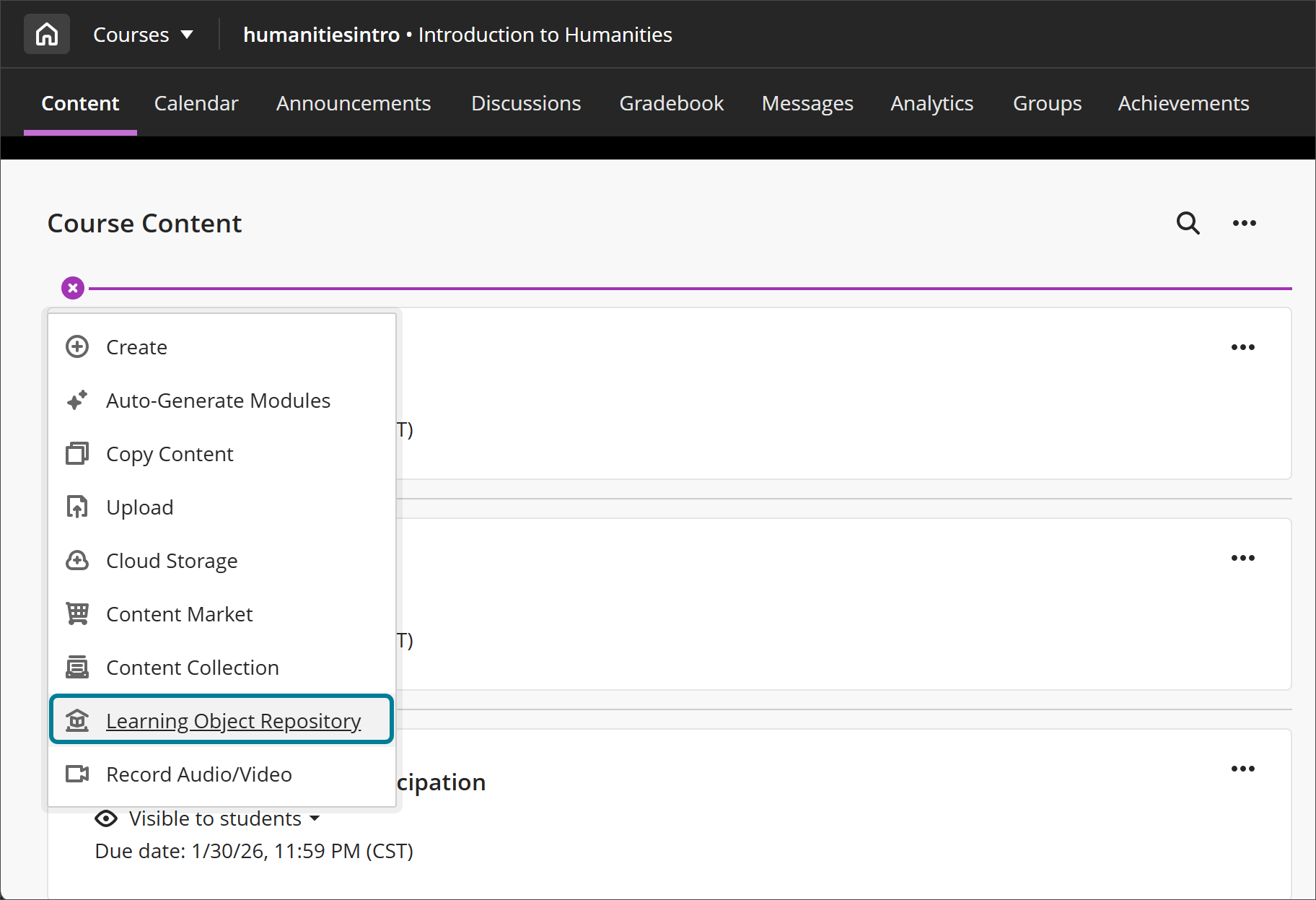
- Create a new item on the Course Content page and select Learning Object Repository. [view screenshot]
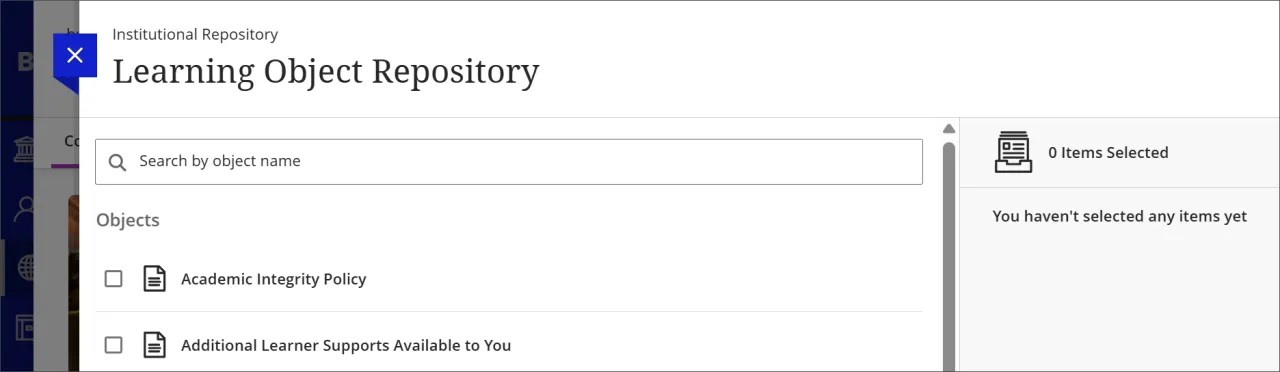
- Select one or more objects stored in the Learning Object Repository. You can select an object from a page listing all the objects stored in the Learning Object Repository or use the search field. [view screenshot]
- Note: If you have access to more than one repository, a list of repositories appears. Select the repository you want to choose items from and then select your items.
- Select Insert Object(s).
Changes made to an object in the Learning Object Repository are automatically applied to all associated objects in courses and organizations.
The following settings are synced for objects in the Learning Object Repository:
- Title
- Body
- Description
- Class Conversations
- Goals & Standards
- Visible to students
- Hidden from students
These settings are locked and cannot be overridden by instructors.
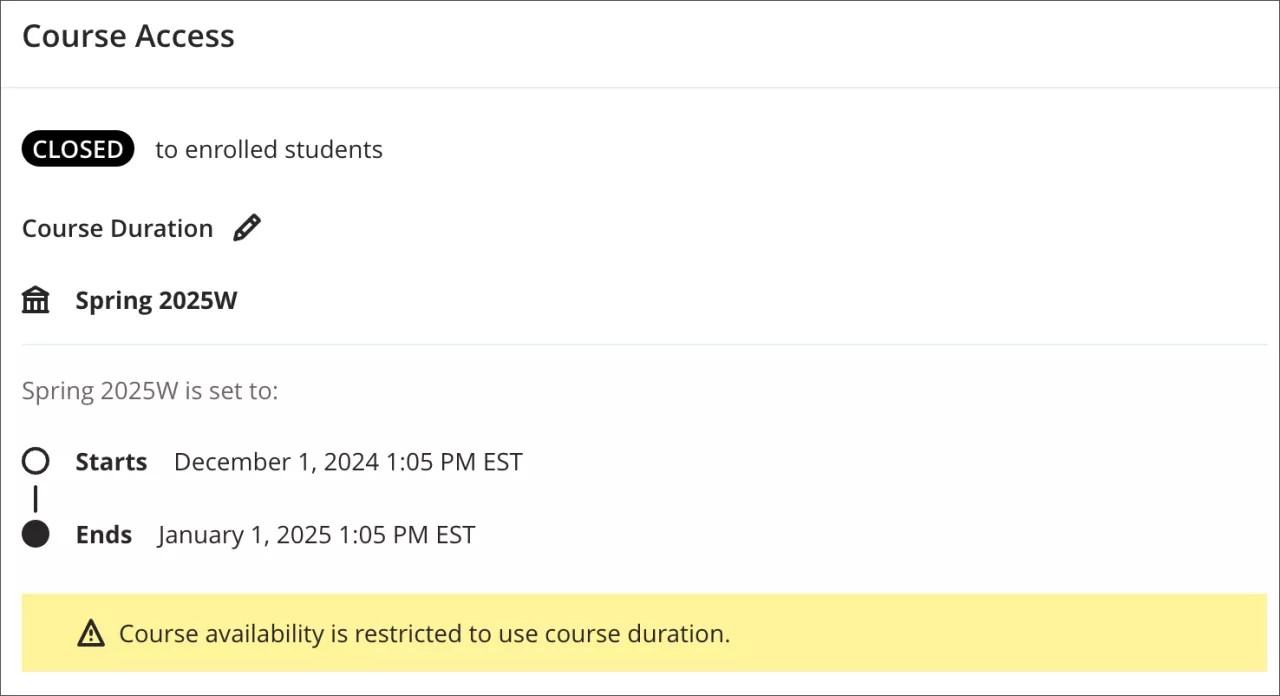
Changes to an object are not applied when a course has ended or has been marked completed. We determine if a course has ended by checking its course end date or term end date, if it's part of a term. [view screenshot]
For students who were marked incomplete and need to regain access to a course, we recommend extending the student's enrollment date instead of the course enrollment date. Extending the student's enrollment date prevents changes to course objects from the Learning Object Repository when objects are updated.
- The option to extend a student's enrollment date is in the Administrator Panel.
- Go to Courses.
- Select the course and then select Enrollments from the menu.
- Go to edit the student's enrollment.
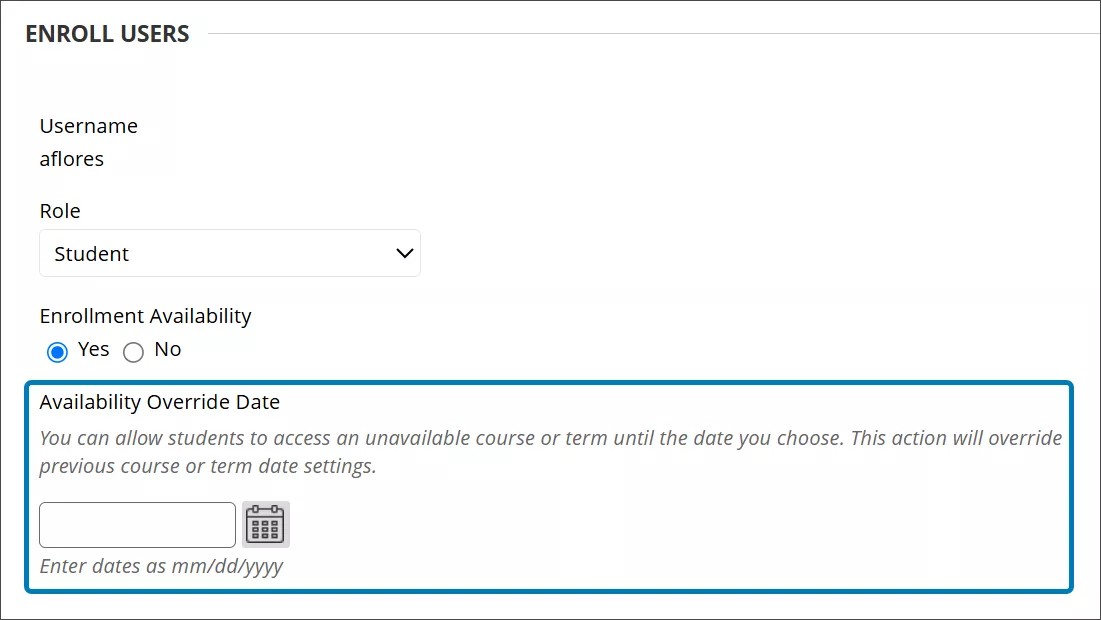
- Enter the new enrollment date in the Availability Override Date field. [view screenshot]
Synced changes aren't instant. The Learning Object Repository waits until edits to an object are complete before starting the sync process. Once started, updates are sent out as queued tasks and applied across associated objects. Currently, the system processes 1 sync request at a time, so syncing a large number—such as 1,000 objects—will take time to complete.
Associations: An association is made when an object in the Learning Object Repository is inserted into a Course or Organization. The inserted object will maintain a relationship with the original object in the Learning Object Repository. Anytime the original object is updated, the changes will be pushed to all associated objects. Associated objects will receive the changes unless they're in a course that has ended or has been marked complete. New associations will also be created when an object that originated from the Learning Object Repository is copied. Users can perform a full course copy or granular copy and know that their copied objects will also have a relationship with the original in the Learning Object Repository.