Home
  • Healthcare
    • Specialties
      • Cardiovascular Care
      • Oncology
      • Neurosurgery
      • Primary Care
      • View All Specialties >
    • For Health Professionals
      • Refer a Patient
      • Clinical Trials
      • Professional Development
      • View All >
    • For Patients & Visitors
      • MyChart Login
      • Accepted Insurance
      • Pay My Bill
      • Patient Information
      • View All >
    • Clinical Trials
      • Autism
      • Cancer
      • Obesity
      • Substance Abuse
      • View All Clinical Trials >
    • Find a Doctor
    • Make an Appointment

    General Inquiries

    Call today to schedule an appointment or fill out an online request form. If requested before 2 p.m. you will receive a response today.

    CALL

    713-798-1000

    Monday – Friday 8 a.m. – 5 p.m.


    ONLINE

    Request Now

    Request non-urgent appointments

    Request an appointment, learn about your rights as a patient, read about what to expect from your appointment, and more.

    As Houston's premier academic medical practice, Baylor Medicine delivers compassionate, innovative, evidence-based care.
    Find a Doctor

  • Education
    • Degree Programs & Admissions
      • M.D. Program
      • Ph.D. Programs
      • DNP Program (Nurse Anesthesia)
      • Genetic Counseling Program
      • P.A. Program
      • Orthotics & Prosthetics Program
      • Baccalaureate/M.D. Programs
      • Dual Degree Programs
      • View All Programs >
    • Financing Your Education
      • Tuition & Fees
      • Financial Aid
      • CARES ACT
    • Schools
      • School of Medicine
      • Graduate School of Biomedical Sciences
      • National School of Tropical Medicine
      • School of Health Professions
    • Advanced Training Programs
      • Residency Programs
      • Clinical Fellowships
      • Postdoctoral Research Positions
      • Continuing Professional Development
      • Diploma in Tropical Medicine
      • View All >
    • Resources
      • Departments
      • Academic Centers
      • Academic Calendars
      • Education Cores
      • View All >
    • Information For...
      • Students
      • Postdoctoral Researchers
      • Faculty
      • Alumni
    get-to-know-houston

    America's fourth-largest city is a great place to live, work, and play. Find out why.
    Get to Know Houston

  • Research
    • Research Offices
      • Advanced Technology Cores
      • Clinical Research
      • Institute for Clinical & Translational Research
      • Office of Research Leadership
      • Research IT
      • Sponsored Programs
    • Research at Baylor
      • Academic Centers
      • Departments
      • Faculty Labs
      • From the Labs
      • News
      • Our Research
      • Research Centers
      • Strategic Research Center
    • Additional Research Services
      • BCM Innovation Institute
      • Service Labs
      • VIICTR
    get-to-know-houston

    America's fourth-largest city is a great place to live, work, and play. Find out why.
    Get to Know Houston

  • Community
    • Healthcare Outreach
      • Community Programs
      • More >
    • Global Outreach
      • Global Health
      • Global Programs >
    • Educational Outreach
      • SMART Program
      • BioEd Online
      • More >
    • General Resources
      • Community Events
      • News
      • Blogs
      • Baylor in the Community
    get-to-know-houston

    America's fourth-largest city is a great place to live, work, and play. Find out why.
    Get to Know Houston

  • About
    • About Us
      • Academic Centers
      • Alumni
      • Careers
      • Departments
      • Giving
      • Leadership
      • Mission, Vision, Values
      • News
      • Our Affiliates
      • Fast Facts
      • Accreditation
    • Offices
      • President's Office
      • Office of Research
      • Ombuds Office
      • BCM Innovation Institute
      • View All >
    • Our Campus
      • Compliance
      • Safety and Security
      • Resource Stewardship & Sustainability
      • Team Shop
      • Find a Person
    get-to-know-houston

    America's fourth-largest city is a great place to live, work, and play. Find out why.
    Get to Know Houston

  • GIVE
  • CAREERS
  • INTRANET
  • Careers
  • Contact Us
  • News
Education
  • Schools
  • Education Programs
  • Academic & Faculty Affairs
  • Tuition & Fees
  • Financial Aid
  • Registrar
  • Academic Resources
  • Office of Accreditation and Education Effectiveness
  • Education Contacts
  • News
  • School of Medicine
  • Graduate School of Biomedical Sciences
  • School of Health Professions
  • National School of Tropical Medicine
  • Cores
  • Schools
  • Education Programs
  • Academic & Faculty Affairs
  • Tuition & Fees
  • Financial Aid
  • Registrar
  • Academic Resources
  • Office of Accreditation and Education Effectiveness
  • Education Contacts
  • News
  • School of Medicine
  • Graduate School of Biomedical Sciences
  • School of Health Professions
  • National School of Tropical Medicine
  • Cores
  1. Baylor College of Medicine
  2. Education
  3. Academic & Faculty Affairs
  4. Faculty Resources
  5. Faculty Ed-Tech
  6. Learning Management Systems
  7. Blackboard
  8. Blackboard Ultra Course View
  9. Track Student Performance
  • Accessibility at BCM
  • Teaching and E-Learning Resources
  • Clinical Learning Applications
    • Aquifer
    • Osmosis
    • UpToDate
  • Digital Course Materials
  • Equipment Lending and Rental
  • Exams and Proctoring
    • ExamSoft/Examplify
      • Creating & Posting Exams
      • Creating Questions
      • Disable Operating System Auto-Update
      • Exam Stats & Analysis
      • ExamID & ExamMonitor
      • Releasing Results to Students
      • Reviewing Results
      • Scoring Exams
      • Using iPads with Examplify
    • Respondus
    • SafeAssign
  • Learning Management Systems
    • LMS Troubleshooting Solutions
      • Clearing your web browser's cache
    • Blackboard
      • Blackboard Original Course View
      • Blackboard Ultra Course View
        • Artificial Intelligence (AI) Design Assistant
        • Attendance Tracking
        • Automations
        • Beginning of Semester
        • Blackboard Ally
        • Blackboard Essentials
        • Blackboard Guidelines
        • Blackboard Mobile App
        • Communication
        • Course Content
        • Course Set Up
        • Course Size Limits
        • Discussion Boards
        • Edpuzzle
        • Forms (Formerly Bb Surveys)
        • Gradebook
        • Journals
        • LTI Tool Integration Requests
        • Organizations
        • Portfolios
        • Tests and Assignments
        • Track Student Performance
        • Users and Groups
        • Video Studio
        • Learning Object Repository
    • Comprehensive Academic Management System (CAMS)
    • Leo (DaVinci)
    • MedHub
    • SuccessFactors
    • SimulationiQ
  • Learning Spaces
    • AirMedia
    • Audio Visual Room System Design Services
      • All-in-One Huddle Room
      • Small Conference Room
      • Large Conference Room
  • Lecture Capture
  • Media Steaming
    • vBrick
  • Multimedia Creation Software
    • Adobe Creative Cloud
    • PowerPoint
    • VoiceThread
    • Articulate 360
    • O365
  • Multimedia Services
    • Professional Video Production Services
  • Online Storage
    • Box (for Education)
    • OneDrive
    • SharePoint
  • Polling and Surveys
    • Microsoft Forms
    • Poll Everywhere
    • Qualtrics
    • SmartSheets
    • Survey Monkey
  • Room Reservations
  • Virtual Classrooms
  • Virtual Collaboration
    • Microsoft Teams
  • Other Ed-Tech Apps
  • Ed-Tech News
    • BCM’s Wi-Fi & Auditorium Wired Connection Guide: Initial Connection & Basic Troubleshooting
    • Important ExamSoft: Mandatory Examplify Update - Available Soon (April 15, 2025)
    • Important: ExamSoft and New OS Compatibility
    • MFA is coming to Blackboard
    • New ExamSoft Question Types
    • Poll Everywhere Mac Presenter 4.0.0 is now available
    • SSO is coming to DaVinci Leo
    • SSO is coming to Poll Everywhere
    • SSO is coming to Up-to-Date
    • Transition from Zoom to Microsoft Teams
    • Transitioning to Blackboard Learn Ultra Courses
      • Blackboard Ultra Resources
    • Upcoming Examplify MSR Changes
    • Update: Poll Everywhere Best Practices
    • UptoDate News
    • Voice Thread Visual Redesign 2024
    • Poll Everywhere Visual Redesign 2023

Blackboard Track Student Performance

Key Tools for Tracking Performance

You track student performance in Blackboard Ultra using built-in Course Analytics for engagement overview (activity, grades, time in course) and Progress Tracking for detailed content completion (items opened/submitted), accessible via the Analytics tab or student overview/gradebook, helping you identify struggling students and provide support through features like student activity reports and targeted messaging. 

Course Analytics (Activity/Grade Insights)

  1. Access: Click the Analytics tab in your course navigation.
  2. Features: View overall grade trends, student engagement, time spent in the course, and activity patterns.
  3. Reports: Use the Course Activity Report, Activity and Grade Scatter Plot, and Activity Matrix to compare students and identify at-risk learners. 

Progress Tracking (Content Completion)

  1. Enable: Find it in the Details & Actions menu (left-side) and toggle it on.
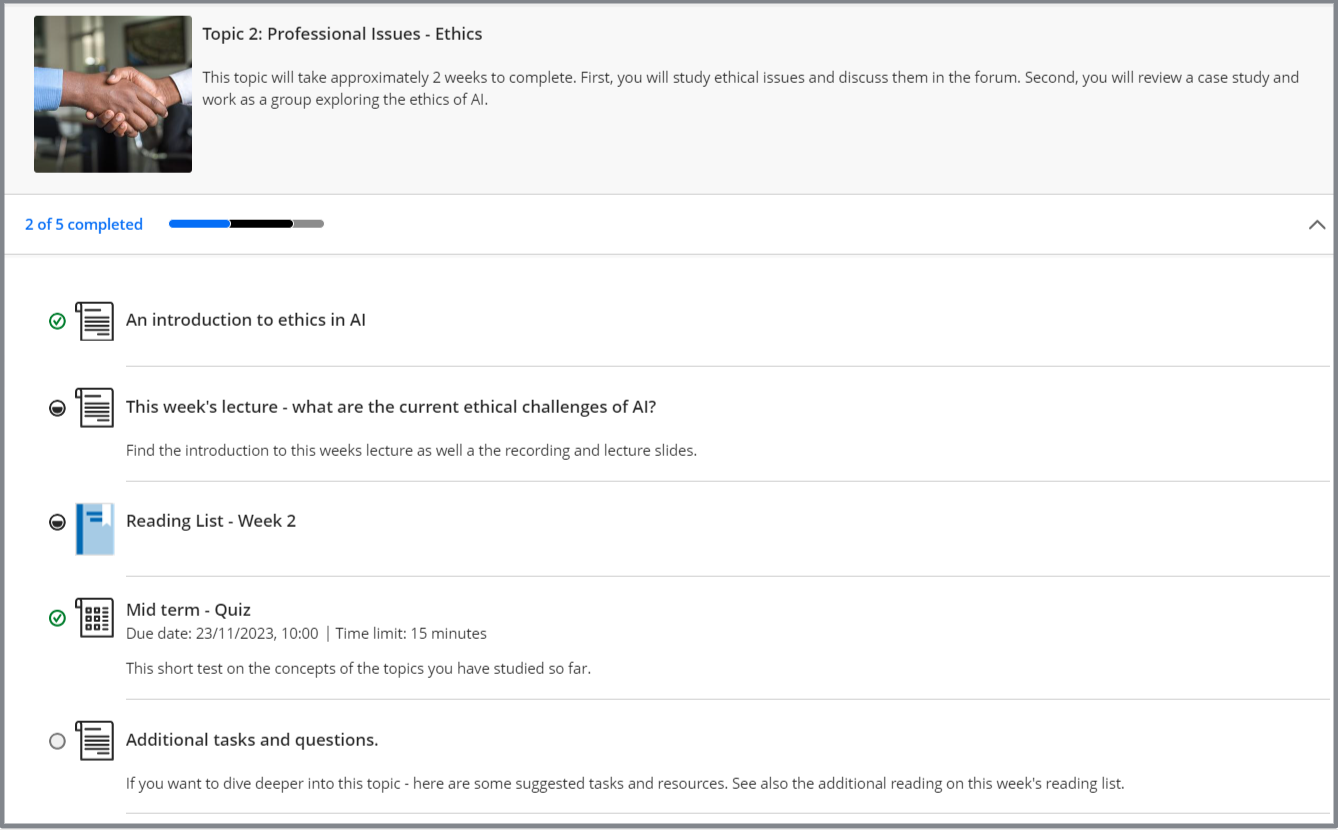
  2. Student View: Students see circle icons next to content; they fill halfway when opened and can be marked complete.
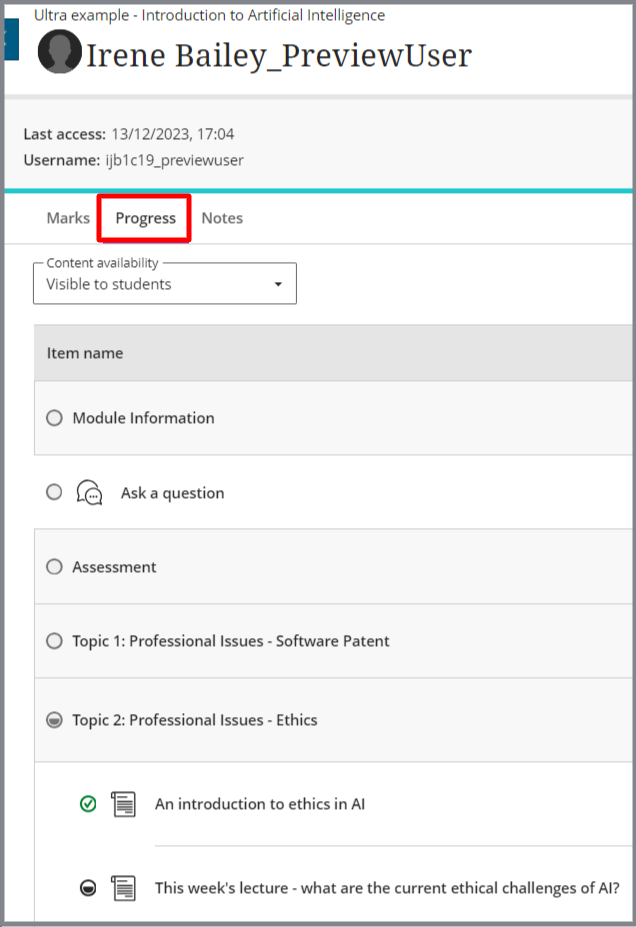
  3. Instructor View (Student Progress Tab): In the Gradebook or Class Register, click a student's name and go to the Progress tab to see timestamps for started/completed items and last access dates. 

Student Activity Report (Assessments)

  1. Access: On an assessment, use the dropdown menu or the Student Activity tab.
  2. Details: See who opened, started, and submitted tests/assignments, plus grade distributions and submission times.
  3. Data: Download data and send messages to students directly from the report. 

How to Identify Struggling Students

  1. Check Analytics: Look for low engagement in the Course Activity Report or points on the scatter plot indicating low activity and grades.
  2. Review Progress: Use the Student Progress tab to see if students are falling behind on content access or specific tasks.

By combining these tools, you get a holistic view of student performance, from engagement with course materials to achievement on assessments. 

Blackboard Ultra – Progress Tracking

Staff Guide: Progress Tracking gives you and your students an easy way to keep track of what they have completed in your module

Additional Resources from Blackboard:
For more information about the Progress Tracking and Student Progress Reports

Progress Tracking is turned off by default, but you can turn it off or on from the Course Settings menu. [view screenshot]
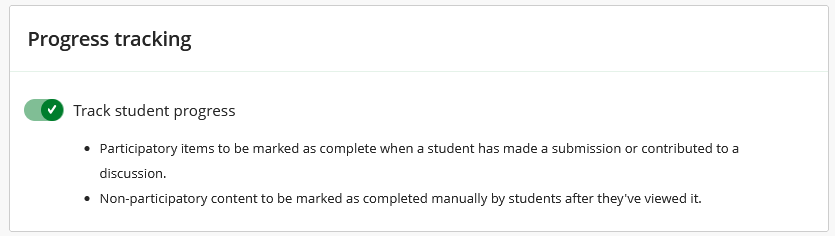
Important: If you turn on Progress Tracking after the beginning of the course, participatory items are retroactively marked as complete. For example, assessments previously submitted by students are marked as complete.

  • Students can check how many tasks they have completed in a Learning Module.
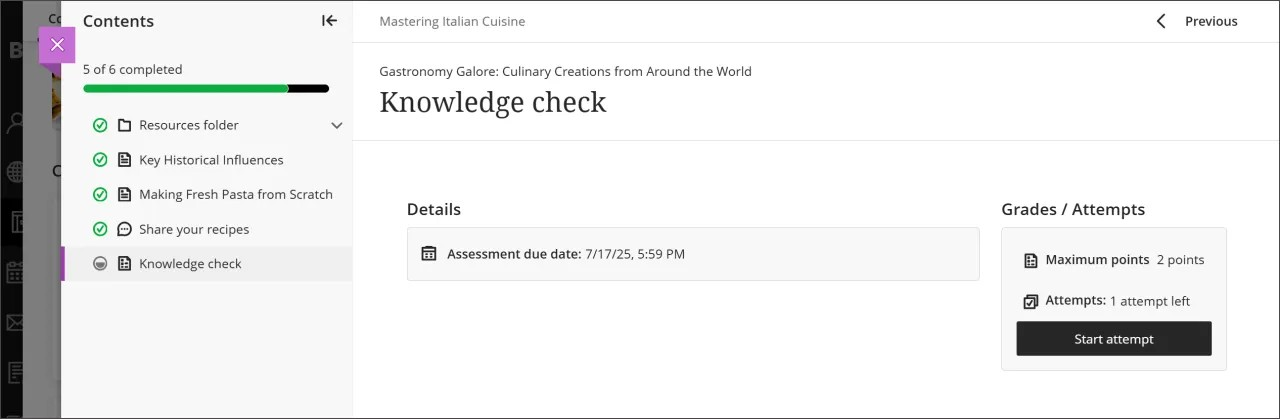
  • When a document, file or link is opened the item is marked as ‘Started’ (half filled circle).
  • Students can then tick these items as ‘Complete’ (green tick).
  • Participatory items such as Assignments, Tests and Discussions are automatically marked as complete when a student submits.
  • When a document or item is opened, progress tracking is visible in a collapsible table of contents panel. [view screenshot] [view screenshot]
Individual student progress
Instructors can check how individual students are progressing through course content.

  • Select a student name in the Class Register or Gradebook.
  • Select the Progress tab.

[view screenshot]

Course content Student Progress report
View how students engage with content and take actions, such as updating content, or messaging students based on their engagement.

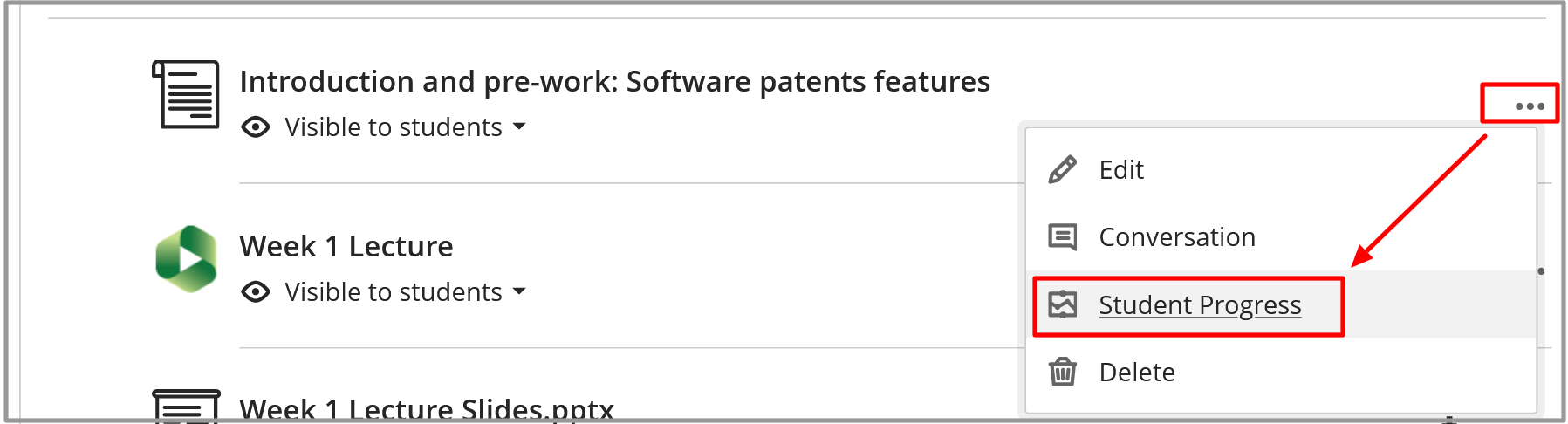
  • Select the three-dot option menu to the right of any content item.
  • Select Student Progress.

[view screenshot]

See this Blackboard Help guide for more information on how to make use of Progress Tracking.

Progress tracking is intended as a tool for students to monitor how they are progressing with content in your module. It is not an assessment tool.

Consider the student view of progress tracking when planning your module content, and ensure that you do not overwhelm students and give them the idea that they need to interact or read every item within a Learning Module if this is not your intention.

  • Consider using Blackboard Documents to add content and add context. Rather than adding lots of links and files to the course page, use a Document to hold these items. Students can mark the Document as complete.
  • Use headings within Documents, or separate Documents or Folders to indicate what material isRequired and what is Additional content.
  • Add additional resources to the weekly section of the module’s Talis Reading List. Reading List items can be flagged as ‘Essential’ or ‘Additional’.
  • Communicate with your students and explain how you expect them to use Progress Tracking. Make sure they can contact you if they have any questions or concerns.

Using Blackboard Ultra's Analytics Tools

Blackboard Analytics is a course level reporting tool that can give instructors key insights into the ways that students use the tools, content, and assessments within a course. The reports provide real time learning statistics, such as logins, minutes spent, and interactions that will help faculty understand trends in student interactions and the relationship between time spent in a course and a students’ grades.

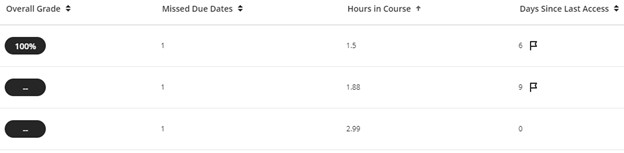
Use the Course Activity report to identify struggling students based on their overall grade, missed due dates, the number of hours they spend in the course, and the number of days since their last access. Use the data to establish a baseline of student performance. This baseline is invaluable as you compare students that are performing well in your course versus those that may be struggling.

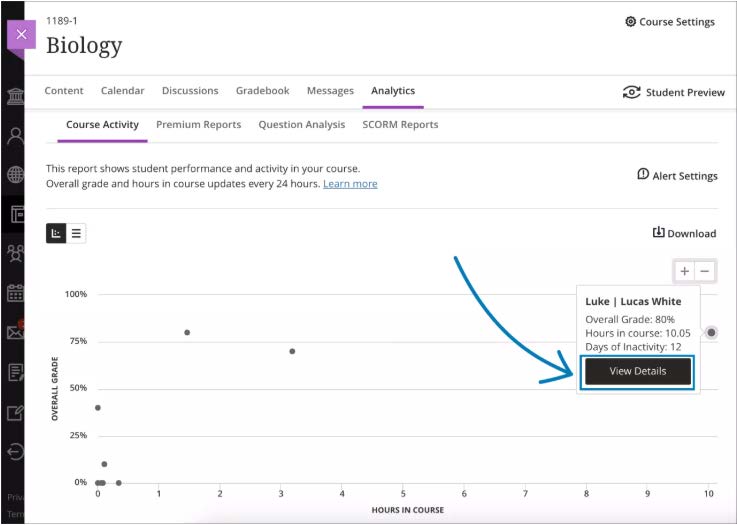
  1. Open your Blackboard course and in the course navigation menu select the Analytics tab. [view screenshot]
  2. Select the list/table view to see a comprehensive, at-a-glance view of every student's engagement and performance in your course.
  3. Click the “Hours in Course” column header to sort the list of students from lowest to highest.  NOTE: The “Overall Grade” needs to be setup in the grade book in order to display a student’s grade/score. [view screenshot]
  4. Click Select the scatter plot to visualize the relationship between student time spent in the course and overall grade. Each dot represents a student: X-axis = time in course (hours or interactions) and Y-axis = current course grade. This can help identify the correlation between engagement and success. Outliers can flag students who may need support.  NOTE: Hover over any dot to see the student's name and detailed engagement data. [view screenshot]

Use a student’s individual activity reports to view their engagement with and progress through your course content. With this data, you can identify and assist those students who may be struggling with the material and who may require additional support or encouragement.

  1. On the Course Activity page select the name of a student from the list/table view.
  2. On the student’s Grades page there are five columns: the item or assessment’s Name, its Due Date, its Status, Grade, and provided Feedback. Each column can be sorted in ascending or descending order, which makes it simple to evaluate whether a student is meeting their due dates and how they’ve performed on individual assignments. [view screenshot]
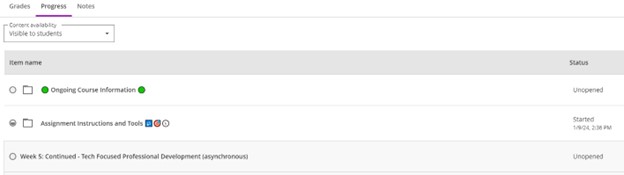
  3. Select the Progress tab on the navigation bar to monitor the student’s progress through all of the content in your course. [view screenshot]

    1. Every content item or assessment will display a circle icon showing the student’s progress. The circle will display one of the following:
      Empty when a student has not yet accessed the item.
    2. Partially filled when a student has opened the item.
    3. Green check mark when the student has completed the item.

    NOTE: Students can mark items like Documents, uploaded files, or links as completed once they have opened them. For any other items like Assessments, Tests, Journals, or Discussions, the item will automatically be marked as complete when the student completes a submission.

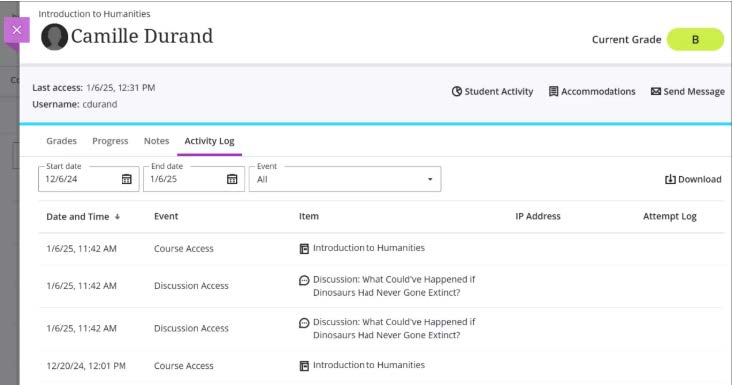
  4. Select the Activity Log tab to view a chronological time line of a student's actions - when they accessed content, participated in discussions, or submitted work. This helps to verify patterns, respond to student questions, or document activity for academic integrity. NOTE: Use the filters to focus on specific items or date ranges.[view screenshot]
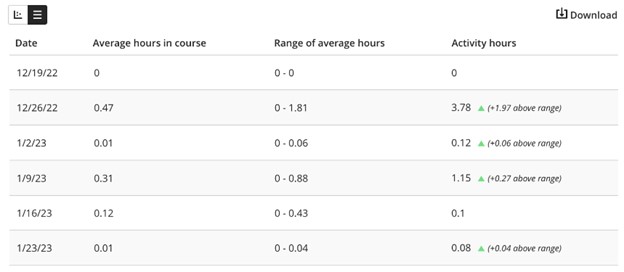
  5. At the top of the page select the Student Activity tab to view the student’s course activity per week (hours in course).
  6. The table view of the Student Activity Details report has four columns: Date, Average hours in course, Range of average hours, and Activity hours. Data is presented in rows organized by week. 

    1. Average hours in course are the average hours in a course spent by all students per week.
    2. Range of average hours are the average hours in a course spent by all students per week.
    3. Activity hours are the hours in a course accumulated by the student per week. Hours in course are counted from the time students select something within the course to when students select something outside the course. 

    NOTE: If a student is logged out from their course session, only the time before their last action within the course is counted. [view screenshot]

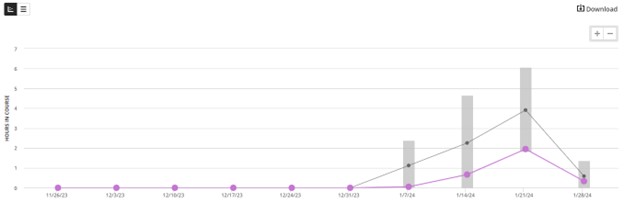
  7. Select the line chart to view a detailed dashboard of a student’s hours in the course per week in comparison to other students in the course. The selected student’s activity displays in purple and average course activity is in gray. [view screenshot]
    1. Select a dot to see exact dates and hours in course for a student or the course average.
    2. Zoom in or out by selecting the + and – icons at the top right. To focus on a specific region, select somewhere on the chart and drag to zoom in.
    3. Combine this with feedback messages or progress tracking to enhance support.
  8. Select the Download button to save any of the reports and visualizations for use either with the student or their advising team.
     

Overall, Learn Ultra Analytics provide instructors with actionable insights that help identify at-risk students, evaluate engagement, and improve course design. By turning data into evidence-based teaching decisions, analytics support timely interventions, targeted feedback, and continuous improvement, that can ultimately foster a more effective and responsive learning environment.

Ed-Tech
  • Accessibility at BCM
  • Teaching and E-Learning Resources
  • Clinical Learning Applications
    • Aquifer
    • Osmosis
    • UpToDate
  • Digital Course Materials
  • Equipment Lending and Rental
  • Exams and Proctoring
    • ExamSoft/Examplify
      • Creating & Posting Exams
      • Creating Questions
      • Disable Operating System Auto-Update
      • Exam Stats & Analysis
      • ExamID & ExamMonitor
      • Releasing Results to Students
      • Reviewing Results
      • Scoring Exams
      • Using iPads with Examplify
    • Respondus
    • SafeAssign
  • Learning Management Systems
    • LMS Troubleshooting Solutions
      • Clearing your web browser's cache
    • Blackboard
      • Blackboard Original Course View
      • Blackboard Ultra Course View
        • Artificial Intelligence (AI) Design Assistant
        • Attendance Tracking
        • Automations
        • Beginning of Semester
        • Blackboard Ally
        • Blackboard Essentials
        • Blackboard Guidelines
        • Blackboard Mobile App
        • Communication
        • Course Content
        • Course Set Up
        • Course Size Limits
        • Discussion Boards
        • Edpuzzle
        • Forms (Formerly Bb Surveys)
        • Gradebook
        • Journals
        • LTI Tool Integration Requests
        • Organizations
        • Portfolios
        • Tests and Assignments
        • Track Student Performance
        • Users and Groups
        • Video Studio
        • Learning Object Repository
    • Comprehensive Academic Management System (CAMS)
    • Leo (DaVinci)
    • MedHub
    • SuccessFactors
    • SimulationiQ
  • Learning Spaces
    • AirMedia
    • Audio Visual Room System Design Services
      • All-in-One Huddle Room
      • Small Conference Room
      • Large Conference Room
  • Lecture Capture
  • Media Steaming
    • vBrick
  • Multimedia Creation Software
    • Adobe Creative Cloud
    • PowerPoint
    • VoiceThread
    • Articulate 360
    • O365
  • Multimedia Services
    • Professional Video Production Services
  • Online Storage
    • Box (for Education)
    • OneDrive
    • SharePoint
  • Polling and Surveys
    • Microsoft Forms
    • Poll Everywhere
    • Qualtrics
    • SmartSheets
    • Survey Monkey
  • Room Reservations
  • Virtual Classrooms
  • Virtual Collaboration
    • Microsoft Teams
  • Other Ed-Tech Apps
  • Ed-Tech News
    • BCM’s Wi-Fi & Auditorium Wired Connection Guide: Initial Connection & Basic Troubleshooting
    • Important ExamSoft: Mandatory Examplify Update - Available Soon (April 15, 2025)
    • Important: ExamSoft and New OS Compatibility
    • MFA is coming to Blackboard
    • New ExamSoft Question Types
    • Poll Everywhere Mac Presenter 4.0.0 is now available
    • SSO is coming to DaVinci Leo
    • SSO is coming to Poll Everywhere
    • SSO is coming to Up-to-Date
    • Transition from Zoom to Microsoft Teams
    • Transitioning to Blackboard Learn Ultra Courses
      • Blackboard Ultra Resources
    • Upcoming Examplify MSR Changes
    • Update: Poll Everywhere Best Practices
    • UptoDate News
    • Voice Thread Visual Redesign 2024
    • Poll Everywhere Visual Redesign 2023

Contact Ed-Tech

Email ed-tech@bcm.edu
get-to-know-houston

America's fourth largest city is a great place to live, work and play. Find out why.
Get to Know Houston

Credit
Visit Houston

Follow Us facebook twitter youtube linkedin instagram rss 

Footer Menu Healthcare

  • Healthcare
    • Specialties
    • MyChart Login
    • For Patients & Visitors
    • For Health Professionals
    • Clinical Trials
    • Find a Physician

Footer Menu Education

  • Education
    • Programs & Admissions
    • Student & Trainee Resources
    • Faculty Resources
    • School of Medicine
    • Graduate School of Biomedical Sciences
    • National School of Tropical Medicine
    • School of Health Professions
    • Tuition & Fees
    • Financial Aid

Footer Menu Research

  • Research
    • Our Research
    • Core Labs
    • Faculty Labs
    • Research Centers
    • Research Offices

Footer Menu Community

  • Community
    • Healthcare Outreach
    • Education Outreach
    • Global Programs
    • Community Events

Footer Menu About

  • About
    • Our Campus
    • Departments
    • Academic Centers
    • Administrative Offices
    • Affiliates
    • Leadership
    • Giving
    • Alumni

Footer Menu Resource Links

  • Resource Links
    • Contact Us
    • Find a Person
    • Careers
    • BCM Team Shop
    • News
    • Title IX Office
    • Compliance
    • Covid Response Site

©1998-2026 Baylor College of Medicine® | 1 Baylor Plaza, Houston, Texas 77030 | 713-798-4951
Have an edit or suggestion for this page?

  • Compliance
  • Privacy
  • Intranet