Home
  • Healthcare
    • Specialties
      • Cardiovascular Care
      • Oncology
      • Neurosurgery
      • Primary Care
      • View All Specialties >
    • For Health Professionals
      • Refer a Patient
      • Clinical Trials
      • Professional Development
      • View All >
    • For Patients & Visitors
      • MyChart Login
      • Accepted Insurance
      • Pay My Bill
      • Patient Information
      • View All >
    • Clinical Trials
      • Autism
      • Cancer
      • Obesity
      • Substance Abuse
      • View All Clinical Trials >
    • Find a Doctor
    • Make an Appointment

    General Inquiries

    Call today to schedule an appointment or fill out an online request form. If requested before 2 p.m. you will receive a response today.

    CALL

    713-798-1000

    Monday – Friday 8 a.m. – 5 p.m.


    ONLINE

    Request Now

    Request non-urgent appointments

    Request an appointment, learn about your rights as a patient, read about what to expect from your appointment, and more.

    As Houston's premier academic medical practice, Baylor Medicine delivers compassionate, innovative, evidence-based care.
    Find a Doctor

  • Education
    • Degree Programs & Admissions
      • M.D. Program
      • Ph.D. Programs
      • DNP Program (Nurse Anesthesia)
      • Genetic Counseling Program
      • P.A. Program
      • Orthotics & Prosthetics Program
      • Baccalaureate/M.D. Programs
      • Dual Degree Programs
      • View All Programs >
    • Financing Your Education
      • Tuition & Fees
      • Financial Aid
      • CARES ACT
    • Schools
      • School of Medicine
      • Graduate School of Biomedical Sciences
      • National School of Tropical Medicine
      • School of Health Professions
    • Advanced Training Programs
      • Residency Programs
      • Clinical Fellowships
      • Postdoctoral Research Positions
      • Continuing Professional Development
      • Diploma in Tropical Medicine
      • View All >
    • Resources
      • Departments
      • Academic Centers
      • Academic Calendars
      • Education Cores
      • View All >
    • Information For...
      • Students
      • Postdoctoral Researchers
      • Faculty
      • Alumni
    get-to-know-houston

    America's fourth-largest city is a great place to live, work, and play. Find out why.
    Get to Know Houston

  • Research
    • Research Offices
      • Advanced Technology Cores
      • Clinical Research
      • Institute for Clinical & Translational Research
      • Office of Research Leadership
      • Research IT
      • Sponsored Programs
    • Research at Baylor
      • Academic Centers
      • Departments
      • Faculty Labs
      • From the Labs
      • News
      • Our Research
      • Research Centers
      • Strategic Research Center
    • Additional Research Services
      • BCM Innovation Institute
      • Service Labs
      • VIICTR
    get-to-know-houston

    America's fourth-largest city is a great place to live, work, and play. Find out why.
    Get to Know Houston

  • Community
    • Healthcare Outreach
      • Community Programs
      • More >
    • Global Outreach
      • Global Health
      • Global Programs >
    • Educational Outreach
      • SMART Program
      • BioEd Online
      • More >
    • General Resources
      • Community Events
      • News
      • Blogs
      • Baylor in the Community
    get-to-know-houston

    America's fourth-largest city is a great place to live, work, and play. Find out why.
    Get to Know Houston

  • About
    • About Us
      • Academic Centers
      • Alumni
      • Careers
      • Departments
      • Giving
      • Leadership
      • Mission, Vision, Values
      • News
      • Our Affiliates
      • Fast Facts
      • Accreditation
    • Offices
      • President's Office
      • Office of Research
      • Ombuds Office
      • BCM Innovation Institute
      • View All >
    • Our Campus
      • Compliance
      • Safety and Security
      • Resource Stewardship & Sustainability
      • Team Shop
      • Find a Person
    get-to-know-houston

    America's fourth-largest city is a great place to live, work, and play. Find out why.
    Get to Know Houston

  • GIVE
  • CAREERS
  • INTRANET
  • Careers
  • Contact Us
  • News
Education
  • Schools
  • Education Programs
  • Academic & Faculty Affairs
  • Tuition & Fees
  • Financial Aid
  • Registrar
  • Academic Resources
  • Office of Accreditation and Education Effectiveness
  • Education Contacts
  • News
  • School of Medicine
  • Graduate School of Biomedical Sciences
  • School of Health Professions
  • National School of Tropical Medicine
  • Cores
  • Schools
  • Education Programs
  • Academic & Faculty Affairs
  • Tuition & Fees
  • Financial Aid
  • Registrar
  • Academic Resources
  • Office of Accreditation and Education Effectiveness
  • Education Contacts
  • News
  • School of Medicine
  • Graduate School of Biomedical Sciences
  • School of Health Professions
  • National School of Tropical Medicine
  • Cores
  1. Baylor College of Medicine
  2. Education
  3. Academic & Faculty Affairs
  4. Faculty Resources
  5. Faculty Ed-Tech
  6. Exams and Proctoring
  7. ExamSoft/Examplify
  8. Using iPads with Examplify
  • Accessibility at BCM
  • Teaching and E-Learning Resources
  • Clinical Learning Applications
    • Aquifer
    • Osmosis
    • UpToDate
  • Digital Course Materials
  • Equipment Lending and Rental
  • Exams and Proctoring
    • ExamSoft/Examplify
      • Creating & Posting Exams
      • Creating Questions
      • Disable Operating System Auto-Update
      • Exam Stats & Analysis
      • ExamID & ExamMonitor
      • Releasing Results to Students
      • Reviewing Results
      • Scoring Exams
      • Using iPads with Examplify
    • Respondus
    • SafeAssign
  • Learning Management Systems
    • LMS Troubleshooting Solutions
      • Clearing your web browser's cache
    • Blackboard
      • Blackboard Original Course View
      • Blackboard Ultra Course View
        • Artificial Intelligence (AI) Design Assistant
        • Attendance Tracking
        • Automations
        • Beginning of Semester
        • Blackboard Ally
          • Blackboard Ally for Instructors
          • Blackboard Ally for Students
        • Blackboard Essentials
        • Blackboard Guidelines
        • Blackboard Mobile App
        • Communication
        • Course Content
          • Types of Course Content
        • Course Set Up
        • Course Size Limits
        • Discussion Boards
        • Edpuzzle
        • Forms (Formerly Bb Surveys)
        • Gradebook
        • Journals
        • LTI Tool Integration Requests
        • Organizations
        • Portfolios
        • Tests and Assignments
          • Assignment Inline Grading
          • Rubrics
          • Item Analysis
          • Anonymous, Delegated and Parallel Grading
          • Importing Test Questions via File to Ultra Course View
        • Track Student Performance
        • Users and Groups
        • Video Studio
        • Learning Object Repository
    • Comprehensive Academic Management System (CAMS)
    • Leo (DaVinci)
    • MedHub
    • SuccessFactors
    • SimulationiQ
  • Learning Spaces
    • AirMedia
    • Audio Visual Room System Design Services
      • All-in-One Huddle Room
      • Small Conference Room
      • Large Conference Room
  • Lecture Capture
  • Media Steaming
    • vBrick
  • Multimedia Creation Software
    • Adobe Creative Cloud
    • PowerPoint
    • VoiceThread
    • Articulate 360
    • O365
  • Multimedia Services
    • Professional Video Production Services
  • Online Storage
    • Box (for Education)
    • OneDrive
    • SharePoint
  • Polling and Surveys
    • Microsoft Forms
    • Poll Everywhere
    • Qualtrics
    • SmartSheets
    • Survey Monkey
  • Room Reservations
  • Virtual Classrooms
  • Virtual Collaboration
    • Microsoft Teams
  • Other Ed-Tech Apps
  • Ed-Tech News
    • BCM’s Wi-Fi & Auditorium Wired Connection Guide: Initial Connection & Basic Troubleshooting
    • Important ExamSoft: Mandatory Examplify Update - Available Soon (April 15, 2025)
    • Important: ExamSoft and New OS Compatibility
    • MFA is coming to Blackboard
    • New ExamSoft Question Types
    • Poll Everywhere Mac Presenter 4.0.0 is now available
    • SSO is coming to DaVinci Leo
    • SSO is coming to Poll Everywhere
    • SSO is coming to Up-to-Date
    • Transition from Zoom to Microsoft Teams
    • Transitioning to Blackboard Learn Ultra Courses
      • Blackboard Ultra Resources
    • Upcoming Examplify MSR Changes
    • Update: Poll Everywhere Best Practices
    • UptoDate News
    • Voice Thread Visual Redesign 2024
    • Poll Everywhere Visual Redesign 2023

Using iPads with Examplify

ExamSoft is a secure testing tool that allows students to take tests from an iPad while preventing them from accessing the Internet or other programs on their computer. Students download exams before class and will only need a password from the instructor/proctor on exam day to get started. Students use the Examplify Application to take the exam securely.

Examplify (Examsoft)

Examplify is an assessment program that enables exam takers to securely take examinations downloaded to their own iPad devices by blocking access to files, programs, and the Internet during an exam.

Overview

Students are required to download the Examplify software. Using this app, students will be able to download exams to take on exam day. Students will be required to download the exam prior to coming to class on the day of the exam.  Internet access is required to download and upload tests.

Download Examplify for the iPad

Examplify for iPad: Release Notes Overview

  • Hardware Requirements: iPad 5+, iPad Air 3+, iPad Mini 5+, iPad Pro.
  • Operating Systems: iPadOS 16, iPadOS 17 and iPadOS 18 (Only officially approved Apple versions of iPadOS are supported).
  • 500 MB of free space required to commence an exam.
  • iPad must not be modified (e.g. Jailbroken).
  • Internet connection for download, registration, exam download and upload.
  • In order to take an exam using an iPad, your institution must first enable iPad support. Please contact your institution if you are unsure whether they have enabled iPad support.

The following requirements apply for exams with ExamID or ExamMonitor enabled:

  • Supported version of Examplify
  • Hard drive: 2GB or higher available space
  • Internet: 2.5 Mbps upload speed

Click here for a printable Troubleshooting Guide (pdf).


Before the Assessment
IssueError TypeResolution
Exam-taker says that they can't see where to start the exam.User error – exam-takerAsk what the exam-taker is seeing on the screen. Possibly the exam-taker has logged into the web-based portal rather than launching Examplify. 
Exam-taker says that the exam password does not work.User error – exam-taker
  • The exam-taker is most likely entering the exam password incorrectly. Remind the exam-taker that the password is case-sensitive.
  • Ensure that the exam-taker has selected the correct assessment.
Exam-taker opens Examplify but does not see an exam available.Assessment Building/ Posting
  • Check the post settings to ensure that the download window is open. Adjust the time if necessary.
  • If you change the download window, advice the exam-taker to select Refresh Exam List within Examplify to see the latest information.
Student didn’t download exam on time and now download window is closedAssessment Building/ Posting

Report this to instructor; then, go in to the Post Settings page and change the download end time to the current time + 5 minutes, to give them extra time to download.

More information on Posting Exams.

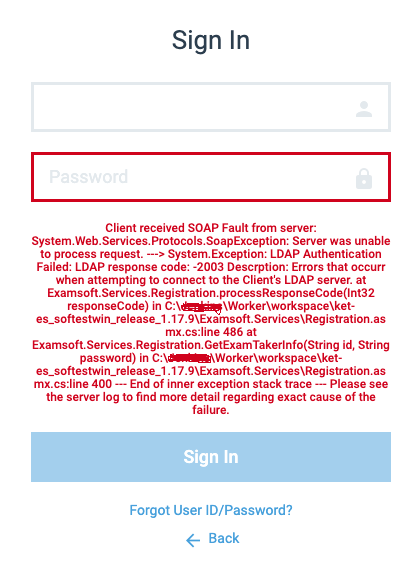
ERROR Message: Client received SOAP Fault from serverUser error – admin

[view screenshot] There are three steps to resolve this issue:

  1. Confirm with Ed-Tech that the student's ECA is correct in ExamSoft and that the account is active. If the ECA is wrong, a new account will need to be created.
  2. ExamSoft uses LDAP authentication. Just like SSO (Single Sign-On), If users type their password wrong more than 3 times, they'll get locked out. The only way to resolve this is for the user to call the BCM Help Desk (713-798-8737) or log into the Password Manager and push through all the unlocks for the account.
  3. If still unable to log in, ask the BCM Help Desk to re-synch your password to all the systems.
  4. If the Help Desk is able to re-sync the password, but doesn't resolve the issue, the next step would be for the user to change their password (https://bcm.edu/myaccount). Note that this will take some time for the password to replicate to all the systems (about 15 to 20 minutes).

NOTE: The ExamSoft Admin nor ExamSoft Support have the ability to unlock or reset BCM Computer Accounts.

During the Assessment
IssueError TypeResolution
Exam-taker does not see an image attachment referenced in the question stem.User error – adminThe exam-maker might have forgotten to add the picture. Review the assessment to ensure that the image was added as either an in-line image or attachment.
Exam-taker experiences a freeze during the assessment.Examplify – technical
  • Advise the exam-taker to hard reboot the device (turn it off and on manually) and re-start Examplify.
  • If it's a mock exam, provide an additional download to test the device again.
    If the mid-exam freeze continues, advise the exam-taker to call ExamSoft Support at 866-429-8889, ext. 1
Exam-taker receives an orange screen with a message about a continuation code, challenge key, or resume code.Examplify – technical
  1. Ask the exam-taker for the code that is displayed on the screen.
  2. Log in to your ExamSoft Portal, navigate to the Proctoring tab, and then enter the code in the Continuation Code field. Select Submit.
  3. Provide the code (on your screen) to the exam-taker, who can now enter it on the Examplify screen to continue the exam.
After the Assessment
Issue Error TypeResolution
Exam-taker cannot upload assessment.Examplify – technical
  • Instruct the exam-taker to reboot the device.
  • Ask the exam-taker to check the network settings to ensure that the device is connected to the internet. If the network signal is weak, the exam-taker might need to briefly connect to a hotspot.
  • In some cases, a manual upload may be  necessary. This may be completed by the exam-taker, or the exam-taker may call ExamSoft support for assistance at 866-429-8889, ext. 1
    • If this is a lab environment, a manual upload may be done on a computer in the lab with iTunes installed.
Student didn’t receive the completion Green ScreenExamplify – technical
  • Confirm on the ExamSoft website that the exam was submitted.
    • Open the Exam
    • Click on the Exam Taker Activity Tab
    • A completed/submitted exam file will show up under the File Name column
  • Sometimes, network connections take longer to connect the internet. Double check the laptop is connected to the internet.
  • If not, try to launch Examplify again and follow directions.
  • Restart the computer if exam wasn’t sent. 

More information about Confirming an Answer File Upload.

What to do if student needs to submit a 2nd exam attemptExamplify – technical

ExamSoft only allows one exam file submission at a time.  If a student has been approved to submit a second exam file, the first exam file must be deleted.  Only the Admin can delete exam files. 

Follow these steps:

  1. Contact the ExamSoft admin and/or Ed-Tech to have the exam file deleted.
  2. Confirm the file deletion
  3. Student can now submit the second exam attempt
  4. If the student submitted the 2nd attempt before the first exam was deleted, the student must manually submit their exam file by connecting the iPad to a computer.  Instructions for how to complete manual upload are available.  
  5. Confirm 2nd exam attempt in the portal.
  6. Contact Ed-Tech with any issues.

 View instructions on how to complete a manual exam file upload.

Important 
When manually uploading an exam file, the student must use the same iPad that was used to complete the exam.

How to manually submit exam files for studentsExamplify – technical

Steps to manually upload exam files.

  1. Connect iPads to a computer with iTunes
  2. Locate and save the exam files to the desktop
  3. Upload the files through wetransfer.com 

For more information and detailed instructions view the PDF

Student Instructions:

  1. Launch Examplify.
  2. When prompted, enter the Institution Code: Baylor College of Medicine. The student must be connected to the internet in order to select Baylor College of Medicine from the drop-down menu.
  3. Log in using your BCM username and password. NOTE: contact the BCM Help Desk (713) 798-8737 for password issues.
  4. Once you are successfully logged in, open up Examplify to view any assessments available for download.

Setting up Examplify for iPad to work within a lab environment allows exam-takers to share the same device for test taking. Every time an exam is uploaded, the app will prompt the user to authenticate again.

Setup an iPad Lab

This article helps you to know what to expect when taking an exam with Examplify for iPad.

  • Download and Install Examplify
  • Prepare to take an exam
  • Use a Bluetooth Keyboard During an Assessment
  • Exam-Taking Features and Options

This article helps you to know what to expect when using Examplify for iPad and taking an assessment with ExamID and/or ExamMonitor. Your assessment might include one or both of them.

Examplify for iPad: Prepare to Take an Exam with ExamID and ExamMonitor

Exam Details
After the exam downloads, look through the Exam Settings and Exam Details. Note the time limit, the available features, and any security restrictions.

Exam Login
At the scheduled time for this exam, you can enter your Exam Password (as provided by your instructor). Follow the on-screen prompts to continue. 

Secure Exams: Airplane Mode and App Self-Lock

  • If you are taking a secure exam, you'll see prompts about special settings.
    • Airplane Mode: You'll be prompted to put your device into Airplane Mode, which disables your Wi-Fi connection as required for the secure exam.
    • App Self-Lock: You'll be prompted to confirm that your device is in Single App Mode, as required for the secure exam. You'll need to select Yes to continue.

After Login

  • If you are prompted to close Microsoft applications: We recommend that you go to each application to save any work in progress, and then exit the application. The return to Examplify and reselect Start Exam.  
  • If you are prompted to wait before you begin: Be aware that all activity will be logged, and it is important that you meet the requirements for this exam.
    In an on-site exam, follow the instructions from the on-site proctor.
    In a remote exam, follow any instructions that you received from your instructor or exam manager about when to begin the exam.
    When ready, select the Continue button. Then select the check box and select Start Exam. 

After the Exam
To submit your exam:

  • To submit your exam:
  • If you reach the final question and the Next button changes to the Submit button: Select the Submit button.
  • If you decide to submit the exam before you complete the final question: Near the top right corner of the screen, select Exam Controls, and then select Submit Exam.
  • Confirm that you are ready to exit. (If you need to return to your exam, select Go Back.)
  • Select Submit Exam or Submit & Exit to close your exam. 

Note: If you are taking a secure exam, you'll be prompted to turn off Airplane Mode and reconnect to Wi-Fi. After following the on-screen instructions, you'll be able to select Next to upload your assessment.

For more information go to Prepare to Take an Exam

Install the Software Before Exam Day

  • Set up early! Do not wait until exam day to download and install Examplify.
  • Verify that your device meets the minimum requirements.
  • Download, install, and register Examplify/Examplify for iPad.

Learn, Prepare, and Practice

  • Exam Basics: Learn what to expect when taking an exam in Examplify.
    • Examplify for iPad: Take an Exam
  • Emails: Watch for email notifications to download exams
  • Exam Downloads: Download all exams as soon as they are available. Don't wait until exam day!
  • On-Site Exams:
    • If you are taking an on-site exam, arrive at least 15 minutes early.
    • If it's a bring-your-own-device situation, charge your iPad, and bring your power cord.

Taking an Exam

  • Log in using your BCM username and password (if you have issues, call the BCM Help Desk at 713-798-8737)
  • If you are taking a secure exam, you'll see prompts about special settings.
    • Airplane Mode: You'll be prompted to put your device into Airplane Mode, which disables your Wi-Fi connection as required for the secure exam.
    • App Self-Lock: You'll be prompted to confirm that your device is in Single App Mode, as required for the secure exam. You'll need to select Yes to continue.

After an Exam

  • LAB Environment
    • Once the assessment is submitted, log out of Examplify.
Ed-Tech
  • Accessibility at BCM
  • Teaching and E-Learning Resources
  • Clinical Learning Applications
    • Aquifer
    • Osmosis
    • UpToDate
  • Digital Course Materials
  • Equipment Lending and Rental
  • Exams and Proctoring
    • ExamSoft/Examplify
      • Creating & Posting Exams
      • Creating Questions
      • Disable Operating System Auto-Update
      • Exam Stats & Analysis
      • ExamID & ExamMonitor
      • Releasing Results to Students
      • Reviewing Results
      • Scoring Exams
      • Using iPads with Examplify
    • Respondus
    • SafeAssign
  • Learning Management Systems
    • LMS Troubleshooting Solutions
      • Clearing your web browser's cache
    • Blackboard
      • Blackboard Original Course View
      • Blackboard Ultra Course View
        • Artificial Intelligence (AI) Design Assistant
        • Attendance Tracking
        • Automations
        • Beginning of Semester
        • Blackboard Ally
          • Blackboard Ally for Instructors
          • Blackboard Ally for Students
        • Blackboard Essentials
        • Blackboard Guidelines
        • Blackboard Mobile App
        • Communication
        • Course Content
          • Types of Course Content
        • Course Set Up
        • Course Size Limits
        • Discussion Boards
        • Edpuzzle
        • Forms (Formerly Bb Surveys)
        • Gradebook
        • Journals
        • LTI Tool Integration Requests
        • Organizations
        • Portfolios
        • Tests and Assignments
          • Assignment Inline Grading
          • Rubrics
          • Item Analysis
          • Anonymous, Delegated and Parallel Grading
          • Importing Test Questions via File to Ultra Course View
        • Track Student Performance
        • Users and Groups
        • Video Studio
        • Learning Object Repository
    • Comprehensive Academic Management System (CAMS)
    • Leo (DaVinci)
    • MedHub
    • SuccessFactors
    • SimulationiQ
  • Learning Spaces
    • AirMedia
    • Audio Visual Room System Design Services
      • All-in-One Huddle Room
      • Small Conference Room
      • Large Conference Room
  • Lecture Capture
  • Media Steaming
    • vBrick
  • Multimedia Creation Software
    • Adobe Creative Cloud
    • PowerPoint
    • VoiceThread
    • Articulate 360
    • O365
  • Multimedia Services
    • Professional Video Production Services
  • Online Storage
    • Box (for Education)
    • OneDrive
    • SharePoint
  • Polling and Surveys
    • Microsoft Forms
    • Poll Everywhere
    • Qualtrics
    • SmartSheets
    • Survey Monkey
  • Room Reservations
  • Virtual Classrooms
  • Virtual Collaboration
    • Microsoft Teams
  • Other Ed-Tech Apps
  • Ed-Tech News
    • BCM’s Wi-Fi & Auditorium Wired Connection Guide: Initial Connection & Basic Troubleshooting
    • Important ExamSoft: Mandatory Examplify Update - Available Soon (April 15, 2025)
    • Important: ExamSoft and New OS Compatibility
    • MFA is coming to Blackboard
    • New ExamSoft Question Types
    • Poll Everywhere Mac Presenter 4.0.0 is now available
    • SSO is coming to DaVinci Leo
    • SSO is coming to Poll Everywhere
    • SSO is coming to Up-to-Date
    • Transition from Zoom to Microsoft Teams
    • Transitioning to Blackboard Learn Ultra Courses
      • Blackboard Ultra Resources
    • Upcoming Examplify MSR Changes
    • Update: Poll Everywhere Best Practices
    • UptoDate News
    • Voice Thread Visual Redesign 2024
    • Poll Everywhere Visual Redesign 2023

Contact Ed-Tech

Email ed-tech@bcm.edu
get-to-know-houston

America's fourth largest city is a great place to live, work and play. Find out why.
Get to Know Houston

Credit
Visit Houston

Follow Us facebook twitter youtube linkedin instagram rss 

Footer Menu Healthcare

  • Healthcare
    • Specialties
    • MyChart Login
    • For Patients & Visitors
    • For Health Professionals
    • Clinical Trials
    • Find a Physician

Footer Menu Education

  • Education
    • Programs & Admissions
    • Student & Trainee Resources
    • Faculty Resources
    • School of Medicine
    • Graduate School of Biomedical Sciences
    • National School of Tropical Medicine
    • School of Health Professions
    • Tuition & Fees
    • Financial Aid

Footer Menu Research

  • Research
    • Our Research
    • Core Labs
    • Faculty Labs
    • Research Centers
    • Research Offices

Footer Menu Community

  • Community
    • Healthcare Outreach
    • Education Outreach
    • Global Programs
    • Community Events

Footer Menu About

  • About
    • Our Campus
    • Departments
    • Academic Centers
    • Administrative Offices
    • Affiliates
    • Leadership
    • Giving
    • Alumni

Footer Menu Resource Links

  • Resource Links
    • Contact Us
    • Find a Person
    • Careers
    • BCM Team Shop
    • News
    • Title IX Office
    • Compliance
    • Covid Response Site

©1998-2026 Baylor College of Medicine® | 1 Baylor Plaza, Houston, Texas 77030 | 713-798-4951
Have an edit or suggestion for this page?

  • Compliance
  • Privacy
  • Intranet