Home
  • Healthcare
    • Specialties
      • Cardiovascular Care
      • Oncology
      • Neurosurgery
      • Primary Care
      • View All Specialties >
    • For Health Professionals
      • Refer a Patient
      • Clinical Trials
      • Professional Development
      • View All >
    • For Patients & Visitors
      • MyChart Login
      • Accepted Insurance
      • Pay My Bill
      • Patient Information
      • View All >
    • Clinical Trials
      • Autism
      • Cancer
      • Obesity
      • Substance Abuse
      • View All Clinical Trials >
    • Find a Doctor
    • Make an Appointment

    General Inquiries

    Call today to schedule an appointment or fill out an online request form. If requested before 2 p.m. you will receive a response today.

    CALL

    713-798-1000

    Monday – Friday 8 a.m. – 5 p.m.


    ONLINE

    Request Now

    Request non-urgent appointments

    Request an appointment, learn about your rights as a patient, read about what to expect from your appointment, and more.

    As Houston's premier academic medical practice, Baylor Medicine delivers compassionate, innovative, evidence-based care.
    Find a Doctor

  • Education
    • Degree Programs & Admissions
      • M.D. Program
      • Ph.D. Programs
      • DNP Program (Nurse Anesthesia)
      • Genetic Counseling Program
      • P.A. Program
      • Orthotics & Prosthetics Program
      • Baccalaureate/M.D. Programs
      • Dual Degree Programs
      • View All Programs >
    • Financing Your Education
      • Tuition & Fees
      • Financial Aid
      • CARES ACT
    • Schools
      • School of Medicine
      • Graduate School of Biomedical Sciences
      • National School of Tropical Medicine
      • School of Health Professions
    • Advanced Training Programs
      • Residency Programs
      • Clinical Fellowships
      • Postdoctoral Research Positions
      • Continuing Professional Development
      • Diploma in Tropical Medicine
      • View All >
    • Resources
      • Departments
      • Academic Centers
      • Academic Calendars
      • Education Cores
      • View All >
    • Information For...
      • Students
      • Postdoctoral Researchers
      • Faculty
      • Alumni
    get-to-know-houston

    America's fourth-largest city is a great place to live, work, and play. Find out why.
    Get to Know Houston

  • Research
    • Research Offices
      • Advanced Technology Cores
      • Clinical Research
      • Institute for Clinical & Translational Research
      • Office of Research Leadership
      • Research IT
      • Sponsored Programs
    • Research at Baylor
      • Academic Centers
      • Departments
      • Faculty Labs
      • From the Labs
      • News
      • Our Research
      • Research Centers
      • Strategic Research Center
    • Additional Research Services
      • BCM Innovation Institute
      • Service Labs
      • VIICTR
    get-to-know-houston

    America's fourth-largest city is a great place to live, work, and play. Find out why.
    Get to Know Houston

  • Community
    • Healthcare Outreach
      • Community Programs
      • More >
    • Global Outreach
      • Global Health
      • Global Programs >
    • Educational Outreach
      • SMART Program
      • BioEd Online
      • More >
    • General Resources
      • Community Events
      • News
      • Blogs
      • Baylor in the Community
    get-to-know-houston

    America's fourth-largest city is a great place to live, work, and play. Find out why.
    Get to Know Houston

  • About
    • About Us
      • Academic Centers
      • Alumni
      • Careers
      • Departments
      • Giving
      • Leadership
      • Mission, Vision, Values
      • News
      • Our Affiliates
      • Fast Facts
      • Accreditation
    • Offices
      • President's Office
      • Office of Research
      • Ombuds Office
      • BCM Innovation Institute
      • View All >
    • Our Campus
      • Compliance
      • Safety and Security
      • Resource Stewardship & Sustainability
      • Team Shop
      • Find a Person
    get-to-know-houston

    America's fourth-largest city is a great place to live, work, and play. Find out why.
    Get to Know Houston

  • GIVE
  • CAREERS
  • INTRANET
  • Careers
  • Contact Us
  • News
Education
  • Schools
  • Education Programs
  • Academic & Faculty Affairs
  • Tuition & Fees
  • Financial Aid
  • Registrar
  • Academic Resources
  • Office of Accreditation and Education Effectiveness
  • Education Contacts
  • News
  • School of Medicine
  • Graduate School of Biomedical Sciences
  • School of Health Professions
  • National School of Tropical Medicine
  • Cores
  • Schools
  • Education Programs
  • Academic & Faculty Affairs
  • Tuition & Fees
  • Financial Aid
  • Registrar
  • Academic Resources
  • Office of Accreditation and Education Effectiveness
  • Education Contacts
  • News
  • School of Medicine
  • Graduate School of Biomedical Sciences
  • School of Health Professions
  • National School of Tropical Medicine
  • Cores
  1. Baylor College of Medicine
  2. Education
  3. Academic & Faculty Affairs
  4. Faculty Resources
  5. Faculty Ed-Tech
  6. Exams and Proctoring
  7. ExamSoft/Examplify
  8. Creating Questions
  • Accessibility at BCM
  • Teaching and E-Learning Resources
  • Clinical Learning Applications
    • Aquifer
    • Osmosis
    • UpToDate
  • Digital Course Materials
  • Equipment Lending and Rental
  • Exams and Proctoring
    • ExamSoft/Examplify
      • Creating & Posting Exams
      • Creating Questions
      • Disable Operating System Auto-Update
      • Exam Stats & Analysis
      • ExamID & ExamMonitor
      • Releasing Results to Students
      • Reviewing Results
      • Scoring Exams
      • Using iPads with Examplify
    • Respondus
    • SafeAssign
  • Learning Management Systems
    • LMS Troubleshooting Solutions
      • Clearing your web browser's cache
    • Blackboard
      • Blackboard Original Course View
      • Blackboard Ultra Course View
        • Artificial Intelligence (AI) Design Assistant
        • Attendance Tracking
        • Automations
        • Beginning of Semester
        • Blackboard Ally
        • Blackboard Essentials
        • Blackboard Guidelines
        • Blackboard Mobile App
        • Communication
        • Course Content
        • Course Set Up
        • Course Size Limits
        • Discussion Boards
        • Edpuzzle
        • Forms (Formerly Bb Surveys)
        • Gradebook
        • Journals
        • LTI Tool Integration Requests
        • Organizations
        • Portfolios
        • Tests and Assignments
        • Track Student Performance
        • Users and Groups
        • Video Studio
        • Learning Object Repository
    • Comprehensive Academic Management System (CAMS)
    • Leo (DaVinci)
    • MedHub
    • SuccessFactors
    • SimulationiQ
  • Learning Spaces
    • AirMedia
    • Audio Visual Room System Design Services
      • All-in-One Huddle Room
      • Small Conference Room
      • Large Conference Room
  • Lecture Capture
  • Media Steaming
    • vBrick
  • Multimedia Creation Software
    • Adobe Creative Cloud
    • PowerPoint
    • VoiceThread
    • Articulate 360
    • O365
  • Multimedia Services
    • Professional Video Production Services
  • Online Storage
    • Box (for Education)
    • OneDrive
    • SharePoint
  • Polling and Surveys
    • Microsoft Forms
    • Poll Everywhere
    • Qualtrics
    • SmartSheets
    • Survey Monkey
  • Room Reservations
  • Virtual Classrooms
  • Virtual Collaboration
    • Microsoft Teams
  • Other Ed-Tech Apps
  • Ed-Tech News
    • BCM’s Wi-Fi & Auditorium Wired Connection Guide: Initial Connection & Basic Troubleshooting
    • Important ExamSoft: Mandatory Examplify Update - Available Soon (April 15, 2025)
    • Important: ExamSoft and New OS Compatibility
    • MFA is coming to Blackboard
    • New ExamSoft Question Types
    • Poll Everywhere Mac Presenter 4.0.0 is now available
    • SSO is coming to DaVinci Leo
    • SSO is coming to Poll Everywhere
    • SSO is coming to Up-to-Date
    • Transition from Zoom to Microsoft Teams
    • Transitioning to Blackboard Learn Ultra Courses
      • Blackboard Ultra Resources
    • Upcoming Examplify MSR Changes
    • Update: Poll Everywhere Best Practices
    • UptoDate News
    • Voice Thread Visual Redesign 2024
    • Poll Everywhere Visual Redesign 2023

Creating ExamSoft/Examplify Questions

Question Types

A patient box (also called a vignette) is a common feature of questions on certain licensure exams. It provides a patient history and might include an image such as a photo or an x-ray. The exam-taker is required to evaluate the patient information to respond to the question.

For more information about the Patient Box Question type.

Note: For an overview of the question-creation process and the various options that are available when you create or edit questions, see: Legacy Portal: Basic Steps to Create Questions.

Bowtie items address all six steps of the Clinical Judgment Measurement Model at one time. The exam-taker reads a scenario, recognizes cues, analyzes cues, and generates solutions. Then, the exam-taker completes the bowtie layout to determine the most likely condition that the client in the scenario is experiencing (Generate Hypotheses), the appropriate actions to take (Take Action), and the parameters to monitor (Evaluate Outcomes). 

For more information about the Bowtie Question type.

Note: For an overview of the question-creation process and the various options that are available when you create or edit questions, see: Legacy Portal: Basic Steps to Create Questions.

For more information about the Case Study type.

Note: For an overview of the question-creation process and the various options that are available when you create or edit questions, see: Legacy Portal: Basic Steps to Create Questions.

The link below helps you to create Drag-and-Drop questions. For example, your question might include a list of possible actions to take when a patient complains of chest pain. The exam-takers would answer the question by dragging statements from the Possible Answers box to the Correct Answers box.

For more information about the Drag-and-Drop Question type.

Note: For an overview of the question-creation process and the various options that are available when you create or edit questions, see: Legacy Portal: Basic Steps to Create Questions.

To add image, table, or formula within the question or in an answer choice: Use the buttons in the formatting toolbar at the top of the text box. For help with the WIRIS formula editor, see: WIRIS Equation and Formulae Editor.

  • Under Options on the left side of the page, you will find the following options:
    • Weight - Indicate the default point value for the question.
    • Character Limit - Enter a value, and the students will not be able to exceed this number of characters when answering.
    • Enable Question Tools - You can check Graphing Calculator, Scientific Calculator, or Spreadsheet to enable any of these tools for the question.

Note: For an overview of the question-creation process and the various options that are available when you create or edit questions, see: Legacy Portal: Basic Steps to Create Questions.

The exam-taker supplies the missing word(s) in a passage of text by typing or by selecting an option from a drop-down list.

Note: For an overview of the question-creation process and the various options that are available when you create or edit questions, see: Legacy Portal: Basic Steps to Create Questions.

This allows exam-takers to answer questions by highlighting text presented typically in combination with a Case Study. 

Note: For an overview of the question-creation process and the various options that are available when you create or edit questions, see: Legacy Portal: Tips for Highlight Text Questions.

The link below helps you to create Hot Spot questions. For example, this type of question might ask the exam-taker to identify a country on a map or a bone in an X-ray. You'll add an image and define the area that represents the correct answer to the question.

For more information about the Hot Spot Question type.

Note: For an overview of the question-creation process and the various options that are available when you create or edit questions, see: Legacy Portal: Basic Steps to Create Questions.

A common feature of many assessments is a matching question, in which the exam-takers are presented with two lists of related items and must decide how to pair them up.

The "Procedure" section in the link below will guide you through the process of creating this question type.

For more information about the Matching Question type.

Note: For an overview of the question-creation process and the various options that are available when you create or edit questions, see: Legacy Portal: Basic Steps to Create Questions.

The Matrix/Grid format includes two types of items; single response, and multiple response.

The single response answer options are presented in a table format and each row has a single correct answer.

The multiple response format allows each column in the table to be an independent answer where the user can select one, many, or all the available answers.

For example, a selection of symptoms can be presented and exam takers are expected to identify sets of symptoms for a particular disease. The Matrix item gives the opportunity to test multiple aspects of a clinical situation in a single question.

In ExamSoft, you can use the Matrix question type to create these items.  

Note: These questions are typically used for nursing specific exams.

For more information about the Matrix Question type.

Note: For an overview of the question-creation process and the various options that are available when you create or edit questions, see: Legacy Portal: Basic Steps to Create Questions.

The exam-taker selects the answer(s) from a list of possible answers.

Note: For an overview of the question-creation process and the various options that are available when you create or edit questions, see: Legacy Portal: Basic Steps to Create Questions.

For more information about the Ordering Question type.

Note: For an overview of the question-creation process and the various options that are available when you create or edit questions, see: Legacy Portal: Basic Steps to Create Questions.

The exam-taker answers the question by selecting either True or False.

Note: For an overview of the question-creation process and the various options that are available when you create or edit questions, see: Legacy Portal: Basic Steps to Create Questions.

Procedure

Use the link below to get an overview of the question creation process and the options that you can enable. 

More information about the Steps to Create and Edit Questions.

Quick Guide: Create Questions.

When you are creating or editing a question, you can enable Question Tools.

Tool Descriptions and Exam-Taker Options

  • Spreadsheet
  • Graphing Calculator
  • Scientific Calculator

For more information about Question Tools.

As an alternative to creating questions in ExamSoft, you can import questions from an RTF file. This might be a file that you exported from a Learning Management System or that you created in Word and saved as RTF. Optionally, you can set up this file so that the imported questions will be tagged with categories and saved into folders.

Important: To ensure that the questions are imported successfully, make sure that your RTF file meets the requirements described in the link below.

For more information about how to Prepare an RTF Question File to Import Questions.

ExamSoft includes the WIRIS/Math Type formula editor. Using this editor, you can create formulas and equations for any kind of content: mathematics, physics, and the sciences.

For more information about the Formula Editor.

How to duplicate a question

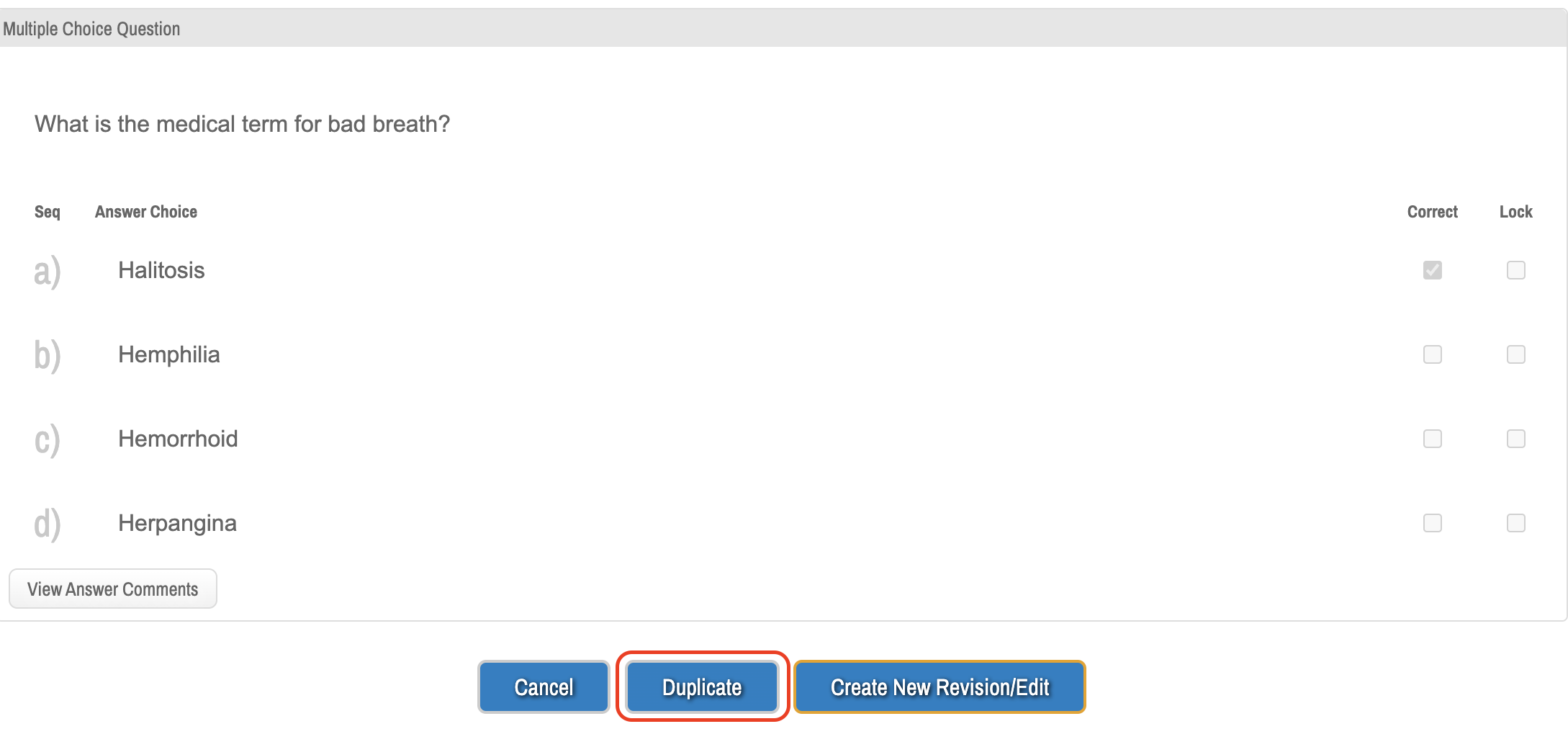
  • Click to open an existing question
  • Click on Duplicate [view screenshot]
  • Then edit Title, Folder, and Group if necessary, Click Save
When to Duplicate an Item:

  • Remediation Exams – to analyze how Exam Takers performed during a make-up session.
  • Collaborative Item Creation – EMs can retain their own copy of an item question to compare how
    their Exam Takers performed.
  • Making changes to the answer choices – using the same question but changing one or more
    answer choices to analyze Exam Taker performance.

NOTE: It is important to note that when you duplicate an item, the ‘Item ID’ will change. This will be a unique item separate from the original and will begin to gather its own statistics when used in exams. 

Navigate to the Questions page.

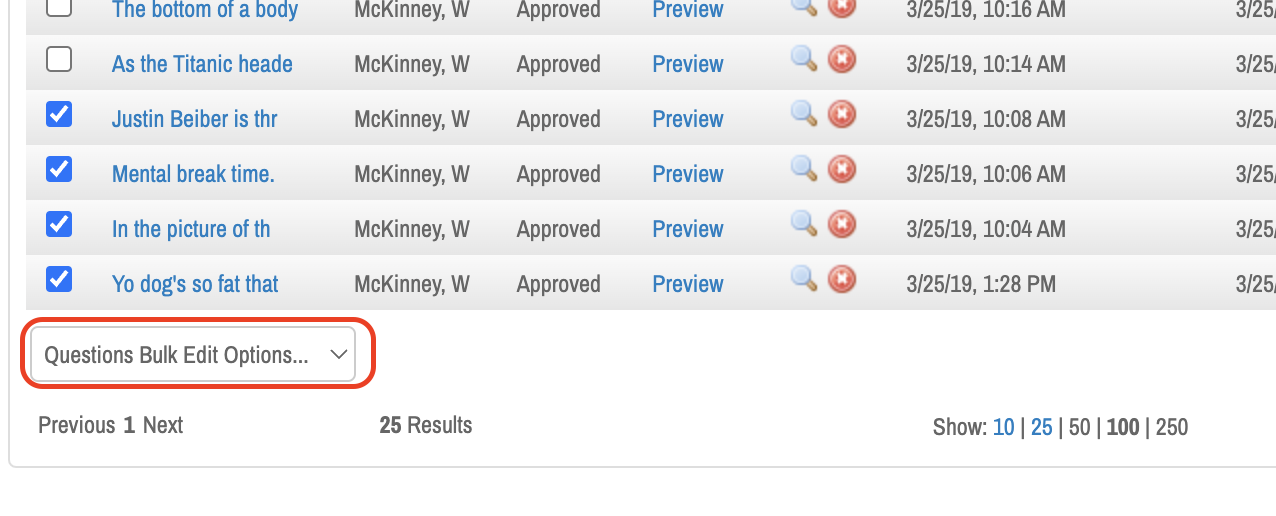
  1. Select one or more questions from the list.
  2. Use the Questions Bulk Edit Options drop-down menu at the bottom of the questions listed to make the necessary changes:
    • To move the selection questions to another folder: In the drop-down menu [view screenshot], select Move to Another Folder. Select the folder where you want to move the selected assessments. Then, select the button again to confirm.
    • To duplicate questions: On the drop-down menu, select Duplicate Items. Select the folder where the new items will be stored. Then, select the Duplicate Items button to confirm.
SOM Question Construction

Technical Item Flaws make it easier to spot the correct answer, even if you don’t know the material. Please look out for these types of questions!

NBME® Item-Writing Guide: Learn how to write questions that more effectively assess your students' knowledge

Item-Writing Workshop Requests

Modified Bloom’s Taxonomy for Evaluating Multiple Choice Questions

How To Write Multiple-Choice Questions Based On The Revised Bloom's Taxonomy

Ed-Tech
  • Accessibility at BCM
  • Teaching and E-Learning Resources
  • Clinical Learning Applications
    • Aquifer
    • Osmosis
    • UpToDate
  • Digital Course Materials
  • Equipment Lending and Rental
  • Exams and Proctoring
    • ExamSoft/Examplify
      • Creating & Posting Exams
      • Creating Questions
      • Disable Operating System Auto-Update
      • Exam Stats & Analysis
      • ExamID & ExamMonitor
      • Releasing Results to Students
      • Reviewing Results
      • Scoring Exams
      • Using iPads with Examplify
    • Respondus
    • SafeAssign
  • Learning Management Systems
    • LMS Troubleshooting Solutions
      • Clearing your web browser's cache
    • Blackboard
      • Blackboard Original Course View
      • Blackboard Ultra Course View
        • Artificial Intelligence (AI) Design Assistant
        • Attendance Tracking
        • Automations
        • Beginning of Semester
        • Blackboard Ally
        • Blackboard Essentials
        • Blackboard Guidelines
        • Blackboard Mobile App
        • Communication
        • Course Content
        • Course Set Up
        • Course Size Limits
        • Discussion Boards
        • Edpuzzle
        • Forms (Formerly Bb Surveys)
        • Gradebook
        • Journals
        • LTI Tool Integration Requests
        • Organizations
        • Portfolios
        • Tests and Assignments
        • Track Student Performance
        • Users and Groups
        • Video Studio
        • Learning Object Repository
    • Comprehensive Academic Management System (CAMS)
    • Leo (DaVinci)
    • MedHub
    • SuccessFactors
    • SimulationiQ
  • Learning Spaces
    • AirMedia
    • Audio Visual Room System Design Services
      • All-in-One Huddle Room
      • Small Conference Room
      • Large Conference Room
  • Lecture Capture
  • Media Steaming
    • vBrick
  • Multimedia Creation Software
    • Adobe Creative Cloud
    • PowerPoint
    • VoiceThread
    • Articulate 360
    • O365
  • Multimedia Services
    • Professional Video Production Services
  • Online Storage
    • Box (for Education)
    • OneDrive
    • SharePoint
  • Polling and Surveys
    • Microsoft Forms
    • Poll Everywhere
    • Qualtrics
    • SmartSheets
    • Survey Monkey
  • Room Reservations
  • Virtual Classrooms
  • Virtual Collaboration
    • Microsoft Teams
  • Other Ed-Tech Apps
  • Ed-Tech News
    • BCM’s Wi-Fi & Auditorium Wired Connection Guide: Initial Connection & Basic Troubleshooting
    • Important ExamSoft: Mandatory Examplify Update - Available Soon (April 15, 2025)
    • Important: ExamSoft and New OS Compatibility
    • MFA is coming to Blackboard
    • New ExamSoft Question Types
    • Poll Everywhere Mac Presenter 4.0.0 is now available
    • SSO is coming to DaVinci Leo
    • SSO is coming to Poll Everywhere
    • SSO is coming to Up-to-Date
    • Transition from Zoom to Microsoft Teams
    • Transitioning to Blackboard Learn Ultra Courses
      • Blackboard Ultra Resources
    • Upcoming Examplify MSR Changes
    • Update: Poll Everywhere Best Practices
    • UptoDate News
    • Voice Thread Visual Redesign 2024
    • Poll Everywhere Visual Redesign 2023

Contact Ed-Tech

Email ed-tech@bcm.edu
get-to-know-houston

America's fourth largest city is a great place to live, work and play. Find out why.
Get to Know Houston

Credit
Visit Houston

Follow Us facebook twitter youtube linkedin instagram rss 

Footer Menu Healthcare

  • Healthcare
    • Specialties
    • MyChart Login
    • For Patients & Visitors
    • For Health Professionals
    • Clinical Trials
    • Find a Physician

Footer Menu Education

  • Education
    • Programs & Admissions
    • Student & Trainee Resources
    • Faculty Resources
    • School of Medicine
    • Graduate School of Biomedical Sciences
    • National School of Tropical Medicine
    • School of Health Professions
    • Tuition & Fees
    • Financial Aid

Footer Menu Research

  • Research
    • Our Research
    • Core Labs
    • Faculty Labs
    • Research Centers
    • Research Offices

Footer Menu Community

  • Community
    • Healthcare Outreach
    • Education Outreach
    • Global Programs
    • Community Events

Footer Menu About

  • About
    • Our Campus
    • Departments
    • Academic Centers
    • Administrative Offices
    • Affiliates
    • Leadership
    • Giving
    • Alumni

Footer Menu Resource Links

  • Resource Links
    • Contact Us
    • Find a Person
    • Careers
    • BCM Team Shop
    • News
    • Title IX Office
    • Compliance
    • Covid Response Site

©1998-2026 Baylor College of Medicine® | 1 Baylor Plaza, Houston, Texas 77030 | 713-798-4951
Have an edit or suggestion for this page?

  • Compliance
  • Privacy
  • Intranet