
VoiceThread is an interactive collaboration tool available in Blackboard that can be used to encourage student discussion and build community in asynchronous learning settings.
Online discussion boards are usually text-based and can sometimes limit the types of conversations in online learning environments, whereas VoiceThread allows instructors to create multimedia content and generate a conversation around it using text, audio, and video. The conversations are not live; they take place whenever and wherever it's convenient for students to participate.
Available to: Faculty | Students | Trainees | Staff
Managed by: Education Technology
Funding: Institution
Authentication: Single Sign-On (SSO) or accessed through Blackboard
VoiceThread is also available via the phone app (iOS | Android) using the same credentials.
- BCM IT Website
- BCM IT Software Catalog
- Access VoiceThread support via the application or on the VoiceThread Support
Browser Requirements
VoiceThread is supported in full in:
- Google Chrome
- Mozilla Firefox
VoiceThreads can be opened and viewed, but audio and video cannot be recorded in the following browsers. As these browsers evolve to support HTML5, this may change.
- Safari
- Microsoft Edge
- Internet Explorer does not support HTML5 and therefore cannot be used with VoiceThread.
For the best possible experience, your web browser should be fully up to date, but at minimum no more than two versions behind.
Functionality
- Use VoiceThread from any computer and web browser.
- Use VoiceThread on the iPad, iPhone, or iPod touch.
- Invite participation and collaboration from anyone, anytime, anywhere.
- Browse a curated library of VoiceThreads created by educators and students.
Accessibility
VoiceThread offers accessibility features that allows users to easily navigate and read the VoiceThread web interface. The web interface supports screen readers for all available creator and viewer interfaces. The web interface also support keyboard access, allowing you to use the tab key to access all available functions. All sessions fully support adding and displaying captions. For additional information on VoiceThread’s accessibility features, visit VoiceThread’s Accessibility Conformance Report (WCAG Edition).
Access through Blackboard
- Go to the Blackboard Learn Ultra course where you want the VoiceThread to be located.
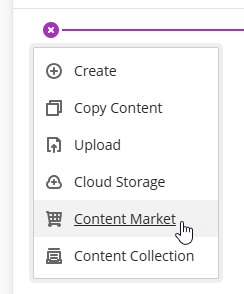
- Click on the plus (+) sign in Content where you want to place the VoiceThread Assignment. [view screenshot]
- Click Content Market from the drop-down menu. [view screenshot]
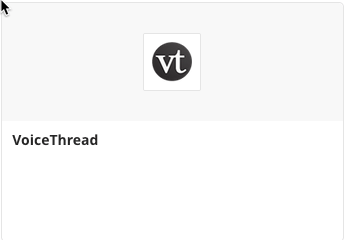
- Click VoiceThread. [view screenshot]
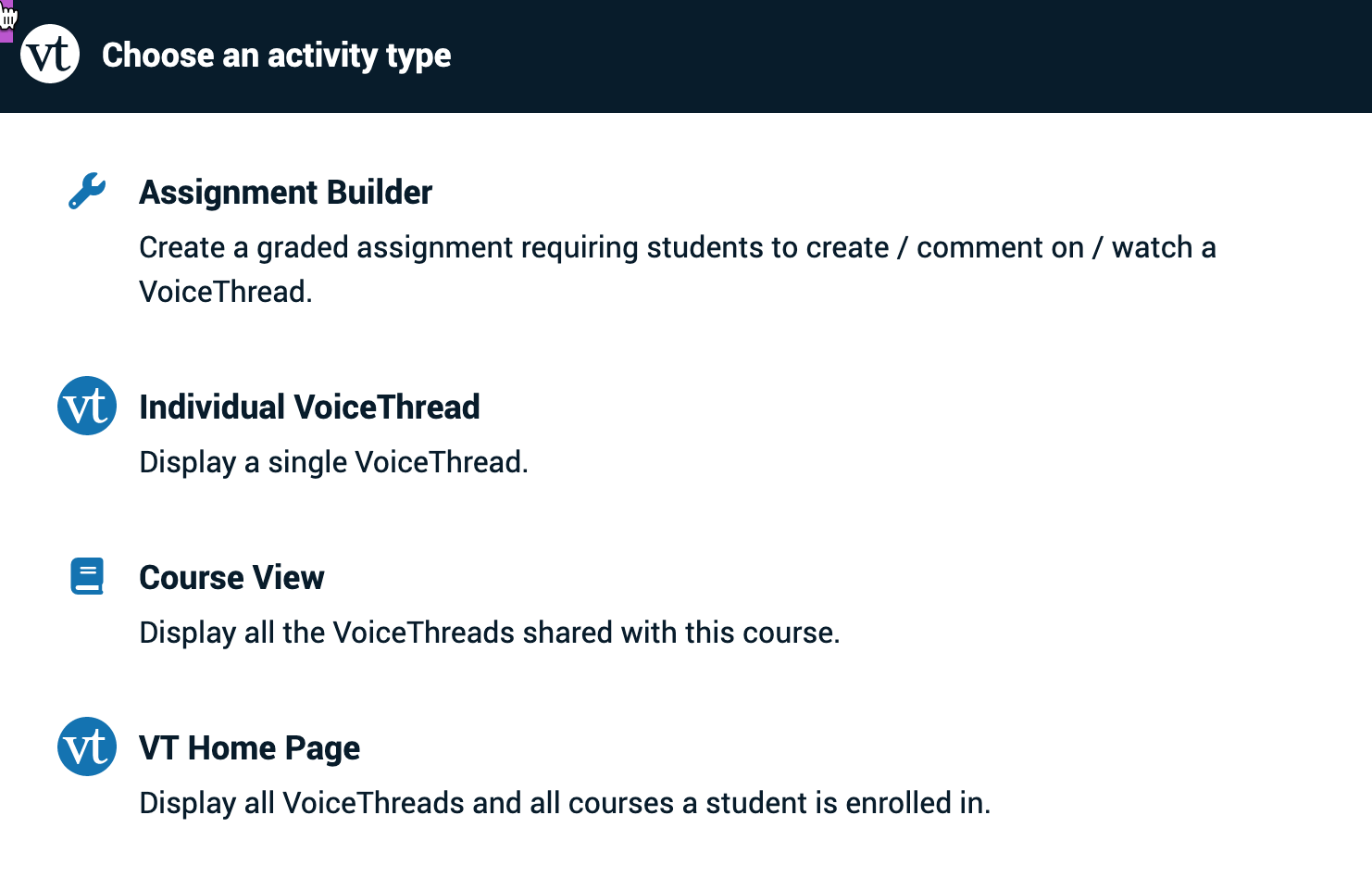
- This will bring up the VoiceThread Setup Menu. [view screenshot]
- Assignment Builder
- Sets up a link for students to upload a VT to be graded by the instructor. This can be private between the student & instructor or shared with the class.
- Sets up a link for students to submit a required number of comments on an Instructor Voicethread to be graded.
- Individual VoiceThread
- Sets up a link to an Instructor created VT. Good for Introductory VoiceThreads where students can add slides or Multiple Group VoiceThreads.
- Course View
- Sets up a link to all VoiceThreads shared with the Course.
- VT Home Page
- Sets up a link to all VoiceThreads shared with the owner.
- Assignment Builder
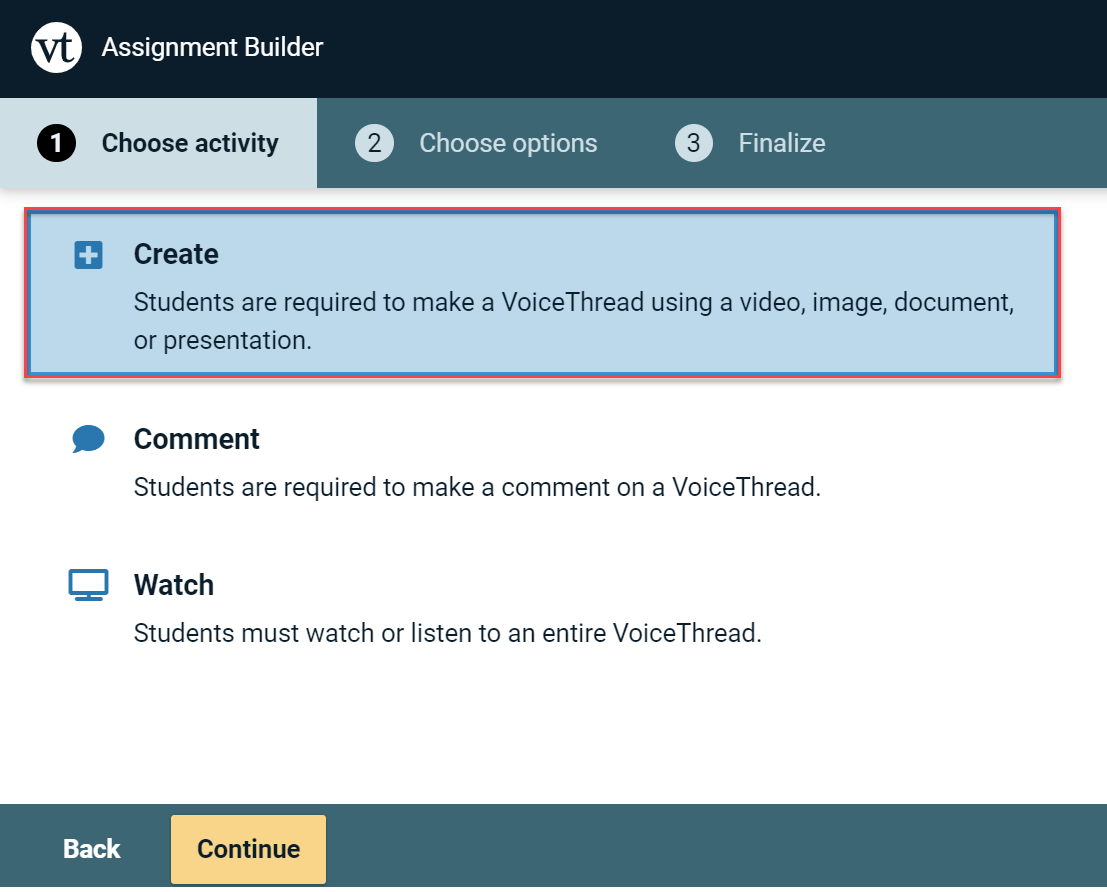
- From the VoiceThread Setup Page, click Assignment Builder.
- Click CREATE. [view screenshot]
- Click Continue
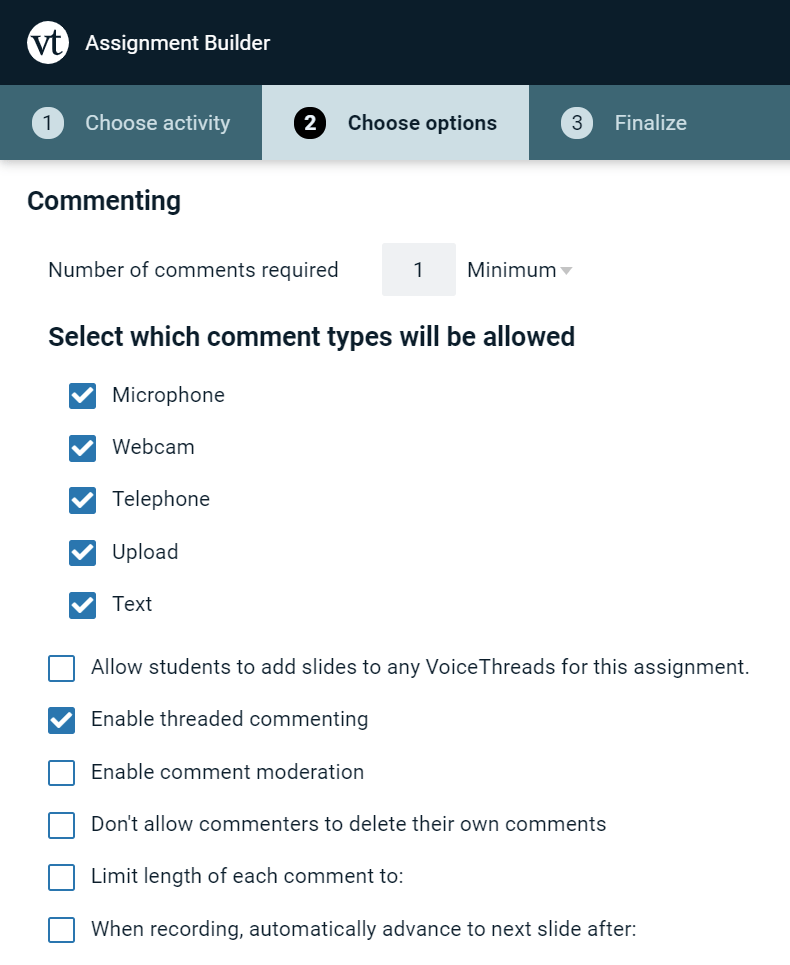
- Choose your Options. You can also allow students to see each other’s submissions. [view screenshot]
- When you have made all of your choices for options, click Continue.
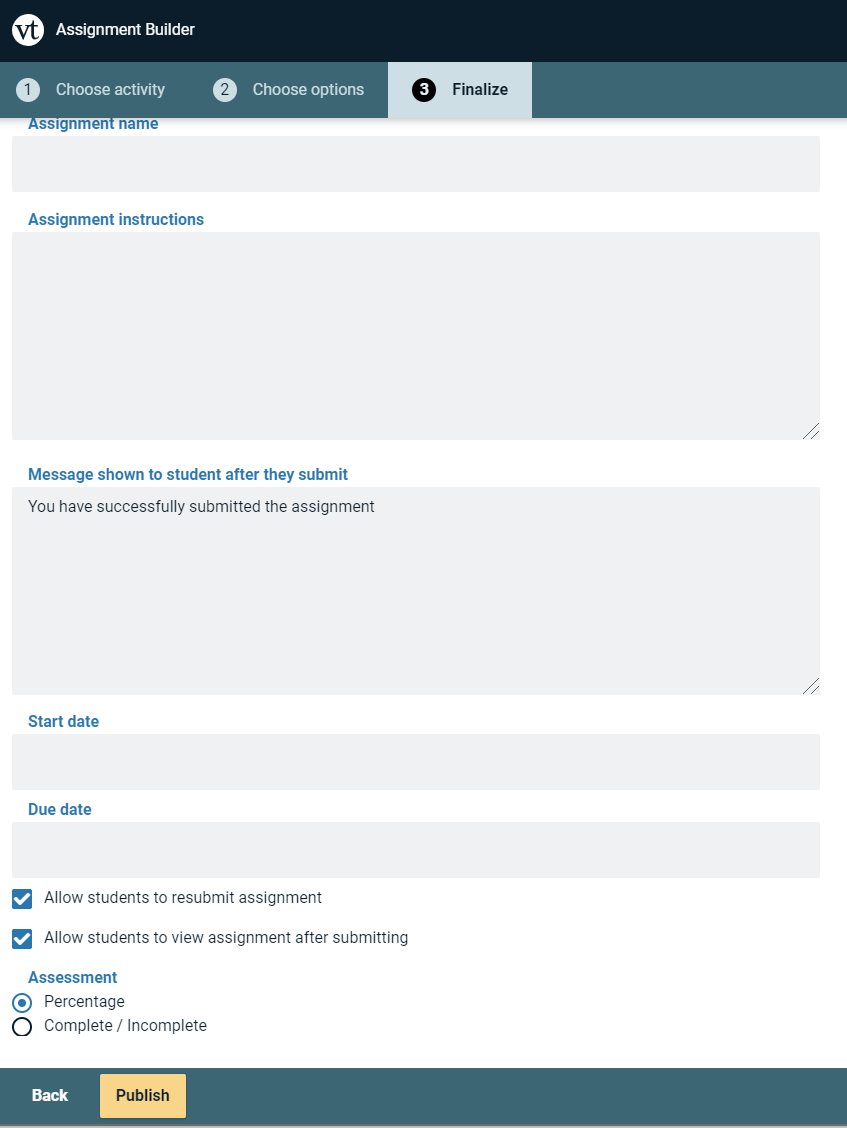
- Enter the name of your assignment, complete assignment instructions, a message to appear upon completion of the assignment, a start, end date, and close date. Choose whether or not to allow the students to resubmit and choose Assessment scoring. [view screenshot] (Percentage, Complete/Incomplete, Points). If Points are selected, Enter the number of points possible.
- Click Publish.
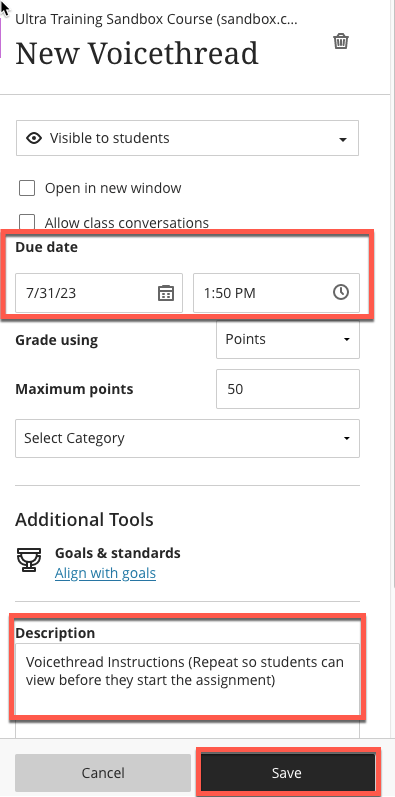
- The Due Date will need to be set in Blackboard Learn Ultra to match the Due Date set in VoiceThread. The Points will match. Click the three dots to set the due date. [view screenshot]
- Set the Due Date, Repeat the Assignment Instructions, and Save when complete. [view screenshot]


As the assignment is completed you can click on the link and view each student’s contributions and grade.
VoiceThread can also be accessed through their website using Chrome or Firefox. Log in using your BCM username and password.
BCM Specific for Instructors
- Introduction to VoiceThread (multiple videos)
- Using VoiceThread as an Ice Breaker
- How do I create a VoiceThread? (article)
- Getting a Share Link and Sharing videos with an individual
Non-BCM specific for Instructors
- How to Use VoiceThread LTI with Blackboard (video, 6:26 min)
- VoiceThread Digital Library (database of articles about successful VoiceThread projects)
- Grading Assignments (video, 4 min)
Tutorials for Students
- How to: Use VoiceThread for Assignment Submission
- How to Comment
- Listen and View Comments
- Create, Comment & Share
General Resources
- Accessibility features: On Screen Reader version, VPAT and Automated Captioning on Comments
- Video on how VoiceThread Automated Captioning works
- Universal Design for Learning (UDL) upcoming and recorded workshops
- Examples of VoiceThread in Higher Education
- VoiceThread Digital Library – Database of articles about successful VoiceThread projects that offers guidance and inspiration for people undertaking new projects.
- VoiceThread Mobile App video (2 min)
- VoiceThread YouTube channel – If you subscribe to their channel, you will receive their latest tutorials as soon as they post them
- VoiceThread Blog – You will find a number of guest posts from educators who use VoiceThread with their classes
- General Voice Thread workshops – Register for upcoming sessions or view the archives on the right side of the page
Research on the Efficacy of VoiceThread
Materials and resources for this area are being developed by the Office of Academic Technology: Education Technology. They will be added to this section as soon as they are ready.
We've got your back
Please click the link below to submit a service request or resolve an issue. Login using your BCM username and password for access and select VoiceThread. For questions, contact Ed-Tech.
Submit an Ed-Tech Form.
VoiceThread Troubleshooting