
Instructors: Blackboard Essentials
Below are brief descriptions of some of the most commonly used features in Blackboard. Links to more information and instructions for using each feature are included.
There are only a few steps to have a course created:
- All students must have a BCM username and password (per our license agreement with Blackboard)
- The Blackboard Admin must be aware of the number of users enrolled in the course (there is a student limit with our current license)
- Schedule a session with a Senior Instructional Designer. A consultation must be set up prior to setting up the course. Questions for eLearning can be sent by email.
- Submit a New Course/Organization Shell Request Form
- Submit a Batch Enroll Request Form. (see the entry below for reference: Getting accounts created in Blackboard (Batch Enroll Info).)
- You'll receive an email from Ed-Tech once the course has been created.
For more information, visit BCM Blackboard Guidelines.
In Ultra courses, faculty have the ability to change the course banner. Users can either upload a file from their device or use Unsplash images.
To change a course banner in Blackboard Ultra, go to your course, find the "Details & Actions" panel, click "Edit display settings" under "Course Image," then Upload new image, select your file (PNG/JPG), drag to position/zoom the central part, add alternative text, and click Save. Make sure to enable the toggle to display it as the course banner, not just the card image.
But, to have a custom banner created: Submit a Banner Request Form on the Teaching and eLearning page.
For more information, visit the Course Set Up page.
Most official courses offered by Baylor College of Medicine will have a Course Shell created from a template for that term in the Blackboard System. Each Course Shell is created and assigned a course ID according to the terms in the Blackboard Use above and follows the operations calendar below:
| Fall Courses | Created 120 days before the Fall Terms 1 and 2 | Created on April 1 unless specified |
|---|---|---|
| Spring Courses | Created 120 days before Spring Terms 3, 4 and 5 | Created on Sept. 1 unless specified |
| Summer Courses | Created 60 days before Summer Term | Created on April 1 unless specified |
Note: Some course shells for cross-listed courses (courses that are listed under two or more schools) are created by the school/system Blackboard Admin following the request of the program director or course director from the primary school listed in CAMS.
Blackboard courses are created as unavailable to the enrolled students. The instructor must make a Blackboard course available before the students can access materials in the course. For information on making a course available view Course Availability.
If you would like assistance finding a course site in Blackboard contact Ed-Tech at ed-tech@bcm.edu.
For more information, visit BCM Blackboard Guidelines.
Adding Participants to a Course
Once a user is added to the course as an Instructor with User Management, they can start adding participants to the course.
- Navigate to your Blackboard Ultra Course.
- Click Roster in the side menu.
- Click the Enroll People button that looks like a plus sign(+) in the upper-right corner.
- Type the name of the user in the search field, and then click the plus sign (+) next to the user’s name.
- Choose the user’s role.
- Click Save.
Removing Participants from a Course
If users no longer need to be enrolled, the user in this role can remove them from the course. Please note that removing a user from a course deletes all of their work and grades and data and it cannot be recovered.
- Navigate to your Blackboard Ultra Course.
- Click Roster in the side menu.
- Click the three dots (…) next to the name of the user you want to remove.
- Click Edit member information.
- Click the Remove member button that is shaped like a trash can.
- Click Remove member.
NOTE: Users listed as an Instructor in the course are able to enroll other uses for any role in the same course. Any users listed as a TA can enroll only students in a course.
For complete information on Users, visit the Users and Groups page.
In order to batch enroll students into Blackboard, their accounts must be created first. Below is the format and information needed by Ed-Tech to get the accounts created and enroll them in the course. Put the information into an Excel file, along with the course id and course name, and submit a Batch Enroll Request Form.
- ECA (BCM username) Look up ECAs on the BCM Intouch People page (Baylor login required)
- Last Name
- First Name
- BCM Email
- Role
- (B) Course Builder
- (P) Instructor
- (S) Student or Residents
- (T) TA – for faculty in your department helping with the
- program (including department head). This allows them to
- view modules before making them available if they wish.
- (U) Guest
- Password: Leave Field Blank
- BCM ID
Your Excel file should look like the example below:
| ECA | LName | FName | BCM Email | Role | Password | BCM Id |
|---|---|---|---|---|---|---|
| 456793 | Kent | Clark | ckent@bcm.edu | s | 456793 | |
| srogers | Rogers | Steve | srogers@bcm.edu | s | 634538 | |
| u345677 | Stark | Tony | tony.stark@bcm.edu | s | 345677 |
For complete information on Users, visit the Users and Groups page.
A course must be made available before students enrolled in the course can view or access the course and its content. However, you may want to make a course unavailable during the building process or after a scheduled course has finished.
If your course is unavailable, access is determined by course role. Blackboard administrators, instructors, course builders, teaching assistants, and graders can see and access unavailable courses from the Courses tab and the course list, but they're marked as unavailable. Students can't access unavailable courses regardless of the course duration. Unavailable courses don't appear in the course catalog. To make a course available:
Course Settings allows you to customize your course to suit your needs and those of your students. Course Settings appears at the top right corner of an Ultra course if the user has privileges to view or manage settings.
You can manage course access state settings through the Course Settings page.
- Close Course. When you select a course as closed, it continues to appear in the course listing, but students cannot access it. When Close Course is not selected, the course is open, and students can access it. This function previously was called Open/Private and found in the Details & Actions panel.
- Complete Course. When the course is completed, students can access the content but cannot participate. Additionally, you can no longer make any changes once a course is completed.
At the top of your course, next to Course Settings, an indicator displays Open, Closed, or Complete based on the course state. Your students also see this indicator at the top of the course.
Additionally, instructors can access Course Settings from the Courses page. From the three dot menu, the instructor can select Course Settings.
If students are enrolling themselves in an elective, clerkship or sub-i, or other courses, they should use the self-enroll option to get enrolled.
To enroll in this course:
- Log into Blackboard at https://bcm.blackboard.com/.
- Click on the Courses link in the left menu.
- Click Course Catalog in the top right.
- Click Browse Categories to see only courses belonging to that category.
- Hover over the name in the ID column and click on the down arrow button that appears.
- Click Enroll. Overview [view screenshot]
- Click Submit on the resulting page, then Ok.
- Click OK.
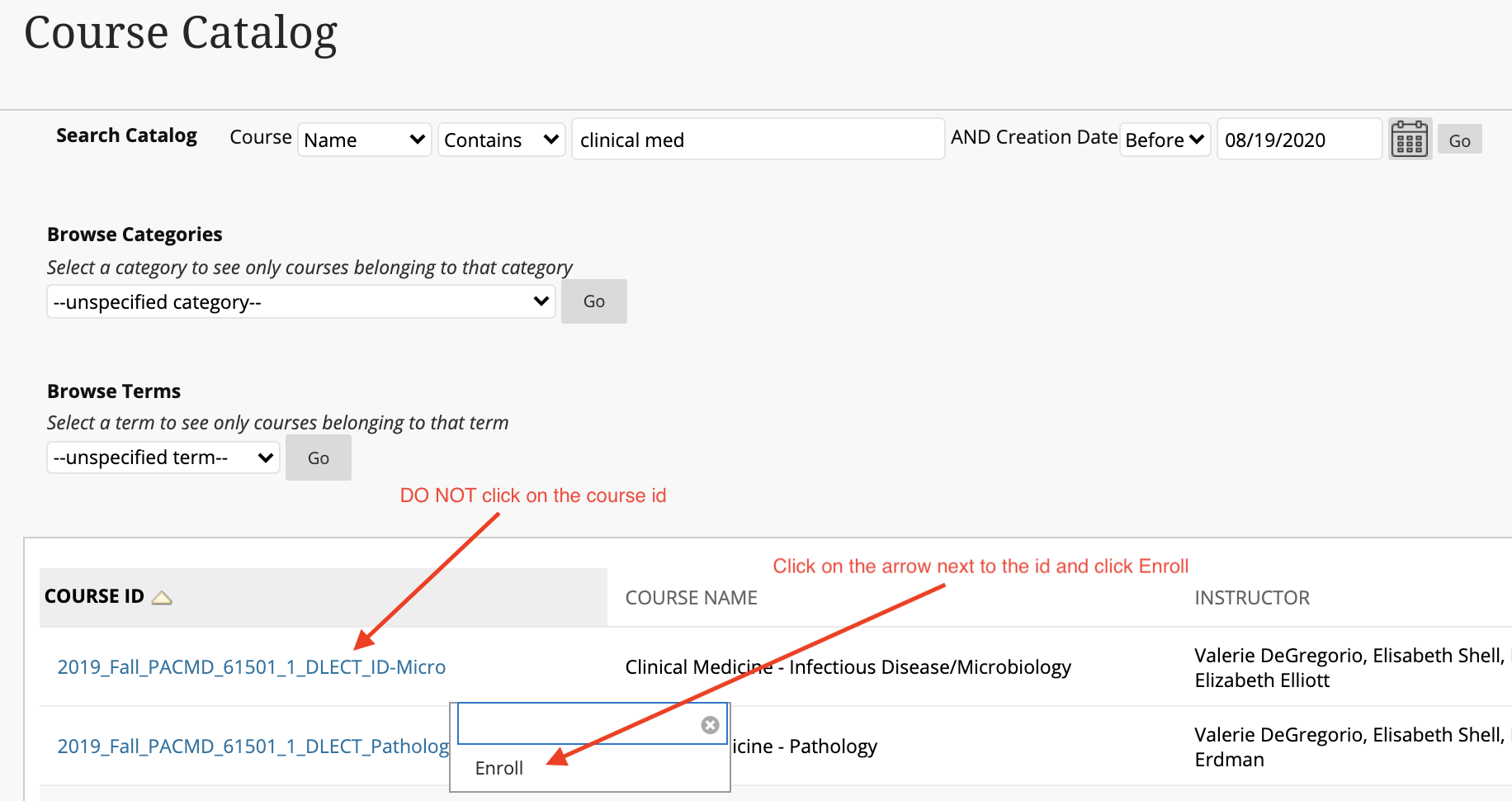
The course will appear under Current Courses.
There is more information for Students on the Student Blackboard page.
Two browsers, Google Chrome and Mozilla Firefox, are fully supported by Blackboard and BCM.
Opening the Browser Checker page checks whether your browser supports the most recent release of Blackboard Learn.
For more information about supported browsers visit Blackboard's Browser Support Policy
What does it take to create an engaging, effective course? The Exemplary Course Program, with its peer and expert review processes, can provide valuable insights.
- In the new course, click the plus sign (+) where you want the content to be added or click the three dots (...) at the top right of the course content list
- Click Copy Content from the menu
- Identify the item(s) you want to copy (you can navigate to multiple courses and copy all of the items in a single operation)
Copy Content from an Original Course to an Ultra Course
If you are copying content from a course in Original Course View into a course in the Ultra Course View, follow the same procedure for copying content into an Ultra Course. You can copy a single item (like a Test or Assignment) or folders that contain multiple items. Blackboard will convert the content during the copy process if it is possible to do so.
Note that we do not recommend copying an entire course. While it is possible to do so, your folder structure may be compromised if you have more than 1 level of folder in your Original Course. The Ultra Course View only allows for 2 levels of folders, which includes the Content Areas on your course menu in the Original Course View. This also does not give you the opportunity to redesign your course structure and navigation to take advantage of the more modern interface in the Ultra Course View. Instead of using copying an entire course from the Original Course View, we recommend building a new structure in the Ultra Course View and copying select items that would be time consuming to rebuild, such as Tests.
Adding content to a Blackboard Ultra course is primarily done by clicking the plus sign (+) on the Course Content page, allowing you to create items, folders, or upload files directly. You can drag and drop files, use cloud storage (OneDrive), or build interactive documents, assignments, and tests.
For more information about adding content, visit the Course Content and Types of Course Content pages
Student Preview allows you to experience your course as your students do. As an instructor, you want to be confident that your course is well designed and functions as intended. Use the Student Preview feature to review the course content and validate the course behaviors, such as those that control the availability of course content or require a particular interaction from the student to be triggered. You can also do the following student activities: submit assignments, take tests, create blog and discussion posts, create journal and wiki entries, view student tools such as Groups and Grades.
- Click on the Student Preview icon in the upper right corner of the screen within your course.
- You can now experience your course as students experience it.
- Click Exit Preview to return to instructor view.
For complete information on Student Preview, visit the Blackboard Help Center pages. You can also watch a video on Student Preview for Instructors.
Announcements can be used to post timely information critical to course success such as assignment due dates, exam schedules, changes to the syllabus or other corrections or clarifications of materials.
- To learn more, visit the Communication page.
Learning Modules and Content Folders are two tools provided by Blackboard to organize course materials. Learn how to add an Item which is the easiest way to add content.
Ultra Documents
- Using documents in Blackboard Ultra means creating combined content pages (Ultra Documents) with text, images, videos, and file attachments (Word, PDF, etc.) for a rich, integrated student experience, added by clicking the plus sign in Course Content, selecting Create > Document, then using the editor and adding blocks for various media or files, including drag-and-drop, cloud uploads, or converting files.
Files
- Files will allow you to insert a title and attach a file.
- No additional text can be added.
Content Folders
- Creating a folder will allow you to give the folder a name and descriptive text.
- When creating a folder, you will get the text box editor, which allows you to embed objects, add tables, images, audio, and video.
- A content folder will give you the ability to insert items "into" the folder, allowing you to further organize your course.
Learning Modules
- A learning module is similar to a content folder - you are able to give the learning module a name and descriptive text.
- When building a learning module you will get the text box editor, which allows you to embed objects, add tables, images, audio, and video.
- A learning module will give you the ability to insert items "into" the module, allowing you to further organize your course into modules, units, or weekly lessons.
- Unlike the content folder, a learning module will give you and your students a table of contents that automatically lists the content you put within the module.
- You can enforce sequential viewing of the items in the learning module, so students will need to access the items in the order that you determine.
To learn more about adding folders, items and learning modules, visit Organization and Adding Content.
The discussion board is an area for posting questions and replies. It can function as an asynchronous conversation. A discussion board can be used for student-driven help sessions, discussion questions and group collaboration. Students who may avoid speaking up in class have been known to open up more in this setting.
- To learn more, visit the Discussion Boards page.
Blackboard's Test and Survey options allow instructors to control the availability, presentation, and feedback of their course assessments. Instructors can create test availability exceptions, provide test results and feedback to students and attach due dates to assessments.
- To learn more, visit Tests and Assignments.
- To learn more, visit Inline Grading on the Inline Grading page.
- To learn more, visit Rubrics on the Rubrics page.
- To learn more, visit Item Analysis on the Item Analysis page.
Blackboard Assignments allow students to submit their work in the form of an uploaded document. Instructors can allow one or multiple attempts. Once student work is submitted, it can be downloaded from the grade center one-by-one or as a “batch” per assignment. SafeAssign plagiarism checking is an option in the Assignment settings.
- To learn more, visit Tests and Assignments.
- To learn more, visit Inline Grading on the Inline Grading page.
- To learn more, visit Delegated Grading on the Delegated Grading page.
The grade center in Blackboard helps instructors to reduce the amount of time spent managing student performance. The grade center can calculate grades, organize student-submitted assignment documents, display the last time each student has accessed the course and store point-and-click rubrics for assignment scoring.
- To learn more, visit Gradebook.
Use Blackboard to interact with your students.
- For more information about Journals, visit Ultra Journals page.
- Also view, the Collaboration Tools page.