
Respondus LockDown Browser is a locked browser for taking tests in Blackboard Learn. It prevents students/trainees from printing, copying, going to another URL, or accessing other applications during a test. Respondus 4.0 is a test authoring tool. Test can then be imported into Blackboard courses.
Available to: Faculty | Students | Staff
Managed by: Education Technology
Funding: Institution
Authentication: Single Sign-On (SSO)
- BCM IT Website
- BCM IT Software Catalog
- Access Respondus support via the application or on the Respondus website.
LockDown Browser
- The LockDown Browser toolbar is modified to only include Forward, Back, Refresh, and Stop functions.
- All access to other applications is disabled.
- Students cannot enter a web address to go to another site, and they cannot open other tabs (unless a link to another site is included within a test question).
- The browser is displayed full-screen and cannot be minimized, resized, or exited until the test is submitted.
- All printing, keyboard shortcuts (including copy/paste), screen capture, function keys, and right-click menus are disabled.
Respondus 4.0
Respondus is a tool for creating and managing exams that can be printed to paper or published directly to Blackboard. Exams can be created offline using a familiar Windows environment or moved from one LMS to another. Whether you are a veteran of online testing or relatively new to it, Respondus will save you hours on each project.
Uses:
- Convert an on-paper exam (in Word document) into a Blackboard Quiz
- Manage quizzes
- Share quizzes
- Move Blackboard quiz to paper copy (accommodation)
Accessibility
Respondus LockDown Browser offers accessibility features that allows users to easily navigate and read the Respondus web interface. The web interface supports screen readers for all available creator and viewer interfaces. The web interface also support keyboard access, allowing you to use the tab key to access all available functions. All sessions fully support adding and displaying captions.
Respondus tools are not accessible to all screen readers. Test these resources before requesting students to use them.
For additional information on Respondus’ accessibility features, visit Respondus’ Accessibility Conformance Report (WCAG Edition).
Note that you will need to ensure that your students have installed Respondus LockDown Browser before the assessment date. Place a link to the Respondus Installation for Students in your course and share the link in an announcement to remind students.
These settings are applied to each test individually. This is done by clicking on Respondus LockDown Browser under Course Tools in the Control Panel of your Ultra course. If LockDown Browser is required for a test, students can only take the test using LockDown Browser. No other browser option (such as Chrome, Firefox, Safari, etc.) will be accepted.
Students need to take the test using a computer that has LockDown Browser installed. If using their personal computers, students are responsible for downloading and installing the LockDown Browser software from the Respondus LockDown Browser (Student Guide). It can be used on Mac and Windows computers, as well as iPads and Chromebooks. When the Monitor feature is chosen as an additional part of a LockDown exam, students must go through some additional setup steps prior to beginning a test to agree to the process and make sure it is working properly
Enabling LockDown Browser for a Quiz or Exam
- Login into Blackboard.
- Navigate to the Ultra course that you want to use LockDown Browser.
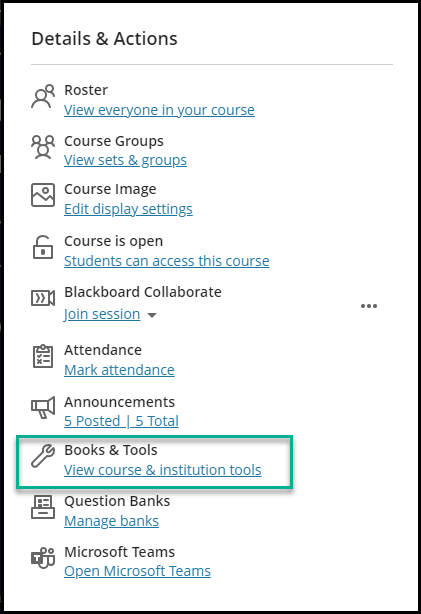
- Under Details and Actions, look for Books & Tools. [view screenshot]
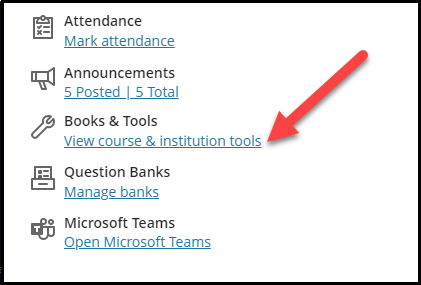
- Click View Course & Institution Tools. [view screenshot]
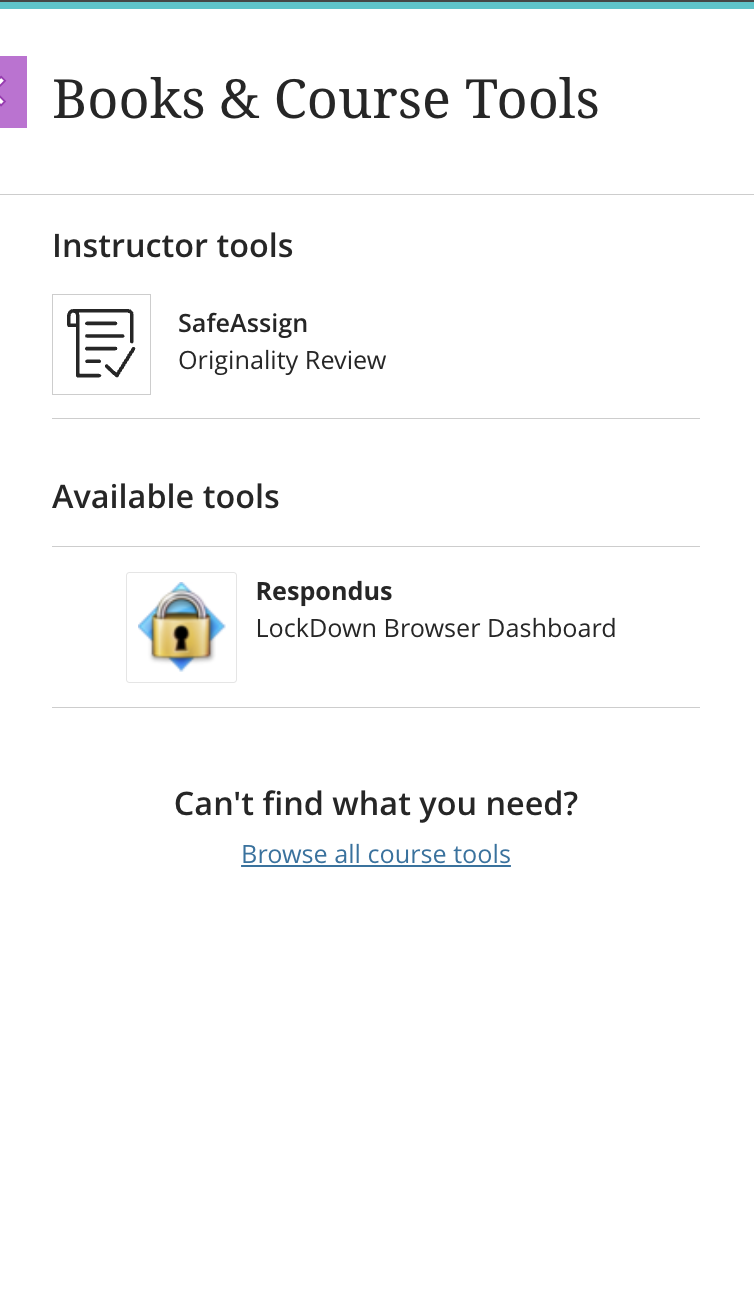
- Under Available Tools, Click Respondus. [view screenshot]
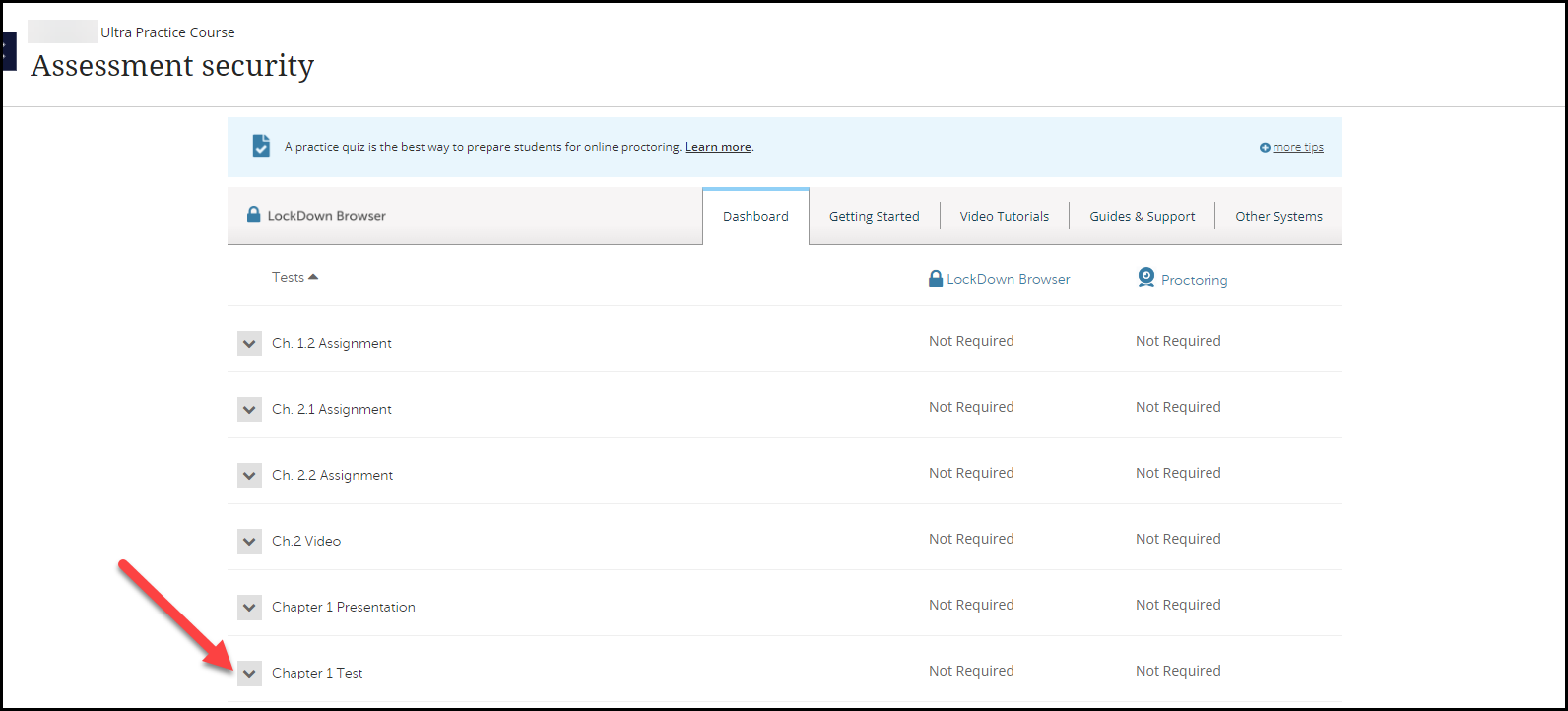
- You will see a list of all your Assessments, find the assessment you want to enable LockDown Browser on.
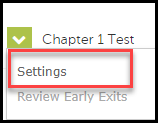
- Click the down arrow to the left of the assessment’s name. [view screenshot]
- On the small drop-down menu click Settings. [view screenshot]
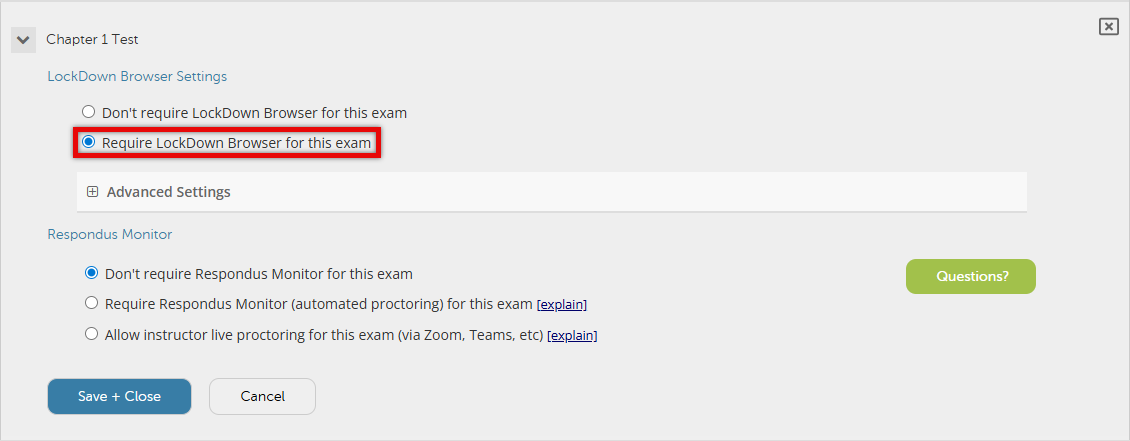
- Under LockDown Browser Settings, check Require Respondus LockDown Browser for this exam. [view screenshot]
- Notice: The iPad Edition of Respondus Lockdown Browser is automatically enabled with the exception of Respondus Monitor where instructors will have to enable it manually.
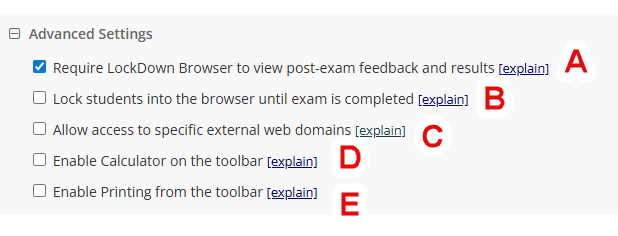
- Optionally, under Advanced Settings, configure any desired options. [view screenshot]
- Require LockDown Browser to view post-exam feedback and results: If enabled, students must access the assessment using LockDown Browser to view test feedback. If disabled, students are still required to use LockDown Browser for taking the assessment, but can view exam results and feedback thought a regular browser. Default is enabled.
- Lock students into the browser until exam is completed: Prevents students from exitingLockDown Browser until they have submitted their exam. This setting is not recommended outside of proctored environments, as if a student has an emergency or experiences a technical issue, they will not be able to close and attempt to re-enter the exam. By default, this option is disabled, and if a student attempts to exit the exam they will be warned twice and prompted to enter a reason, which the instructor can review in the Respondus LockDown Browser Dashboard.
- Allow access to specific external web domains: Allows students to access a specific website while taking the exam. However, instructors must include a link to the website within the exam, otherwise students can’t access the site. Default is disabled.
- Enable Calculator on the toolbar: Allows students access to either a standard 4 function or scientific calculator. Default is disabled.
- Enable Print from the toolbar: Allows students to print while taking the LockDown Browser exam. Default is disabled.
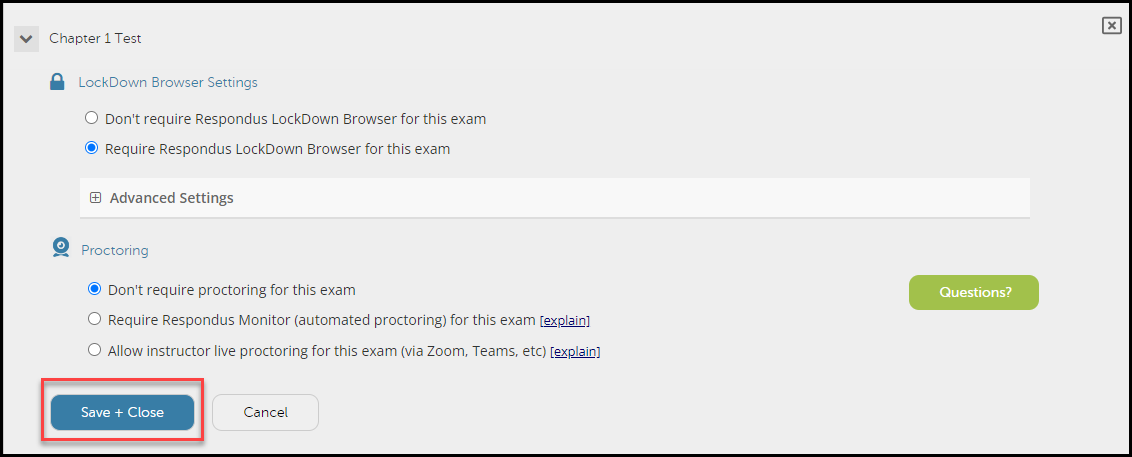
- If the exam will not use any proctoring tools, click Save + Close. If you want to enable proctoring, continue to the next section. [view screenshot]
Make sure to view the tutorials on this page or register for training before starting to use Respondus in your classroom.
Respondus LockDown Browser is a custom browser that enhances the security of web-based testing. When students use Respondus LockDown Browser to take a web-based quiz or exam in Blackboard, they are prevented from printing, copying, accessing other applications or websites, or closing a test before the test has been submitted for grading.
- Quizzes or exams that require the use of LockDown Browser cannot be accessed with standard browsers.
- Respondus must be used to prepare a Blackboard quiz or exam for use with Respondus LockDown Browser.
- For additional assistance and student resources, contact ed-tech@bcm.edu.
- Instructor Quick Start Guide
- Installing the Student Lock-Down Browser
- Can an iPad be used with LockDown Browser? (instructions for faculty)
Instructor Resources
- Quick Start Guide: Instructor Live Proctoring with LockDown Browser
- Video: Instructor Live Proctoring (1:57 minutes)
- Instructor Tutorial: Remote Assessment and Examinations
Want to learn more about creating tests and exams in Blackboard Learn? Visit the Blackboard Assessments & Grading and the Blackboard Learn — Learning Management System sections of the BCM website.
Student Resources
- Download and Install LockDown Browser
- Quick Start Guide: LockDown Browser and Respondus Monitoring
- Student Tutorial: Remote Assessment and Examinations
Recommended Best Practices
Respondus LockDown Browser is straightforward to use, but there are some suggested best practices that will help it go smoothly for your students.
- Do not change test name – Once you have enabled Respondus LockDown Browser on a test, do not change the name of the test, or Respondus will not work correctly
- Do not modify the test password – If you want to set a password for the test, do so via the Respondus LockDown Browser settings and not the Test Settings. Respondus uses the password field to prevent students from taking the test from another browser, and modifying the password in Test Settings will prevent it from working correctly
- Add a statement to the syllabus – Explain to students early that they must use Respondus LockDown Browser for their online exams.
- Hold a practice test or quiz – Before students need to use Respondus LockDown Browser for a high-stakes test or a quiz, have them complete a brief practice quiz to demonstrate that they have installed the browser and it is functioning correctly. This quiz can be for a few points extra credit or no points
Updating Respondus
Make sure to update this tool prior to using it for a final exam by following the below instructions.
- For Windows users, start Respondus LockDown Browser, select the “i” button from the toolbar, and then click “Check for Newer Version.” Your current version will be displayed, and you will be able to download a newer version if one is available.
- For Mac users, start Respondus LockDown Browser, select “About” from the toolbar, and then click “Check for Update.” The current version will be displayed, and you will be able to download a newer version if one is available.
You can also update LockDown Browser by downloading and running the full installation program again. This is the best option if the “Check for Newer Version” on your Respondus LockDown Browser application does not recognize the latest version.
The sample text below can be used in your course or syllabus. It explains that students must use LockDown Browser for their online tests.
Using LockDown Browser for Online Exams
This course requires the use of LockDown Browser for online exams. Watch this short video to get a basic understanding of LockDown Browser and the optional webcam feature (which may be required for some exams).
Then download and install LockDown Browser from this link: https://download.respondus.com/lockdown/download.php?id=563334701
NOTE TO INSTRUCTOR: STUDENT QUICK START GUIDE
To take an online test, start LockDown Browser and navigate to the exam. (You won't be able to access the exam with a standard web browser.) For additional details on using LockDown Browser, review this Student Quick Start Guide (PDF)
Finally, when taking an online exam, follow these guidelines:
- Select a location where you are comfortable having a video recording taken of yourself and your workspace environment. This area should also be free of distractions and interruptions.
- Before starting the test, know how much time is available for it, and that you've allotted sufficient time to complete it.
- Turn off all mobile devices, phones, etc. and don't have them within reach.
- Clear your area of all external materials — books, papers, other computers, or devices.
- Remain at your desk or workstation for the duration of the test.
- LockDown Browser will prevent you from accessing other websites or applications; you will be unable to exit the test until all questions are completed and submitted
Respondus 4.0
Respondus is a PC-only program that allows you to easily create new exams/surveys or upload your existing exams/surveys to Blackboard.
BCM owns a university-wide subscription to Respondus. If you would like to get started with Respondus, email ed-tech@bcm.edu to provide a license. Download the BCM campus version of Respondus 4.0.
Note: View the following tutorials to create exams. Make sure your Edit Mode button is ON inside Blackboard. If it is set to OFF, the upload process may not work.
Respondus is a powerful software application that enhances the functionality and usability of Blackboard's (Bb) quiz, survey, and self-test tools. It also provides seamless synchronization of print-based and online exams. Whether you are a "power user" of Bb or a relatively new user, Respondus can save you hours on each assessment or survey project.
**Respondus 4.0 will not work on a MAC**
Respondus Setup
- BCM owns a university-wide subscription to Respondus. If you would like to get started with Respondus, email ed-tech@bcm.edu to provide a license and a download link to the BCM campus version of Respondus 4.0.
- Use the Respondus 4.0 Quick Start Guide
- Respondus 4.0 Download and Installation instructions
Create and Format Questions
This tutorial will discuss how to create and format questions using the Edit menu in Respondus.
Open the Create and Format Questions video tutorial to learn more.
Import Questions
- This tutorial will discuss how to import exam questions from text files, rich text files, or Word documents. These files must be properly formatted in order to successfully upload to Blackboard.
- Select Import Questions.
- Select the type of file from the dropdown box.
- Click Browse and select your file.
- Name your file.
- Optionally, add a stem to the question title.
- Click Preview to check for any errors in your document.
- Review the Preview results window to review any errors
- Make any corrections and click Preview again.
- Once there are no errors, click Finish.
- Open the Import Questions video tutorial to learn more.
Publish to Blackboard Course
This tutorial will discuss how to upload the Respondus exam to a Blackboard course. The server settings must be setup in order to complete this task.
Open the Publish to a Blackboard Course video tutorial to learn more.
Use Publisher Test Banks
This tutorial will discuss how to gain access to publisher test banks and publish to your Blackboard course, using Respondus.
Open the Use Publisher Test Banks video tutorial to learn more.
General Resources
Materials and resources for this area are being developed by the Office of Academic Technology: Education Technology. They will be added to this section as soon as they are ready.
We've got your back
Go to the link below to submit a service request or resolve an issue. Login using your BCM username and password for access and select the appropriate Application. For questions, contact Ed-Tech.
Submit an Ed-Tech Form.
FAQ Troubleshooting
- Forgetting to select the correct answer.
- Forgetting to include a period at the end of the question number.
- No audio is coming from my microphone
- Cannot connect or configure the webcam
- Webcam blocked
- Spinning wheel during webcam check
- My webcam image is upside down
- “There is a problem with the settings for the exam” - contact your instructor to let them know.
- RLDB froze during a test and I cannot exit
- Clicking on the “Launch LockDown Browser” Button Has No Result
- Clicking on the “Start New Attempt” Button Has No Result
- Slow computer response
- "There is a problem with the settings for this exam"
- "Connecting to media server, please wait..."
- "Unable to retrieve settings from the Respondus server"
- "We are unable to detect a microphone with your computer"
- "Bad Image" 0xc0000020 when starting LockDown Browser"
- "The resolution of this image is too high to display"
- "Error sending exam start notification, unable to continue with exam."
- "Update server is not supplying information, or the connection to update server is blocked."
- “Unable to store institution ID to the registry, installation will not work correctly”
- "Feature Transfer Error" during install of LockDown Browser"
- Error codes: -7, -21, -101, -105, -106 , -111, -118 and similar 0-199 codes.
- How can I change my webcam?
- Cannot detect or configure the webcam
- No audio is coming from my microphone
- Webcam hangs at "environment check"
- Webcam image is upside down
- What external USB webcams are supported by Mac Lockdown Browser?
- How much bandwidth is required for the webcam to work properly?
- Mac: Webcam Not Detected
- Spinning Wheel During Webcam Check
If you are having problems installing LockDown Browser on a Windows system, we recommend the following additional steps:
- Directly log into a system as a local administrator with full rights. Do not use “Switch User” or a “Remote Access” connection.
Important Note: Logging in as a non-administrator and then using “Run as Administrator” may not set the correct permissions. - Temporarily disable all security software. Contact the IT Help Desk for additional assistance in disabling your security software.
- Download Respondus LockDown Browser. Do not “Google” for a link because these are campus specific.
- When you start running the installer and get to the large button “LockDown Browser Click to install”, instead click the link “Problems with the installation program? Click here”. You will be presented with an option to extract the files to a location of your choosing.
- Go to the folder you extracted the files and run “setup.exe”.
- Start the LockDown Browser to verify installation and then quit the LockDown Browser.
- Re-enable any security software.
Because the LockDown Browser is a shell that sits on top of an Internet browser (Internet Explorer for PC users and Safari for Mac Users), we recommend students access their course with either Internet Explorer or Safari and take a non-LDB enabled practice quiz to resolve any settings and media plug-ins prior to taking a test with LockDown Browser.
For Windows systems, we suggest relaxing any security settings to “medium”, add “LockDown.exe” as a trusted application and “*.uwyo.edu” address as a trusted site in any security software.
We strongly recommend using an Ethernet (wired) Internet connection with a speed of at least 512 Kbps or higher while taking your exam in LockDown Browser. If you use a wireless, USB modem, laptop connect card, or mobile hotspot connection during an exam, you are more likely to run into problems due to dropped/interrupted connections to the Blackboard server. This is because the Blackboard server is more bandwidth intensive (especially during exams) than normal Internet surfing.
If you lose your Internet connection during the exam, it will lock up the browser and not allow you to save answers, move on to other questions, submit or exit the exam. Ethernet connections are the most stable connection to the Blackboard servers. If you have a router, plugging directly into it when taking exams will reduce the chances of connection interruptions.
The LockDown Browser is programmed to detect when conflicting programs are still running and will request that you close these programs. Some programs like the Dell Dock and Google Toolbar run as a background process on your computer and will have to be shutdown before you can proceed in the LockDown Browser. You can usually turn these programs off through the task tray or, in the case of the Dell Dock, by right clicking on the application and clicking Exit.
In some rare instances, these programs running in the background can cause the LockDown Browser to lock up or stop responding. Programs that use Java or the Internet such iTunes and other media managers, file sharing agents like Bittorent, and instant messenger applications have a higher risk of causing the LockDown Browser to lock up. It is best to close every program on your computer before starting the LockDown Browser.
More information for “You must close the following program before starting the browser.” Why does this occur?
If the LockDown Browser stops responding before you start an exam or if you see a blank page that fills the computer screen, this could be due to security windows that have popped up behind the LockDown browser. If you have not started the exam, close the browser and address the security pop-up windows. You should be able to reopen the browser without issue. However, if you have started the exam, the only known workaround is to restart your computer and address the pop-up windows before beginning the exam.
If you lose your Internet connection while taking an exam or if you have outdated and/or multiple Java installations, the LockDown Browser and your computer may stop responding or freeze. Currently, the only way to resolve this issue is to do a hard shutdown (i.e. unplugging all power from the computer including power cables and/or batteries if you are using a laptop). If you are missing your Start Menu, Task Bar or are unable to access the Task Manager after doing a hard reboot, you can restore these applications by restarting the LockDown Browser and exiting the software properly.
Depending on your system, this could take several minutes and will cause you to lose time on the exam. In most cases, as long as the time has not expired, it should let you back into the exam. As soon as you have completed the exam, immediately e-mail your instructor to let them know what happened.
More information for LockDown Browser froze during a test and I cannot exit.
Occasionally, Respondus will release a new version of the LockDown Browser. When a new version of LockDown Browser becomes available, the system will prompt you to update your installation of the software.
Whenever you update your LockDown Browser, you may also want to do the following:
- Make sure your system is up-to-date by installing all necessary system updates. You will also want to make sure you have the latest version of Internet Explorer for Windows users and Safari for Mac users.
- Make sure you only have one version of the most recent Java installed on your system.
When a student has two displays (or a laptop screen + monitor) and the scaling setting is different this may happen. For example the laptop is at 125% and the monitor is 100%. If that's the cause then the student can either set both to the same scaling, or unplug the second monitor before starting the exam.