The Gradebook in Blackboard is a place for instructors to track student performance. The Gradebook can calculate grades, organize student-submitted assignment documents, record the last time each student accessed the course and include point-and-click rubrics that can be used to facilitate scoring of assignments. Watch a video on the Gradebook on Vimeo or YouTube.
The Gradebook is customizable. Instructors can select which grades are displayed to students on their Grades page, supply feedback to the students, create weighted columns and exclude certain assessments from final score calculations. Faculty can create grade columns for any graded activities they want to record such as projects, class participation or attendance.
Students can benefit from seeing grade progress or instructor feedback and, if necessary, adjust their approach to learning to improve performance. Note: Students can access their own, individual grades from the "Grades” page.
For more information about Gradebook, select from the following:
Every course in Blackboard has its own gradebook to calculate grades for the course. The gradebook can be accessed by entering the course and selecting gradebook in the top navigation of the page. You can manage items and post grades from four views (overview, gradeable items, grades and students), as well as establish your gradebook settings.
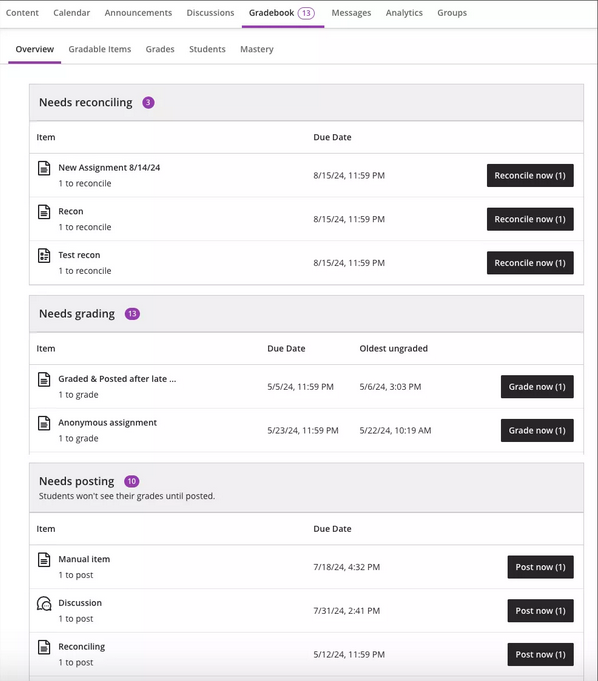
The Overview tab displays grading tasks for you to complete:
- Needs reconciling lists all items for reconciliation where the Instructor needs to review grades and feedback from others before determining the final grade. This section only appears if you are an assigned grader for parallel grading. It is hidden when you have no items for reconciliation.
- Needs Grading lists submissions ready for grading with the oldest ungraded submissions at the top of the list.
- Needs posting lists graded assessments that are ready to be posted. Grades need to be "posted" for students to see them. This allows the faculty member time to complete and release all grades at once for students.
The Gradable Items view displays all gradable items in your course. You can view due dates, grading status, and item categories. You can also post grades and adjust the overall calculation from the course.
- Items with missing submissions past the due date display in red.
- Use the move button (the inverse arrows) to drag and drop items in a new order. We recommend placing these items in due date chronological order for easier navigation.
- Select an item name to go to review the submission status by student for that assessment.
- Select the value in the grading status column to go directly to the assessment's submissions page and start grading.
- If all assessments are graded, a post now button will appear to post the grades for the students to view.

The Grade View displays each student's grade for a specific assignment, with one student per row and one gradable item per column. Use the arrow buttons to sort columns into ascending or descending order.
In the grid, you can select a student's gradable item to open a menu with these options:
- View: directly go to the assignment and start reviewing the submission.
- Feedback: enter feedback for submitted work and automatic zeros.
- Post: post a grade that's been assigned and should now be visible to students.
- Add or edit exemptions: settings that can be setup to allow student access to an assessment at alternate time or is authorized to submit multiple attempts.
When you select a gradable item at the top of the Grade view, a menu opens with options to edit or delete the item or send a reminder. Additional options include Question Analysis, Download Results, Statistics, and Download Submissions are available based on the type of gradable item and whether students have made submissions. For a more efficient grading experience, you can customize the grade view:
- Use sort options on each gradable item's column to view the information in ascending or descending order.
- With the filter button, located in the top right, you can narrow the information displayed in the grid to exactly what you need (students, groups, gradable items, assessment type, or categories).
The student grid contains color-coded text:
- Green — Posted grades
- Red — Automatic zeros
- Purple — New submissions

The Students view lists the names of all your students with their date and time of last access to the course and the overall grades. Overall grades will only appear if you've set up the overall grade for the course. Students with grading accommodations have a purple flag with their name.
- You can directly message students and add accommodations.
- Search for particular students by name, username, or student ID.
- Select a student's name to go to their student overview.
You can use the gradebook settings to customize your gradebook to match your teaching style and course goals. Select the settings button (the gear icon) underneath student preview to open the gradebook settings panel.
- Grade Schemas: map assessment scores to percentages, letters, or some other notation for reporting performance.
- Student Performance: receive alerts in your activity stream about student performance and activity. Set an alert for the number of days a student is inactive. If you've set up the overall grade for our course, you can also receive an alert when a student's overall grade percentage drops below a certain point.
- Automatic Zeros: choose to automatically assign zeros to missing work past the due date. If allowed, students and groups can still submit there work after automatic zero is assigned to improve their score, and you can grade as normal.
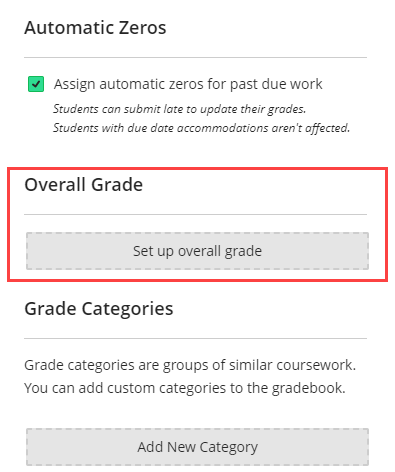
- Overall Grade: the overall grade is a calculated item displaying a running tally of all the items you grade and post that counts toward the overall course grade.
- Students Visibility: use the student visibility setting to hide or show un-enrolled students.
- Grade Categories: used to link gradable items to categories to calculate the overall grade . You can add custom categories to the grade book.
Setting the Overall Grade in the Gradebook
By default, there isn’t an overall grade in Blackboard Ultra, but it is very easy to set up. It is important that the Overall grade is set up because it lets students see how they are doing in your course at a glance and it is shared with your student and other University personnel (e.g. advisors, academic coaches, etc.) as the student’s final grade for the course.
If it is your first time using the Gradebook in Blackboard Ultra you will likely see a message about setting up the Overall Grade on the right side or the bottom of the page depending on what view you are using.

If you don’t see that message you can also set up the Overall Grade.
- Open your Blackboard Ultra course.
- Click Gradebook in the tabs across the top. [view screenshot]
- Click the Settings Cog in the upper-right-hand corner. [view screenshot]
- Scroll down and click Set up overall grade. [view screenshot]
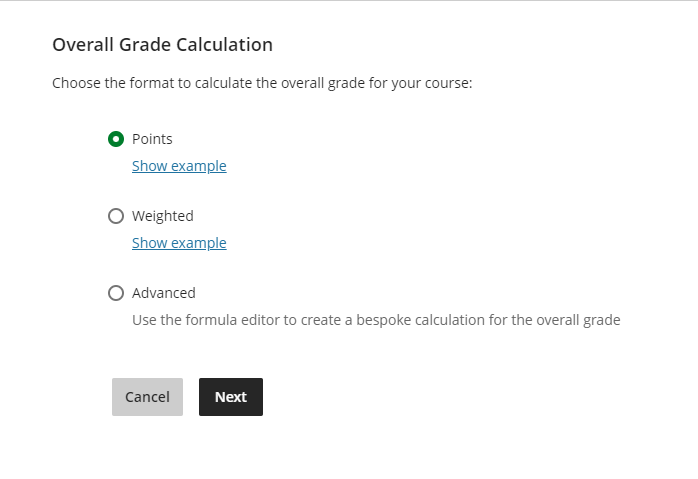
- This page asks you how you want to format the overall grade (you can always change this later if you need to). [view screenshot] The simplest choice here is Points, where a student’s grade will be their total score on all assignments divided by the total for the course. You also have the option to use Weighted grading or even set up a custom calculation for the Overall grade.
- On the next page you will see a breakdown of the assignments in your course with their point totals. By default, everything will be included here and grouped by category. From here you can change how the Overall grade is displayed to students (Letter, Points, or Percentage). [view screenshot]
- Click Save.
- Click Gradebook. [view screenshot]
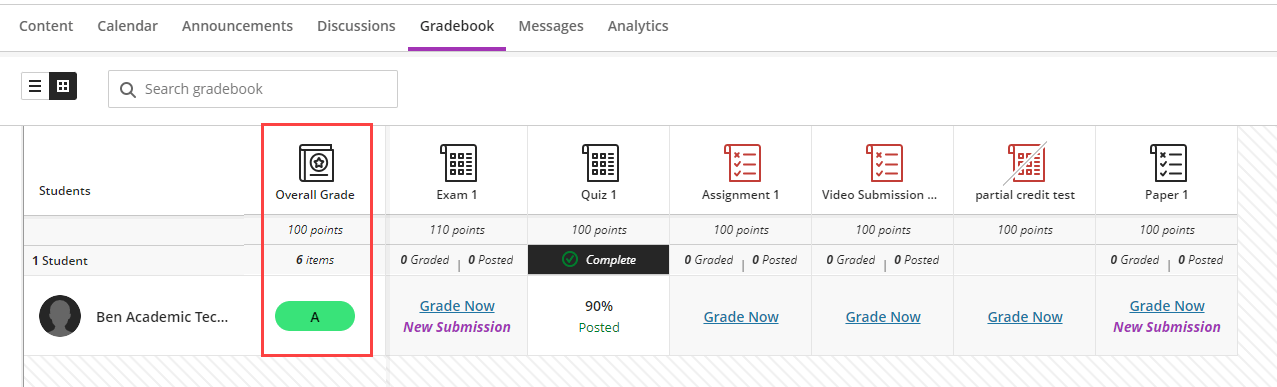
- Now you will see the Overall Grade has appeared as the first column or row in the Gradebook. [view screenshot]

![view screenshot]](https://cdn.bcm.edu/sites/default/files/settings-cog-1536x470_0.png)


Gradebook settings
You can use gradebook settings to customize your gradebook to match your teaching style and course goals. Select the Settings button to open the Settings panel. [view screenshot]
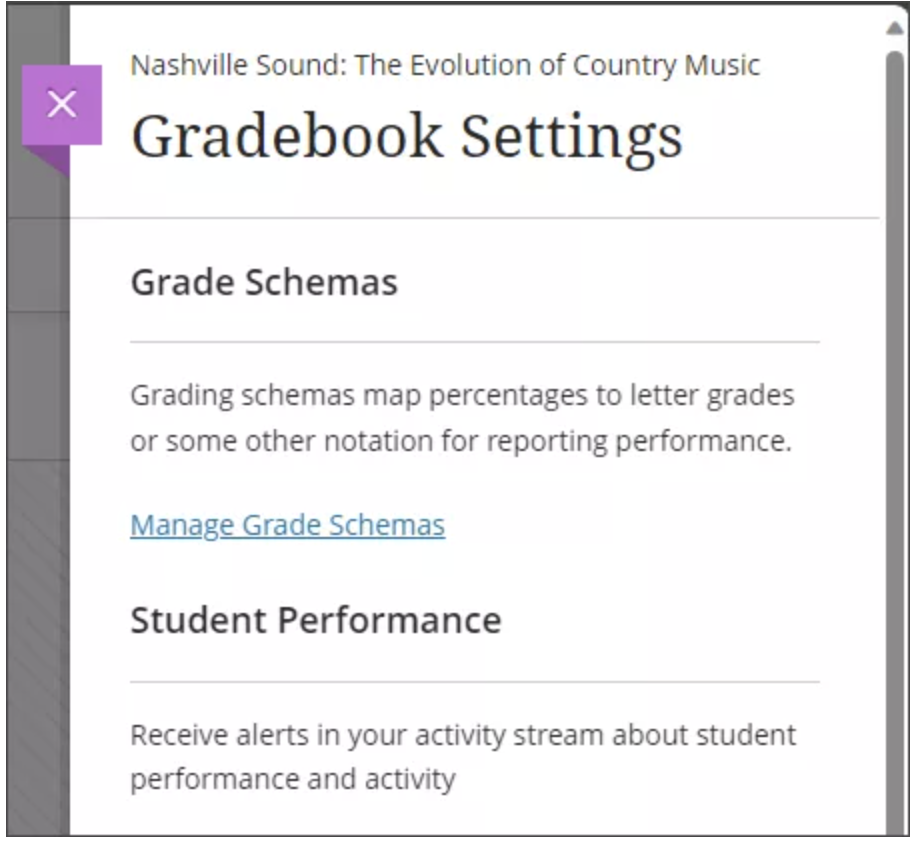
Grade schemas map assessment scores to percentages, letter grades or some other notation for reporting performance.
You can receive alerts in your activity stream about student performance and activity. You can set an alert for the number of days a student is inactive. If you’ve set up the overall grade for your course, you can also receive an alert when a student’s overall grade percentage drops below a certain point.
Select View Course Activity to go to the Course Activity report.
NOTE: This report won't display if there's not enough data in your course to populate it.
You can choose to automatically assign zeros to missing work past the due date. If allowed, students and groups can still submit work after an automatic zero is assigned to improve their score. Then, you can grade as normal.
If you assign automatic zeros, your settings are applied to these gradable items:
- Assignments and group assignments
- Tests and group tests
- Gradable individual and group discussions
- Discussions
- Journals
- Scorm
- Manual grade items
- LTI items
NOTE: The automatic zeros setting doesn't apply when you collect submissions offline. If you collect submissions offline, you must manually create the student attempts and submission dates and times.
The overall grade is a calculated item displaying a running tally of all the items you grade and post that counts toward the overall course grade.
Use the Students Visibility setting to hide or show unenrolled students.
With this option turned on, students are hidden from these gradebook areas:
- Grades page
- Students page
- Calculation student list
- Gradable items student list
- Submission tab for an assessment
- Student Activity tab for an assessment
On the Item Management page, you can configure column visibility for all gradebook views, including Grade page, Gradable Items page, and Overview page. Visibility settings apply to all non-student users, including instructors, TAs, and graders, for your course. The student view of any grading-related page is unaffected. If you hide a column from the gradebook, that column is hidden from non-student users but continues to appear for students.
Grade categories are groups of similar coursework. You can add custom categories to the gradebook.
A rubric is a scoring tool you can use to evaluate gradable work. You can provide clear descriptions of the characteristics of the work associated with each part, at varying levels of skill. You can create a new rubric from the Gradebook Settings panel. If your institution uses the AI Design Assistant, you can also generate a new rubric by using the AI Design Assistant.
Overall Grade Notations
You can create and manage grade notations to override a student's overall grade if their performance falls outside the defined schema. For example, if a student has to withdraw from your course in the middle of a semester, you can use a grade notation to indicate the student's circumstance or situation without assigning an actual grade.
To add a grade notation, select Add Overall Grade Notation. Enter a name and description.
To apply a grade notation, go to the gradebook in Grades view and select the student's overall grade cell. From the menu, choose the notation. The cell will turn gray to indicate that you overrode the overall grade.
To remove the override, select the student's overall grade cell and select Undo Override. The overall grade reverts back to the overall grade calculation you defined for the course.
For complete information on Rubrics, visit the Blackboard Help Center pages. You can also watch a video on Rubrics, Rubric Association, AI Rubric Generation, and Grading using Rubrics.
Accommodations
You can add accommodations for individual students, such as an exemption from assessment due dates or time limits. Use accommodations to help students progress in the course even though they may have difficulty with some requirements.
To add an accommodation, go to the Students view of the gradebook. Select the More options menu at the end of a student row, and then select Accommodations to open the Accommodations panel.
- You can also select a student’s name to open their student overview. Then select Accommodations. [view screenshot]
- Add an accommodation to a student from their overview page
- When an accommodation is assigned to a student, a purple flag appears by their name.
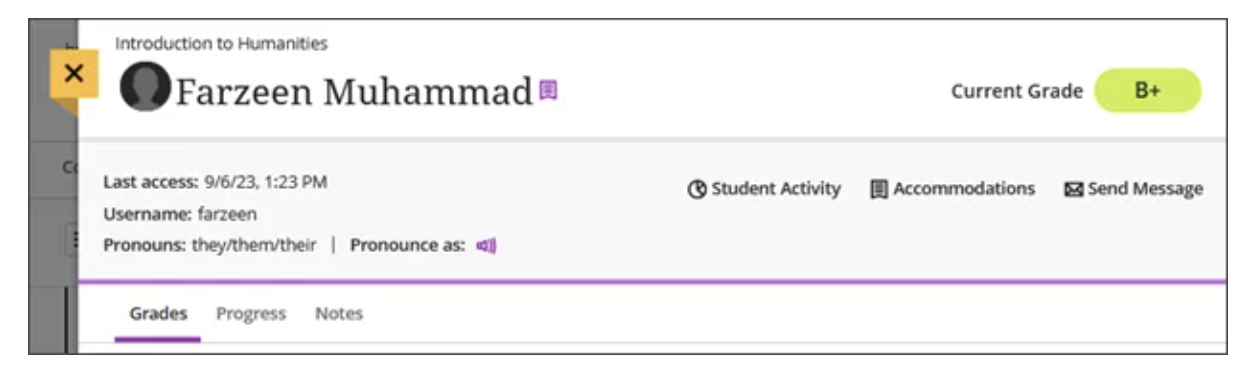
For complete instructions on how to set up Accommodations for students, visit the Blackboard Help Center pages. You can also watch a video Granting Student Accommodations.
Send reminders
You can send reminders to students or groups who haven’t submitted an assignment yet. The item must be visible to students and have no release conditions. Reminders also can't be sent for manually created columns.
- From the Gradable items view, open the More options menu for the item, and then select Send Reminder.
- From the Grades view, select a gradable item at the top of the grid to open its menu. Then select Send Reminder.
Reminders are an option for all gradebook items, including LTI and third-party tools. You can only send reminders if you're enrolled in the course.
- Reminders are sent to the student or group as a blind carbon copy (BCC) course message. Instructors receive a copy of the message too.
- If messages are turned off for the course, reminders are sent as email.
For anonymous grading, students always receive reminders via email to preserve anonymity.
Add gradable items, calculations, or attendance
You can add gradable items, calculations, or attendance directly in the gradebook.
- From the Grades view, select the plus sign between rows to access the menu.
- From the Gradable items view, select the plus sign between columns to access the menu.
Add gradable items to record grades for any type of activity that takes place outside of Blackboard Learn, such as field trips, observed assessments, or participation grades. You can also use gradable items to transcribe grades for assignments or tests completed on paper.
From the menu, select Add Item. The new item won’t show up on students’ Course Content pages, but they’ll see the item in their gradebook. [view screenshot]
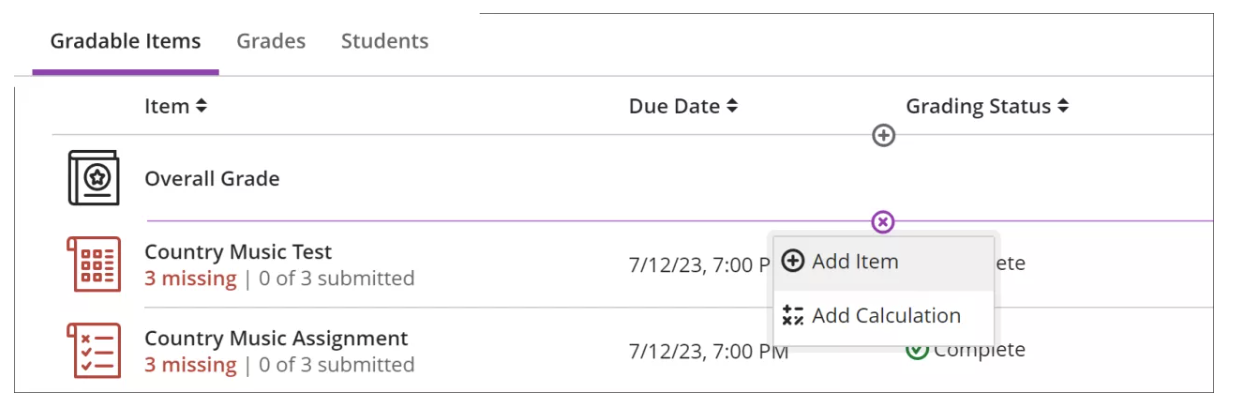
You can add a calculation, such as an average assignments grade. From the menu, select Add Calculation.
After you enter attendance, the Add Attendance option won't appear in the menu again. To remove attendance from gradable items, use the attendance settings or gradebook grid.
For more information, go to the Attendance Tracking page.
There are two ways to create columns in the gradebook with specific calculations:
- You can add a Total Calculation column: Displays a calculated score based on points or weighted items
- This will group all the content based on it assigned category and can be used for weighted grades or just using points.
- It lists all the content items in the course, and you can exclude items and/or categories, or unlink items from categories, as you best fits your needs
- You can add a Calculation column: Displays a calculated score based on a custom formula for a selection of coursework, such as only certain assessments or categories.
- When you add a Calculation column, you create a custom formula that uses common arithmetic operations (addition, subtraction, multiplication, and division, and group operators (parentheses).
- You can add calculations based on the average, total, maximum, or minimum of the variables you include, such as categories, graded items, and other calculations. For example, add a calculation that displays the average of all assignments, so students have an overall picture of their performance. You can add as many calculations as you need.
View graded item statistics
To gain insight about a student's overall performance on graded content, select a column in the gradebook to access summary statistics for any graded item. The statistics page displays key metrics such as: [view screenshot]
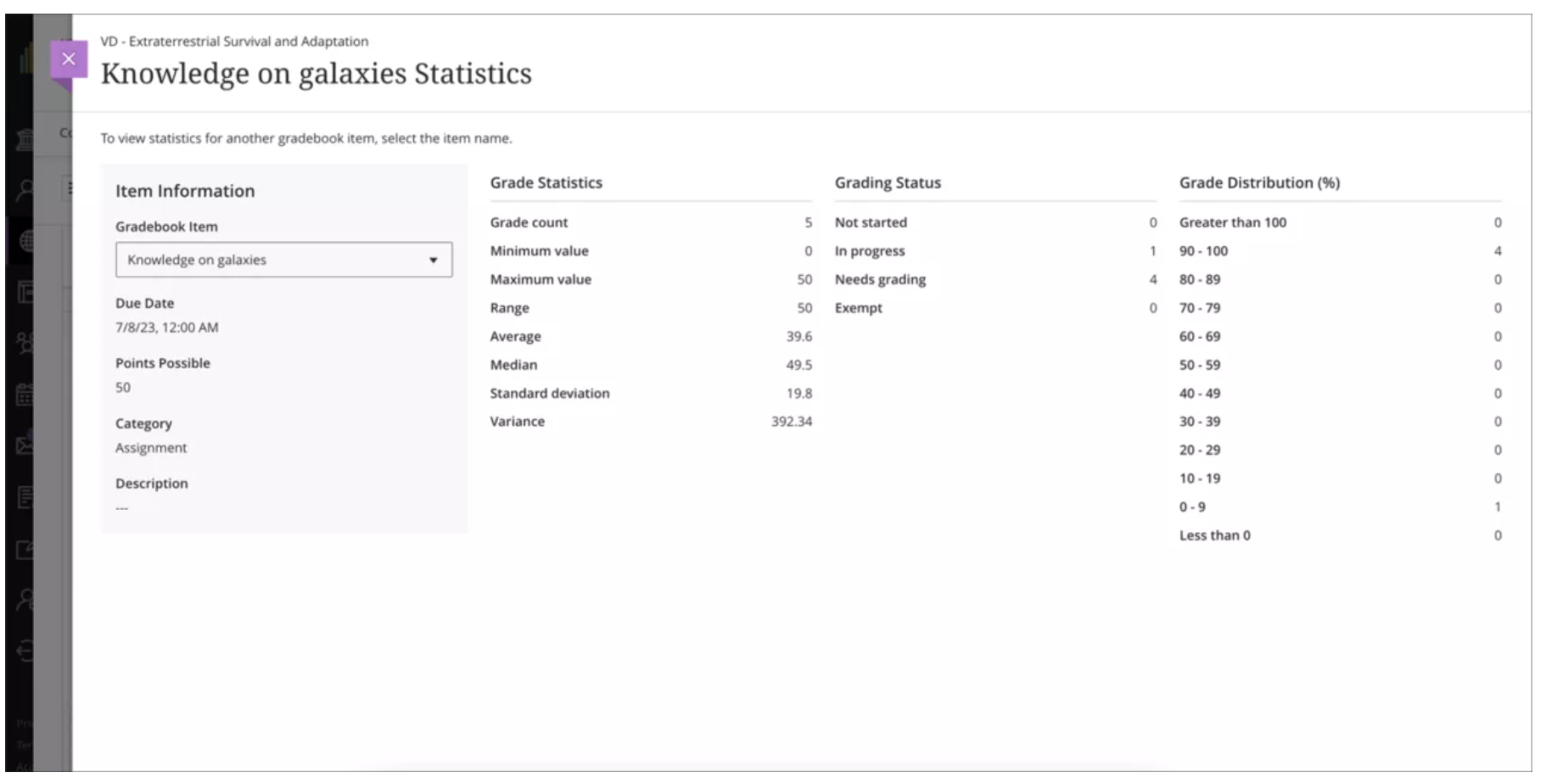
- Minimum and maximum value
- Range
- Average
- Median
- Standard deviation
- Variance
Download submissions
To accelerate your grading process, you can download individual students' assessment submissions and view them offline. You can download all or only selected submissions as a single ZIP file. Unzip or expand the file to view the contents. Each submission is saved as a separate file with each student's username.
In the Grades view, select the gradable item at the top of the grid and then select Download Submissions from the menu.
Editing/Revising Grades
These instructions will guide you through the process of removing an attempt in the gradebook for a student. This is useful if a student accidently submits an assignment without it being fully completed or mistakenly submitted the wrong assignment.
- Enter your course.
- On the top navigation bar, click Gradebook.
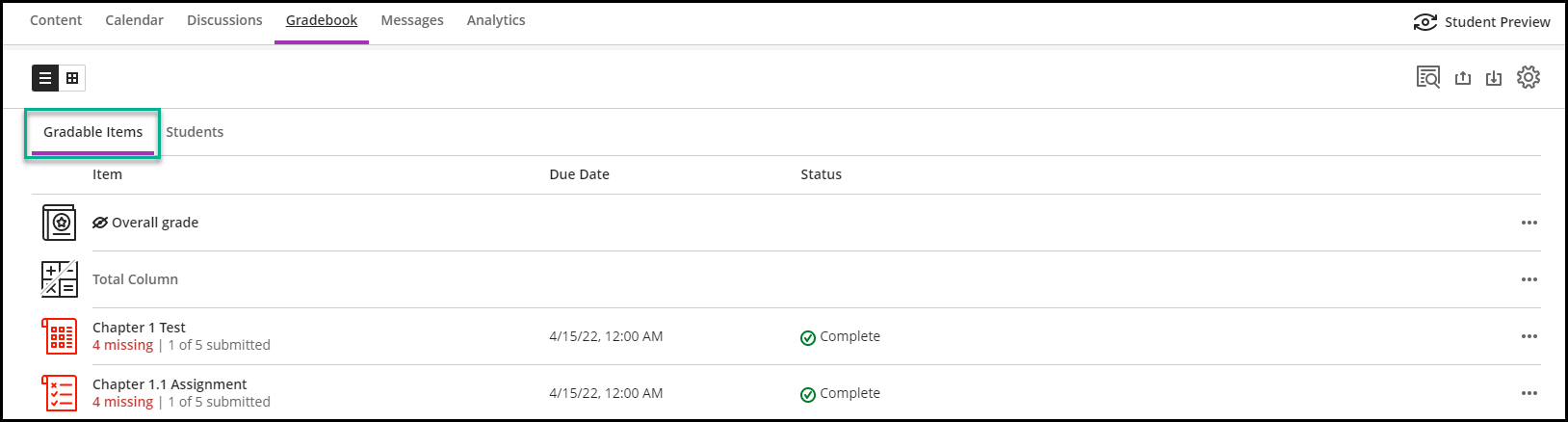
- On the Gradebook, located at the top left, click the Gradable Items tab. [view screenshot]
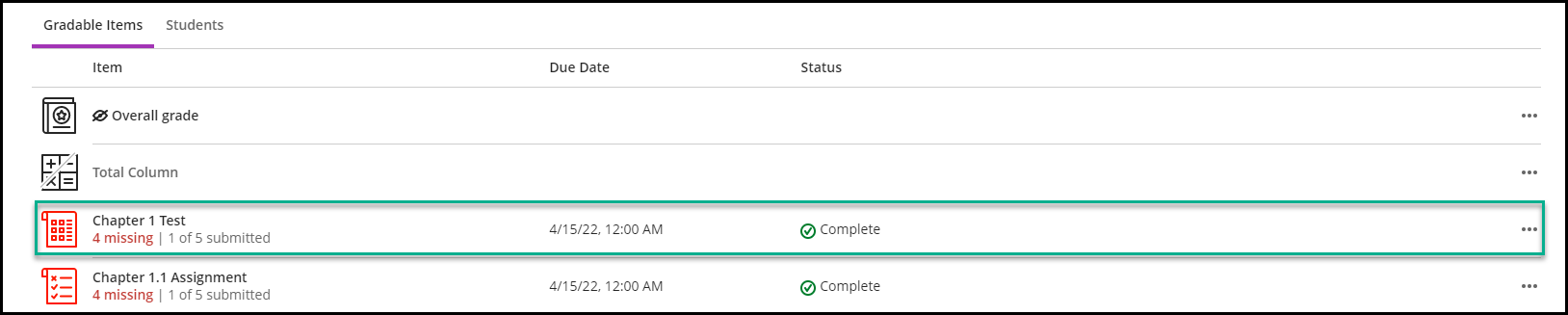
- Click on the test you want to clear the student attempt for. [view screenshot]
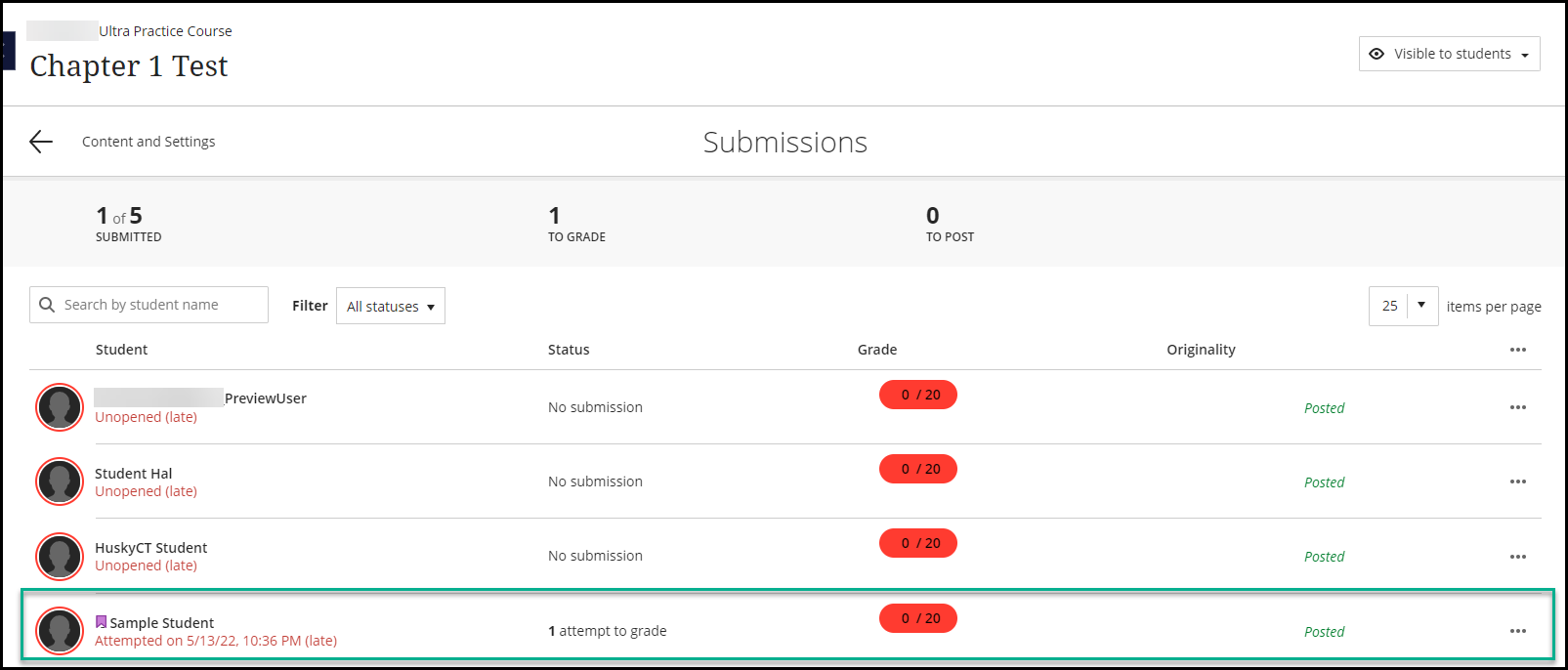
- You will see a list of students and their submissions. Click on the student who you want to clear the submission for. [view screenshot]
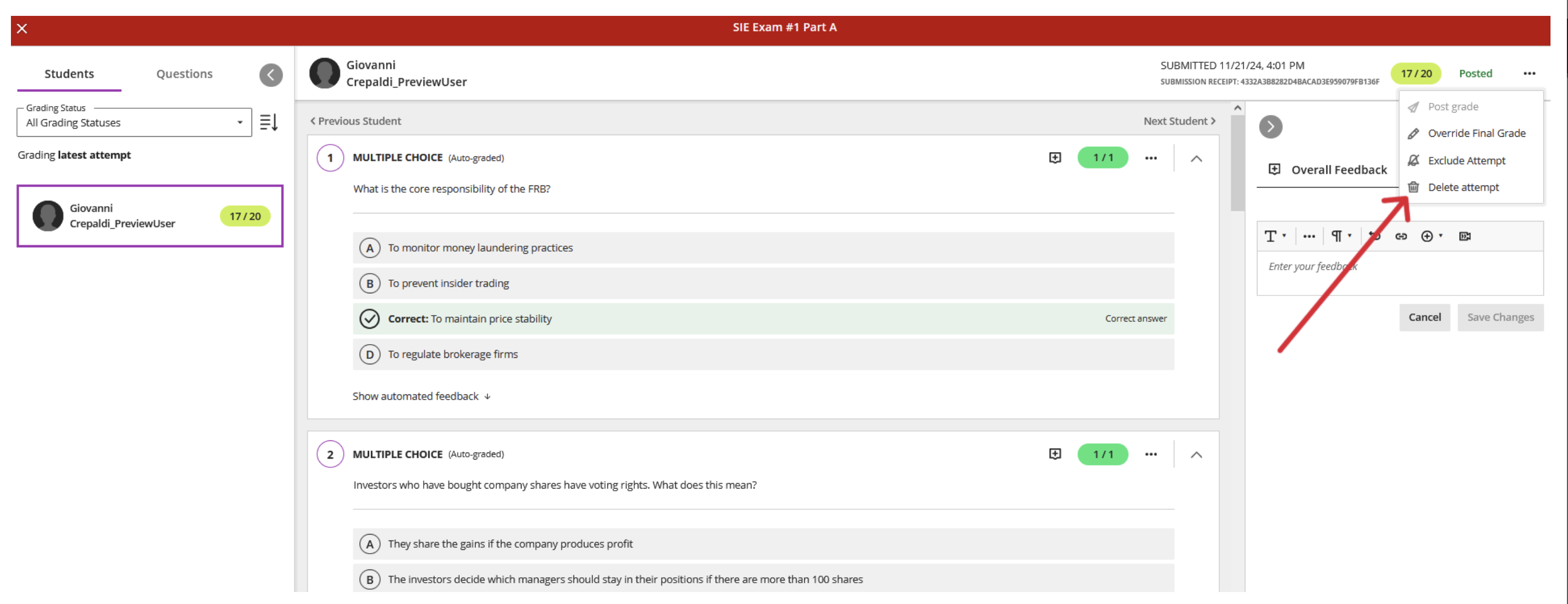
- Click the 3 dots located on the top right of the page. [view screenshot]
- A drop-down menu will appear; click Delete to clear the submission.
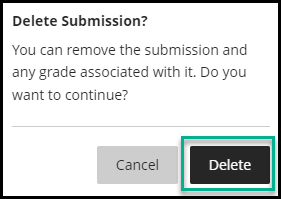
- You will be prompted to confirm that you want to delete the submission; click Delete to confirm or Cancel to return. [view screenshot]
NOTE: Clearing a student attempt is final, and can not be undone
Export/Import Grade Center
You can download the full gradebook or selected columns from your courses to work with in another program outside of Learn, such as Microsoft Excel to do statistical analysis. You can also make changes to exported grades in another application and then upload them back into Learn.
Some instructors enter grades offline and then upload them to Blackboard. The column headings in the import document must match the existing Blackboard Grade Center columns. New columns cannot be created outside of Blackboard and then uploaded to the Grade Center.
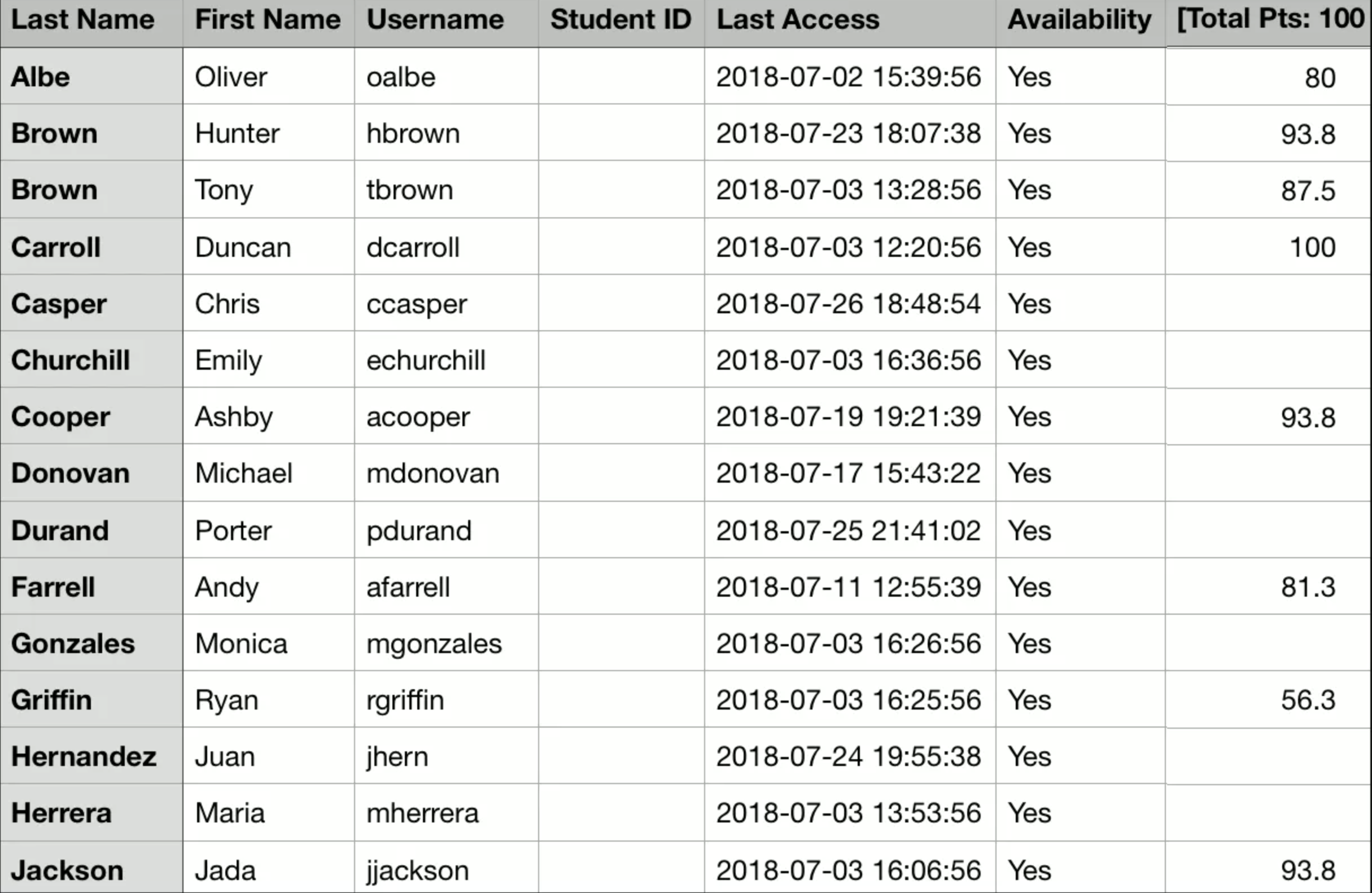
These columns are included in a exported grade file:
- Last name, first name, and username
- Student ID, last access, and availability
- Grade columns
- Attendance
- Manually added items
- Calculations
- Overall grade
For more information on working offline visit Blackboard's webpage Work Offline with Grade Data.
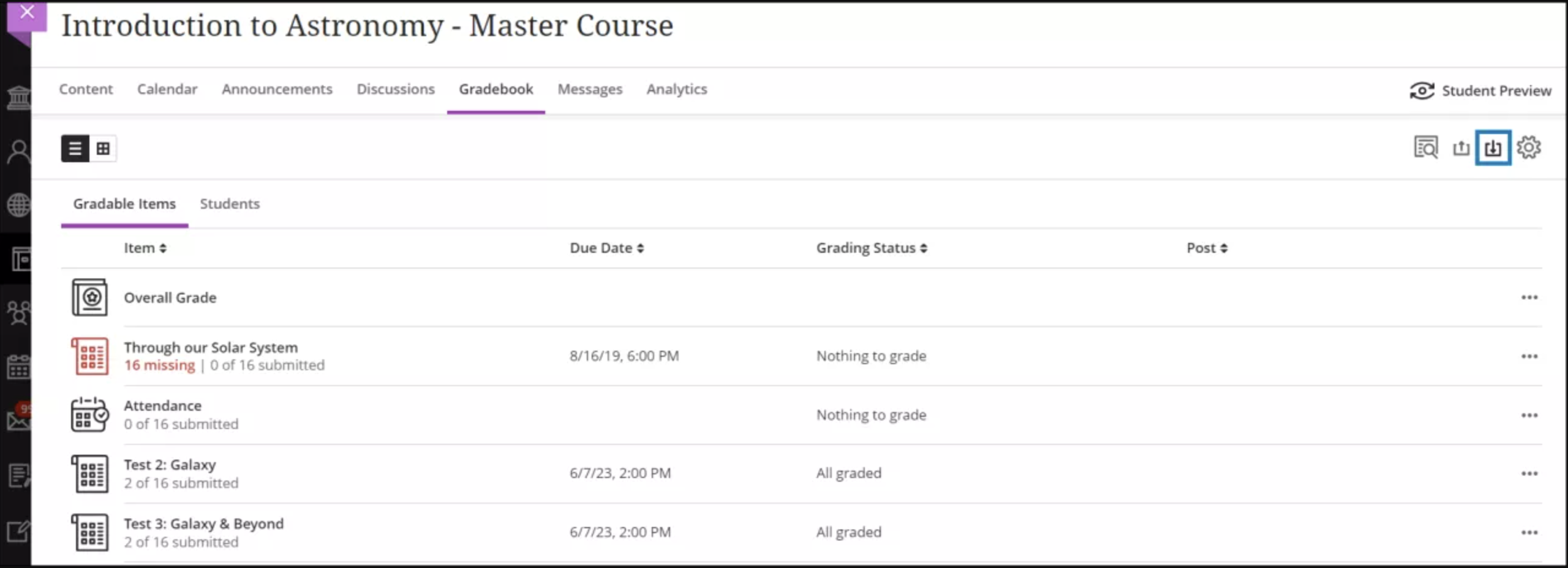
- From the gradebook, select Download. The Download Grades panel opens. [view screenshot]
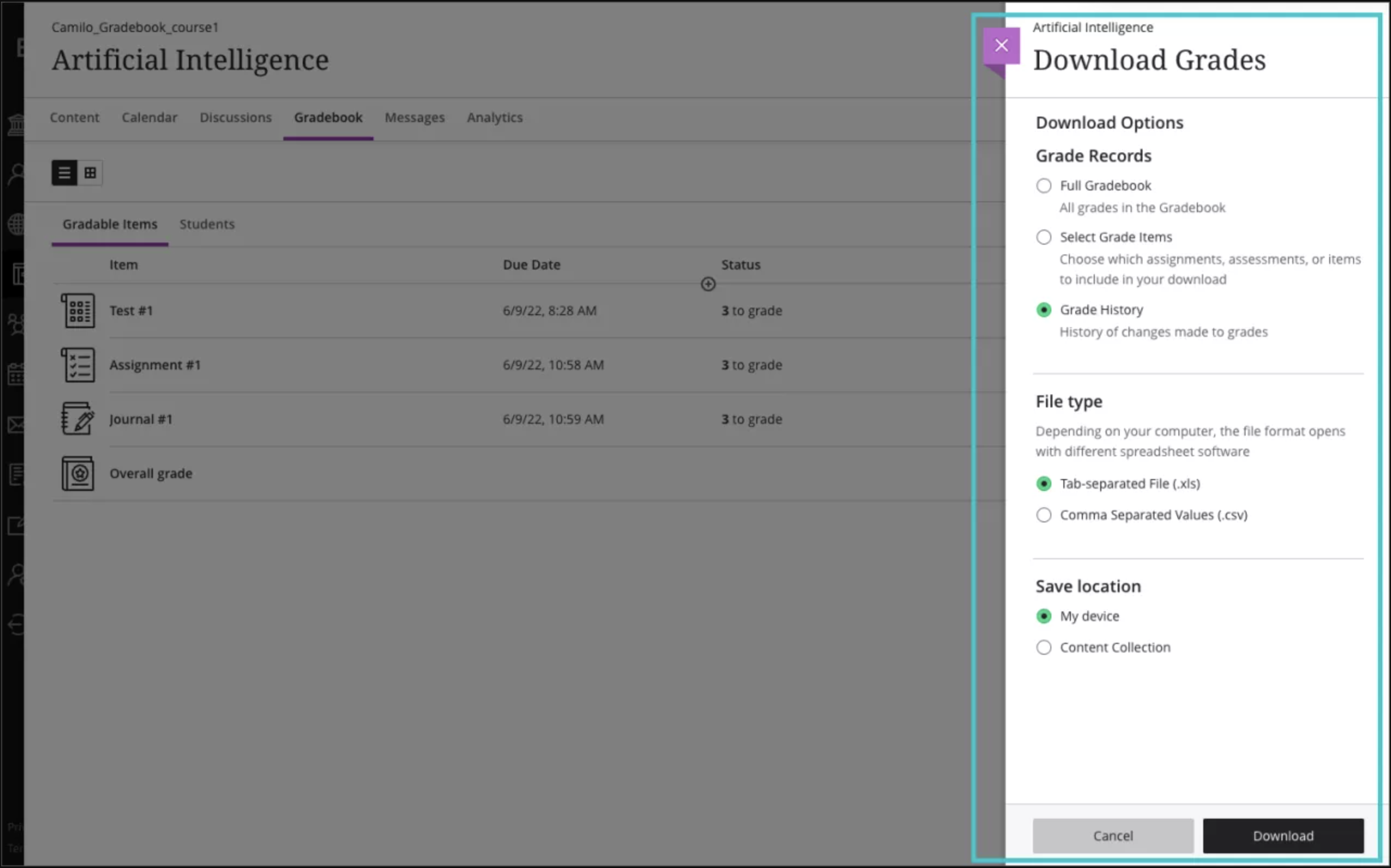
- Choose whether to download the full gradebook, select items, or grade history.
- Select the file type for the downloaded file. Data files are comma-delimited (CSV) or tab-delimited (XLS).
- Select the location for the download. You can save the file to your device or select a folder in the Content Collection.
- Select Download. [view screenshot]
Grade information
When you download the full gradebook, the file includes the grades you posted or are ready to post. No feedback is included. Overall grades are included if you set that up in your gradebook.
Grades you assigned appear as points, letters, or percentages based on how you chose to display each graded item in the gradebook. The column header includes the grade display. [view screenshot]
NOTE: You can't include items that allow anonymous grading, two graders per student, or peer review in the downloaded file.
Once you download your Gradebook, you can work on your Blackboard Gradebook on your computer and upload the edited spreadsheet back into Blackboard to allow students to see their current grades.
We recommend that you first download your Gradebook to ensure that the data matches when you re-upload the edited grades.
- Go to your course.
- Click on Gradebook along the top menu.
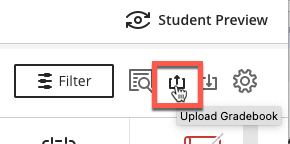
- At the top right of Gradebook, click Upload Gradebook. [view screenshot]
- Click Upload Local File or Drop your spreadsheet into the “hot spot” of the upload panel. [view screenshot]
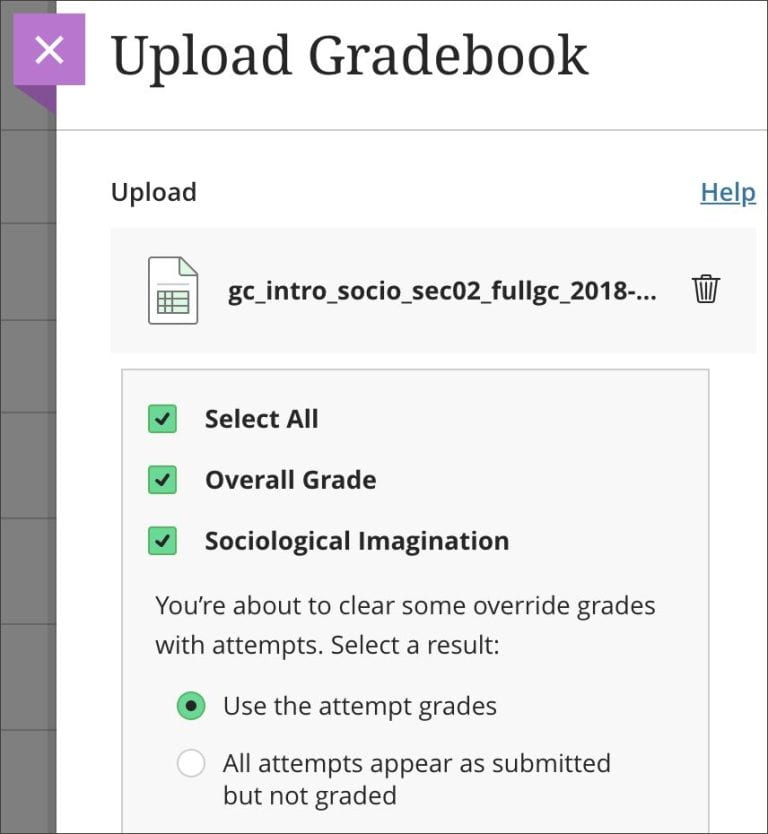
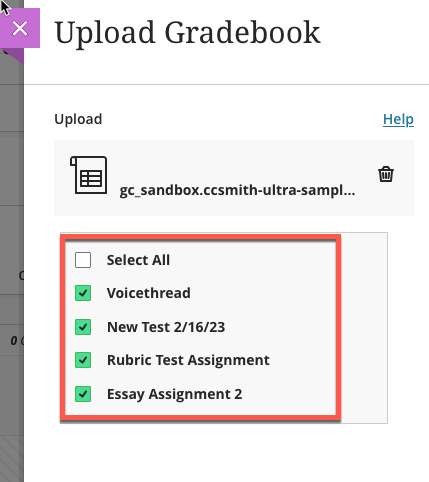
- Click Select All or review the list of columns that you changed in the file and only select the ones you want to upload. If there are no changes in a column, it will not appear in the list. [view screenshot]
Note: Only select the columns you want to upload grades. - Select Upload to post the grade changes.
![view screenshot]](https://cdn.bcm.edu/sites/default/files/upload-gradebook-file.png)
File format guidelines
You can only upload a file in a comma-delimited (CSV) or tab-delimited (XLS) format. Reminder: To upload a correctly formatted file, download the gradebook. Then, edit the file with the data you want to upload.
To synchronize external data to gradebook data, unique identifiers are necessary for each student and for each column in the gradebook. The unique identifier used for each student is the student’s username. The unique identifier for each column is a column ID number. Column ID numbers are generated by the system and shouldn’t be changed or deleted.
You can add a column without a column ID number in the file you upload to create a new column in the gradebook. However, you must add at least one student’s grade so the column is recognized and uploaded. The system adds a column ID number. You can edit the column after it appears in the gradebook to add the points total.
Example Messages: When you upload a file with blanks and Attempts exist.
You’re about to clear some grades with attempts. Select a result:
- Preserve grade
- All attempts appear as submitted but not graded
You’re about to clear some override grades with attempts. Select a result:
- Use the attempt grades
- All attempts appear as submitted but not graded
For some errors, you can continue to upload with a warning that some data with errors may result in unwanted effects. [view screenshot]