
OneDrive is Microsoft's online solution for storing, backing up, and sharing files, allowing easy access to files from any computer or mobile device.
Available to: Faculty | Students | Trainees | Staff
Managed by: BCM IT
Funding: Institution
Authentication: Single Sign-On (SSO)
Microsoft OneDrive is also available via the phone app (iOS | Android) using the same credentials.
- BCM IT Website
- BCM IT Software Catalog
- Access Microsoft OneDrive support via the application or on the Microsoft OneDrive Support Page.
OneDrive is a convenient cloud storage solution if you use other Microsoft Office 365 apps, such as Exchange. With OneDrive you can:
- Access and edit your files on all your devices
- Keep your files protected in the cloud
- Share documents or photos and collaborate in Office
- Quickly organize and find things that matter
- Track history of a document, restore a previous version, and compare versions
- View and create files and folders and upload folders from your computer into your OneDrive space
- 250 GB - File upload limit. Applies to each individual file uploaded to Microsoft Teams Files tab, SharePoint document libraries, OneDrive folders. View more information about Limits
- For optimum performance, we recommend storing no more than 300,000 files in a single OneDrive or team site library. View more information about Limits
- Copying/Moving multiple files in a single operation has three requirements:
- No more than 100 GB total file size
- No more than 30,000 files
- Each file must be less than 15 GB
Microsoft 365: Accessibility
Getting Started with Microsoft OneDrive - Knowledge Article
Requirements
OneDrive requires an active Microsoft account linked to your BCM account.
For the best experience on the OneDrive website, we recommend using the latest version of Edge, Chrome, Firefox, or Safari. Learn more about OneDrive systems requirements in the Microsoft Support page.
- Microsoft OneDrive FAQ - Knowledge Article
- Accessing Shared OneDrive Files - Knowledge Article
- Cloud Storage Online Training Resources - Knowledge Article
- BCM OneDrive Storage Quota Increase Request - Form
Feature Tutorials
Materials and resources for this area are being developed by the Office of Academic Technology: Education Technology. They will be added to this section as soon as they are ready.
For issues, questions or concerns: Contact the BCM IT Help Desk.
BCM Help Desk
Support Line: 713-798-8737
Web: https://it.bcm.edu
(NOTE: If you have forgotten your password, please contact the BCM Helpdesk at 713-798-8737 or visit https://bcm.edu/myaccount) PDF: Microsoft Self-Service Password Reset (SSPR)
FAQ Section
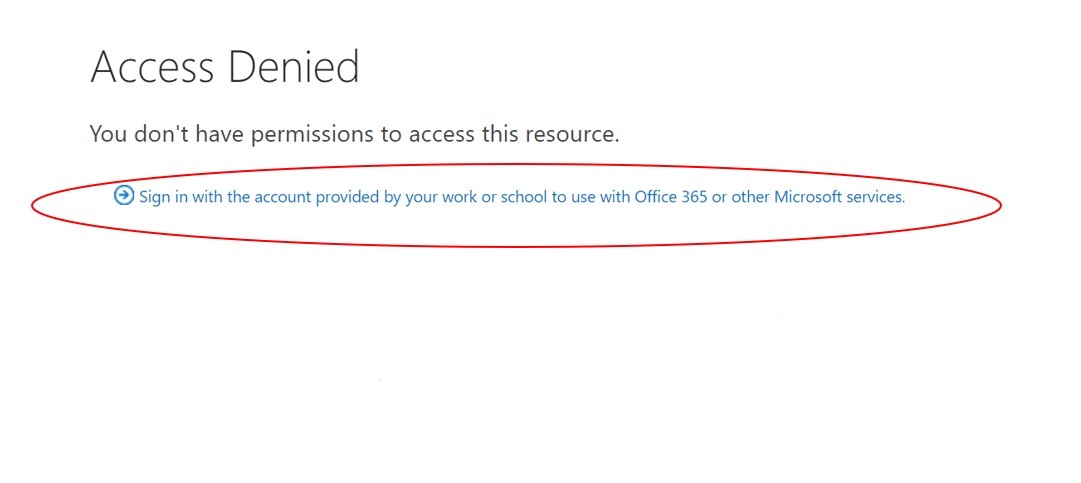
If users get an Access Denied error message, the resolution is to click on the link below the error message and log in (using their BCM username and password). [view screenshot]
The Office of Information Technology has completed the successful deployment of BCM’s new email (and OneDrive) encryption software! These advanced, yet seamless security controls offer a critical layer of protection for sensitive information in transit. As with most technical advancements, recipients of encrypted emails (or OneDrive documents) will experience a slight change. Click here for a brief video and user documentation created to assist you in providing support to the recipients of your encrypted emails.
Can faculty members still post links to videos/files saved in OneDrive to Blackboard? Yes, if the data is not sensitive, they can still use the Anyone sharing options. Sharing of OneDrive files externally to “anyone with the link” is still possible, but not if the file contains sensitive information. Users can still share with “specific people”, just not anonymously.
Do the changes apply to sensitive/PHI files only? Yes, the Anyone option will not be available if the file/folder contains sensitive information.
What is classified as sensitive? Personal Health Information and Personally Identifiable Information.
Determining where your files should go is an important aspect of file management at BCM. This guide should help you decide what would be the best option when saving and sharing your files within the Microsoft environment.
There are three main storage solutions that are offered by Microsoft available at BCM.
- Personal OneDrive Storage
- OneDrive Shared Libraries
- Teams Storage
For more information, go to the IT Service Now page.
The O365 suite is HIPAA compliant and IT has taken the necessary steps to ensure data is protected. There is no further encryption that is provided at the file or folder level for OneDrive. The data that resides on the SaaS service is stored on encrypted volumes. Users must ensure that access to PHI is restricted only to those that are approved to view the information.
Once a person leaves BCM, their personal OneDrive account will begin the process of deletion. This is why they are not ideal for long term storage. If you need to retrieve information from former BCM employees please submit an IT Access Request. This will not stop the 90-day deletion process and you must retrieve and save the contents of said account separately to avoid loss of data.
0-30 Days
You can still see, edit, and download your files.
[Microsoft Data Retention Policy: The 1TB storage space of OneDrive will be reduced, and the files and data in OneDrive will not be synchronized again, and can only be read-only. And the OneDrive storage space will be reduced to 5GB, and your other files will not be able to be saved.]
30-90 Days
After that, for the next 90 days, it goes read-only—you can only view and download, no editing or uploading. Then, after 90 days, your data will be deleted.
To keep your stuff, just make sure to back it up before the 90 days are up.
[Microsoft Data Retention Policy: For the security of your account and preservation of file status, Microsoft can retain customer data stored in Microsoft 365 for 90 days after canceling the BCM subscription, so that subscribers can extract data. After the 90-day retention period, Microsoft disables the account and deletes customer data. If there is no operation for 90 days, your files will be deleted and cannot be restored.]
For more information about OneDrive files, go to BCM Storage: Where should my files go?