
Summary
Baylor College of Medicine will be transitioning from Blackboard's Original Courses to Ultra Courses. This view is a more modern and adaptable learning management design and will establish a more contemporary and student-friendly learning environment.
Full Description
What is Blackboard Ultra Course View?
Blackboard is an integral component of Baylor College of Medicine's existing digital learning environment. At present, we are using Blackboard Original Courses. Beginning in Spring 2026 we will transition to Ultra Courses. Ultra Courses offer a streamlined workflow, enhanced accessibility, and more convenient viewing across various devices. It features simplified navigation, a mobile-friendly experience, intuitive workflows, and data-driven learning analytics, making it easier for you to keep students engaged in their learning.

Current Version

New Ultra Course Experience
Why transition?
Baylor College of Medicine is using Original Courses, which have not changed significantly since adoption in 1996. In 2019, we shifted to Ultra Base Navigation, which provided students with a modern entry point, granting access to the Activity Stream and Courses tab. In Spring 2025, Blackboard announced the End of Life (EOL) for the Original Experience as Dec 2026. As the next step in modernizing our learning management system, BCM will transition to Ultra Courses. This transition provides enhancements in course design and software updates.
Transition Timeline
Phase 1 - Early Adopters for fall 2025
Phase 2 - All courses in Spring 2026
Phase 3 - All courses in Summer and Fall 2026
Dec. 31, 2026 - Blackboard Original's End of Life
All Original View courses after Jan. 1, 2027 - read only
Highlights of the Ultra Courses
Blackboard Ultra Courses have a streamlined design that is accessible across mobile devices. Instructors have access to drag and drop features for adding content within the course. Students have access to progress tracking when turned on by the instructor.
Blackboard Ultra integrates with a variety of compliant tools that are currently in our system. Some of the tools include Microsoft Teams, Microsoft OneDrive, Poll Everywhere, and SafeAssign.
Blackboard Ultra Courses provide insights into student engagement and performance with robust reporting capabilities. [View Screenshot]
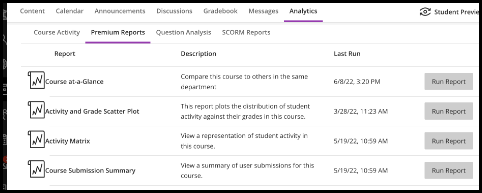
Blackboard Ultra Courses allow for easier course creation of content through drag-and-drop navigation, batch editing, and management of updates. Accommodations for students can be set at the roster level instead of for each assignment or test. Batch edits are available within the course content to make release conditions easier.
Blackboard leverages AI to inspire and streamline instructors' course creation process by providing recommendations for:
- Course Structure: Cut down the time required to create and update online courses with AI-generated suggestions for course modules and descriptions
- Tests and assessments: Easily generate test questions and other assessment tasks, including authentic assessments aligned with Bloom's Taxonomy, by using existing context from the course
- Rubrics: Ensure consistency and fairness in evaluating student performance with AI-generated grading rubrics
- Images: Add engagement to course materials with AI-generated or royalty-free images based on the context of the course
- AI Conversation: This is a Socratic questioning exercise guided by AI. AI Conversation lets students explore their thoughts on a topic.
- There are two elements to the activity:
- AI Conversation: This lets students think critically about the topic that the instructor designs.
- Reflection question: This asks the student to share their thoughts on the activity. The reflection question also lets the student flag any bias or errors from the AI as part of our Trustworthy AI Approach. Reflection helps students understand the responsible use of AI services.
- Instructors have the following configuration options:
- A topic for the AI Conversation
- An AI persona including a name, avatar (can be uploaded or generated), and personality trait
- Complexity level of responses
- Edit the reflection question, guiding the student on how best to reflect on this activity
- There are two elements to the activity:
Support for Faculty Adoption of Ultra Courses
BCM Education Technology & The Center for Teaching and eLearning will provide resources for faculty leading up to the transition to Blackboard Ultra. Below are some of the ways we will support this transition.
- Fall Demo Days with Blackboard
- Optional and Editable Course templates
- Documentation on Teaching & Learning with Blackboard website, written instructions, and video tutorials
- Regularly scheduled workshops for moving to Ultra Courses
- Pedagogical assistance provided by the Center for Teaching and eLearning
FAQ
Original Courses will be retained in accordance with Baylor College of Medicine’s course retention policy. Instructors can access their Original Courses for copying course content into their new Ultra Courses format.
Starting with the Spring 2026 semester, all new courses will be created in the Ultra Courses format. We strongly recommend that faculty build their Spring 2026 courses rather than converting old courses. New course creation in Ultra Courses is made easier through the new content copy workflow.
However, if you would like your current course(s) copied and converted to Ultra, we can take care of that as well.
After Jan 1, 2027 all original courses will be read-only and won't be able to be edited or content added.
Review the guides for content items that will convert and content items that will not convert.
Currently not all features are available in Ultra Course View. This includes some test question types, advanced gradebook functionality, blogs, and multiple folder depth (e.g. 2 or more folders within a folder) is possible.
| Original Course Feature | Ultra Course Feature | Availability | Notes |
| Achievements | Available | Extrinsic motivators can be a powerful tool for encouraging students to work hard in your courses. Recognizing a student's accomplishments is one of the best rewards for a job well done. You can use Achievements to keep students motivated and congratulate them for how they've participated in your course. | |
| Adaptive Release | Release Conditions | Available | Items can be made available based on date and time, performance (such as a grade on another item), and by individual or group membership. For Learning Modules, Release Conditions can also enforce sequential viewing of materials. |
| AI Design Assistant | Available | The new AI Design Assistant can assist faculty with course structure, tests and assessments, rubrics, and image creation | |
| AI Conversation | Available | You can create AI Conversations around a topic or scenario to engage your students. AI Conversations include Socratic questioning and role-play exercises. Students can explore and reflect on their own thoughts or role-play a situation related to their learning or career path. We'll include other conversation types as we gather feedback and insights from users. | |
| Anonymous Grading | Anonymous Grading- Hide Student Names | Available | You must choose this option for each individual Assignment, Test and Discussion during creation. You cannot grade anonymously if scores are posted automatically. |
| Announcements | Announcements | Available | Announcements are now located in the top navigation bar of Ultra Courses. Announcements appear in a pop-up box when students enter the course. You can send Announcements to students via email. New feature includes a video announcement icon in the text editor. |
| Assignments | Assignments | Available | Assignments include advanced features like group submission, rubrics, audio/video feedback, inline annotation and more. Feature Loss: Group assignment submissions cannot be downloaded in bulk. |
| Attendance | Attendance | Available | Attendance is accessed in Ultra Courses through the Details and Actions menu. |
| Banner Image | Course Image | Available | Course banners can be uploaded from a file or selected from the royalty-free Unsplash library. They can also be created by the AI feature within Blackboard. The minimum size for the banner image is 1200 x 240 pixels. |
| Blogs | TBD | In Research | Not yet developed, but under consideration for Ultra Courses. Alternatives-Use Discussion Board or an external blogging platform. |
| Calendar | Calendar | Available | Calendar is located in the top navigation bar within Ultra Courses. |
| Content Collection | Content Collection | Available | Content Collection can be accessed from the main entry point page under Tools. When adding content collection files in your Ultra Course, you would click on the plus symbol under Course Content. |
| Content Editor | Content Editor | Available | The content (text) editor in Ultra includes the ability to format text, add images, embed YouTube videos, and build equations. It does not include the ability to directly edit the HTML code which ensures the text is accessible and mobile-compatible. You can create HTML content blocks in a Document. |
| Course Link | Course Link | Available | You can create course links on the Course Content page by clicking on the + icon and select Create from the menu. Feature Loss- you cannot link to discussions or link to a folder or learning module. You cannot add course links via the text editor, such as on an Ultra Document or in an Announcement (this is planned as future functionality). |
| Course Menu | Discontinued | All content is listed on a single page in Ultra Courses, to make it easier for navigation. Course Tools are in Details and Actions and along the top of the page. Future releases will allow you to hide some elements not being used in the Details and Actions panel. | |
| Course Reports | Student Activity | Available with Limitations | Ultra Courses do not include the same course reports as the Original Courses. Student Activity reports summarize student activity on Assignments and Tests. To find time spent in a course and student grade distribution the Class Performance/Course Activity can be accessed. If you have enabled Progress Tracking, you can view student progress and get individualized reports on whether students have opened content. |
| Date Management | Batch Edit | Available | Date Management has been replaced with the Batch Edit tool. You can delete multiple course items and set due dates and visibility. |
| Delegated Grading | Delegated Grading | Available | Delegated Grading allows you to assign grading responsibilities to Instructors, Teaching Assistants, and Graders by group membership; assigned graders can only see student submissions in their assigned group. |
| Discussions | Discussions | Available | Discussions within Ultra Courses can be created on the content page and added into a folder, learning module, or Discussion page (located at the top navigation bar). When grading is enabled, you will have a detailed Discussion Analysis feature. Discussions can require students to post before reviewing classmates' submissions. |
| Edit Mode | Discontinued | Not available in Ultra Courses. You are always in Edit Mode unless you are in student preview mode. | |
| Embed Media or Mashup | Embed Media | Available with Limitations | Images and web-based videos can be embedded within a Document (page). Feature Loss- Video can only be embedded from select sources, including YouTube and Vimeo. For other platforms, you will need to create a link to the media or paste embed into an HTML block in a Document. |
| Files | Upload/Cloud Storage/Content Collection | Available | Clicking on the plus symbol and selecting Upload/ Cloud Storage (OneDrive) or Content Collection allows you to select files to add. In addition, files can be dragged and dropped into your course or the text editor. |
| Folders | Folders | Available | |
| Gradebook | Gradebook | Available with Limitations | Gradebook is located in the top navigation bar of Ultra Courses. The default view is a list of graded items, but you can switch to a grid view that is similar to Original Courses. Feature Loss: The Needs Grading view is discontinued but can be viewed in the list view of the Gradebook. Feedback added via the work offline process is not visible to students. Assessment submissions cannot be viewed chronologically. |
| Groups | Groups | Available | Groups are available in Ultra Courses at the top navigation bar. You can import groups and create custom sets and allow self-enrollment. |
| Item | Document | Available | Document in Ultra Courses refers to a page that resembles a web page. Documents can include images, text, uploaded files, and HTML content. If you only need to add a file, use the upload feature instead. |
| Item Analysis | Question Analysis | Available | Located in Ultra Courses in the top navigation bar under Analytics. |
| Journal | Journal | Available | Journals can be found in Ultra Courses by using the plus symbol and selecting create. |
| Learning Module | Learning Module | Available | Learning Modules in Ultra Courses are created by clicking the plus symbol and clicking create. You can add files, documents, assignments, tests, or discussions. You can force students to view the content in a Learning Module sequentially by selecting a Forced Sequence. |
| Performance Dashboard | Class Performance/Course Activity | Available with Limitations | You can view analytics in Ultra Courses within the Gradebook and on the Analytics tab in the top navigation bar. |
| Poll Everywhere | Poll Everywhere | Available | Can be added to the Ultra Courses through the Details and Actions panel by clicking on Books and Tools. |
| Retention Center | Discontinued | Alternatives can be found in Ultra Courses under the Class Performance/Course Activity area. | |
| Roster | Roster | Available | Roster is available under Details and Actions in Ultra Courses. You can turn the Roster on or off for students to view. |
| Rubrics | Rubrics | Available | Rubrics are available for all assessment types in Ultra Courses. Additional capabilities are planned. Feature Loss- Rubrics are limited to a maximum of fifteen rows and columns. You can’t download a summary rubric report from an item in the Gradebook. |
| SafeAssign | SafeAssign | Available | SafeAssign is available for Assignments and Essay questions on Tests. You can do a Direct Submit via the Books & Tools area in the Action panel in Ultra Courses. |
| SCORM | SCORM | Available | SCORM packages can be added to Ultra Courses through the plus symbol and clicking on create and select SCORM package. |
| Self and Peer Assessment | Peer Review | Available with Limitation | Peer Review can be selected when creating Assignments in the settings. Feature Loss- Currently only allows qualitative feedback and does not include self-assessment. Additional capabilities are planned. |
| Send Email | Messages | Available | In Ultra Courses the Messages tool allows you to communicate with students via email. Messages retain a copy of the conversation within Blackboard and include the option to send the contents to the student via email. Messages can be seen on the main Blackboard page under Messages and within the Ultra Courses in the top navigation bar. You will see a red circle on the Messages area when new ones are posted from students. In addition, when in the Gradebook under the students name you can click on the three dots to send messages. |
| Student Preview | Student Preview | Available | Located at the top navigation bar in the far-right corner. |
| Survey | TBD | Available | Planned for future Ultra Courses. Some external alternatives include Microsoft Forms or Survey Monkey. |
| Tasks | Discontinued | Not available in Ultra Courses and not planned. | |
| Test and Pools | Test and Question Banks | Available with Limitations | Tests in Ultra Courses can be added by clicking on the plus icon and selecting create. Tests can include Calculated Formula, Essay, Fill-in-the-Blank, Hot Spot, Matching, Multiple Choice, and True/False. Feature Loss- Some question types are not available such as Either/Or and File Response. Tests cannot be printed for students to take offline, but a solution is planned for future release. |
| Wiki | Discontinued | Not Available in Ultra Courses and not planned. Alternatives- Use Microsoft OneDrive for collaboration and editing or try Microsoft OneNote for a shared space. |
In Summer and Fall 2025, Ed-Tech will ask for early adopters. We strongly encourage all faculty to allow Ed-Tech to copy and convert their course. The other option for us to create a blank Ultra course shell to allow faculty to build their course in the new environment from the ground up.
If you are interested in teaching your Fall 2025 courses from the new Ultra Course style as an early adopter, please fill out this form.
Note: If the course is in an active term, we will need to clone it to ensure the active/live version is not affected. Only private, closed courses can be converted to Ultra Course View.
All BCM courses are currently in Original Course View, but with the option to convert to Ultra Course View course, you will have the ability to enter a 'preview mode.'
This preview mode allows you to review the recommendations of what content will convert, and what will not convert, before you commit to a permanent conversion of your course.
When you choose to permanently convert your course to Ultra, the changes you made during the preview are saved.
- View this video for an overview or review the steps below.
- Login and access your course. In the pop up window, click on the button ‘Try the Ultra Course View.’ When the conversion is complete, access your course, and review updates to your course.
- Select the ‘view details’ link in the banner or the ‘Course Exceptions’ menu link to view how many items will not carry over. These are known as exceptions. In the panel, select a priority group to view the specifics so you can make the best decision for your course.
- Make the selection to keep your course in the Ultra course view
- You will not be able to revert your course if you upgrade to Ultra. Any changes you make will be saved when you upgrade to Ultra Course View.
When you’re ready to make the course live, either for the current term or future terms, make your course available.
Questions?
Contact Education Technology (Ed-Tech)
ed-tech@bcm.edu | Monday - Friday, 8:00 am - 5:00 pm