Home
  • Healthcare
    • Specialties
      • Cardiovascular Care
      • Oncology
      • Neurosurgery
      • Primary Care
      • View All Specialties >
    • For Health Professionals
      • Refer a Patient
      • Clinical Trials
      • Professional Development
      • View All >
    • For Patients & Visitors
      • MyChart Login
      • Accepted Insurance
      • Pay My Bill
      • Patient Information
      • View All >
    • Clinical Trials
      • Autism
      • Cancer
      • Obesity
      • Substance Abuse
      • View All Clinical Trials >
    • Find a Doctor
    • Make an Appointment

    General Inquiries

    Call today to schedule an appointment or fill out an online request form. If requested before 2 p.m. you will receive a response today.

    CALL

    713-798-1000

    Monday – Friday 8 a.m. – 5 p.m.


    ONLINE

    Request Now

    Request non-urgent appointments

    Request an appointment, learn about your rights as a patient, read about what to expect from your appointment, and more.

    As Houston's premier academic medical practice, Baylor Medicine delivers compassionate, innovative, evidence-based care.
    Find a Doctor

  • Education
    • Degree Programs & Admissions
      • M.D. Program
      • Ph.D. Programs
      • DNP Program (Nurse Anesthesia)
      • Genetic Counseling Program
      • P.A. Program
      • Orthotics & Prosthetics Program
      • Baccalaureate/M.D. Programs
      • Dual Degree Programs
      • View All Programs >
    • Financing Your Education
      • Tuition & Fees
      • Financial Aid
      • CARES ACT
    • Schools
      • School of Medicine
      • Graduate School of Biomedical Sciences
      • National School of Tropical Medicine
      • School of Health Professions
    • Advanced Training Programs
      • Residency Programs
      • Clinical Fellowships
      • Postdoctoral Research Positions
      • Continuing Professional Development
      • Diploma in Tropical Medicine
      • View All >
    • Resources
      • Departments
      • Academic Centers
      • Academic Calendars
      • Education Cores
      • View All >
    • Information For...
      • Students
      • Postdoctoral Researchers
      • Faculty
      • Alumni
    get-to-know-houston

    America's fourth-largest city is a great place to live, work, and play. Find out why.
    Get to Know Houston

  • Research
    • Research Offices
      • Advanced Technology Cores
      • Clinical Research
      • Institute for Clinical & Translational Research
      • Office of Research Leadership
      • Research IT
      • Sponsored Programs
    • Research at Baylor
      • Academic Centers
      • Departments
      • Faculty Labs
      • From the Labs
      • News
      • Our Research
      • Research Centers
      • Strategic Research Center
    • Additional Research Services
      • BCM Innovation Institute
      • Service Labs
      • VIICTR
    get-to-know-houston

    America's fourth-largest city is a great place to live, work, and play. Find out why.
    Get to Know Houston

  • Community
    • Healthcare Outreach
      • Community Programs
      • More >
    • Global Outreach
      • Global Health
      • Global Programs >
    • Educational Outreach
      • SMART Program
      • BioEd Online
      • More >
    • General Resources
      • Community Events
      • News
      • Blogs
      • Baylor in the Community
    get-to-know-houston

    America's fourth-largest city is a great place to live, work, and play. Find out why.
    Get to Know Houston

  • About
    • About Us
      • Academic Centers
      • Alumni
      • Careers
      • Departments
      • Giving
      • Leadership
      • Mission, Vision, Values
      • News
      • Our Affiliates
      • Fast Facts
      • Accreditation
    • Offices
      • President's Office
      • Office of Research
      • Ombuds Office
      • BCM Innovation Institute
      • View All >
    • Our Campus
      • Compliance
      • Safety and Security
      • Resource Stewardship & Sustainability
      • Team Shop
      • Find a Person
    get-to-know-houston

    America's fourth-largest city is a great place to live, work, and play. Find out why.
    Get to Know Houston

  • GIVE
  • CAREERS
  • INTRANET
  • Careers
  • Contact Us
  • News
Education
  • Schools
  • Education Programs
  • Academic & Faculty Affairs
  • Tuition & Fees
  • Financial Aid
  • Registrar
  • Academic Resources
  • Office of Accreditation and Education Effectiveness
  • Education Contacts
  • News
  • School of Medicine
  • Graduate School of Biomedical Sciences
  • School of Health Professions
  • National School of Tropical Medicine
  • Cores
  • Schools
  • Education Programs
  • Academic & Faculty Affairs
  • Tuition & Fees
  • Financial Aid
  • Registrar
  • Academic Resources
  • Office of Accreditation and Education Effectiveness
  • Education Contacts
  • News
  • School of Medicine
  • Graduate School of Biomedical Sciences
  • School of Health Professions
  • National School of Tropical Medicine
  • Cores
  1. Baylor College of Medicine
  2. Education
  3. Academic & Faculty Affairs
  4. Faculty Resources
  5. Faculty Ed-Tech
  6. Learning Management Systems
  7. Blackboard
  8. Blackboard Ultra Course View
  9. Tests and Assignments
  10. Anonymous, Delegated and Parallel Grading
  • Accessibility at BCM
  • Teaching and E-Learning Resources
  • Clinical Learning Applications
    • Aquifer
    • Osmosis
    • UpToDate
  • Digital Course Materials
  • Equipment Lending and Rental
  • Exams and Proctoring
    • ExamSoft/Examplify
      • Creating & Posting Exams
      • Creating Questions
      • Disable Operating System Auto-Update
      • Exam Stats & Analysis
      • ExamID & ExamMonitor
      • Releasing Results to Students
      • Reviewing Results
      • Scoring Exams
      • Using iPads with Examplify
    • Respondus
    • SafeAssign
  • Learning Management Systems
    • LMS Troubleshooting Solutions
      • Clearing your web browser's cache
    • Blackboard
      • Blackboard Original Course View
      • Blackboard Ultra Course View
        • Artificial Intelligence (AI) Design Assistant
        • Attendance Tracking
        • Automations
        • Beginning of Semester
        • Blackboard Ally
        • Blackboard Essentials
        • Blackboard Guidelines
        • Blackboard Mobile App
        • Communication
        • Course Content
        • Course Set Up
        • Course Size Limits
        • Discussion Boards
        • Edpuzzle
        • Forms (Formerly Bb Surveys)
        • Gradebook
        • Journals
        • LTI Tool Integration Requests
        • Organizations
        • Portfolios
        • Tests and Assignments
        • Track Student Performance
        • Users and Groups
        • Video Studio
        • Learning Object Repository
    • Comprehensive Academic Management System (CAMS)
    • Leo (DaVinci)
    • MedHub
    • SuccessFactors
    • SimulationiQ
  • Learning Spaces
    • AirMedia
    • Audio Visual Room System Design Services
      • All-in-One Huddle Room
      • Small Conference Room
      • Large Conference Room
  • Lecture Capture
  • Media Steaming
    • vBrick
  • Multimedia Creation Software
    • Adobe Creative Cloud
    • PowerPoint
    • VoiceThread
    • Articulate 360
    • O365
  • Multimedia Services
    • Professional Video Production Services
  • Online Storage
    • Box (for Education)
    • OneDrive
    • SharePoint
  • Polling and Surveys
    • Microsoft Forms
    • Poll Everywhere
    • Qualtrics
    • SmartSheets
    • Survey Monkey
  • Room Reservations
  • Virtual Classrooms
  • Virtual Collaboration
    • Microsoft Teams
  • Other Ed-Tech Apps
  • Ed-Tech News
    • BCM’s Wi-Fi & Auditorium Wired Connection Guide: Initial Connection & Basic Troubleshooting
    • Important ExamSoft: Mandatory Examplify Update - Available Soon (April 15, 2025)
    • Important: ExamSoft and New OS Compatibility
    • MFA is coming to Blackboard
    • New ExamSoft Question Types
    • Poll Everywhere Mac Presenter 4.0.0 is now available
    • SSO is coming to DaVinci Leo
    • SSO is coming to Poll Everywhere
    • SSO is coming to Up-to-Date
    • Transition from Zoom to Microsoft Teams
    • Transitioning to Blackboard Learn Ultra Courses
      • Blackboard Ultra Resources
    • Upcoming Examplify MSR Changes
    • Update: Poll Everywhere Best Practices
    • UptoDate News
    • Voice Thread Visual Redesign 2024
    • Poll Everywhere Visual Redesign 2023

Anonymous, Delegated and Parallel Grading

The Anonymous, Delegated, and Parallel grading features allow you to increase the reliability and decrease bias in grading. Delegated grading can also help to distribute grading responsibility across multiple individuals. 

For more information about Delegated Grading, select from the following:

Grading anonymously helps faculty avoid bias in assessment by hiding student names while you grade. Names are revealed only after you post all grades.

To enable anonymous grading, open the Assignment settings by clicking the gear icon in the upper right or the Assignment canvas, then click the Hide student names checkbox under Anonymous grading.

Anonymous grading can only be enabled on Assignments. You can add files or text to an assessment you wish to grade anonymously. You can't change the anonymity after students open an assignment or submit attempts.  [view screenshot]
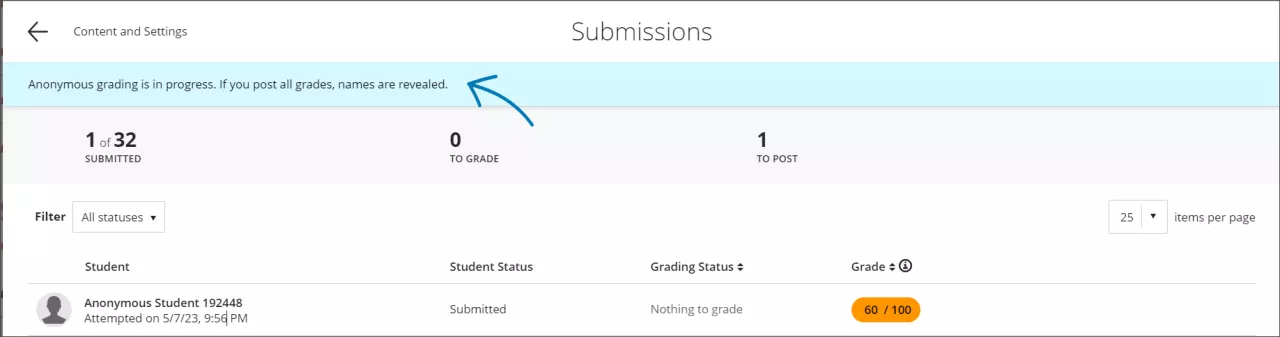
You can enable SafeAssign for an Assignment or Test with Anonymous Grading enabled, but you will not be able to view SafeAssign results or Originality Reports until after all grades are posted. You cannot use peer review, automatic grade posting, or assessment results settings when anonymous grading is enabled.

You can send a reminder to students who have not submitted even while anonymous grading is in place. To send a reminder, go to the Submissions list for the assignment and click the Send Reminder button. [view screenshot]
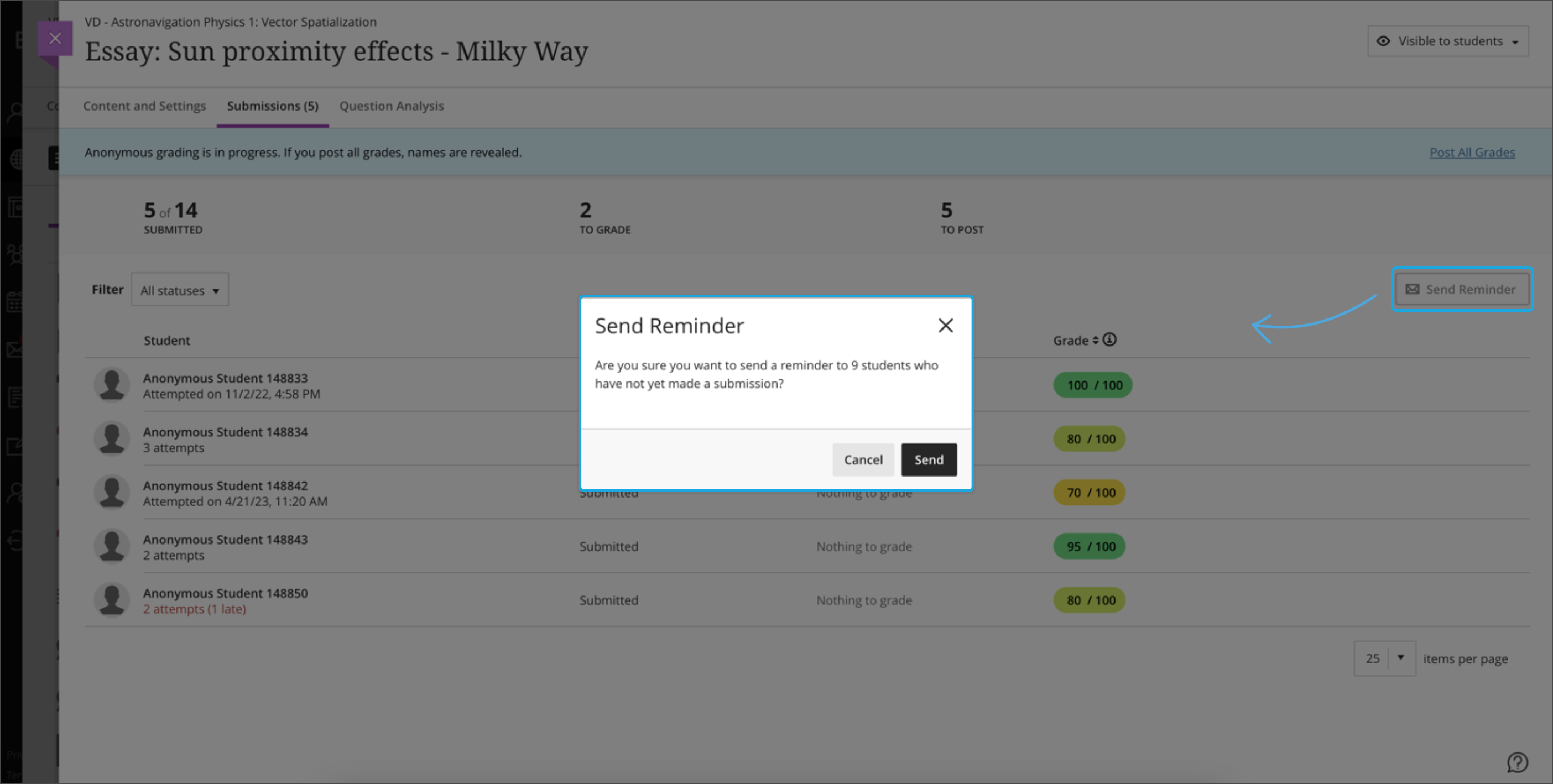
When you have finished grading all of the students, select Post all grades in the banner at the top of the page. This will lift anonymity and is not reversible. You will receive a warning message if you try to post all grades and lift anonymity before grading is complete. Once anonymity is lifted, you can still update posted grades and grade any late submissions.

For complete instructions on Anonymous Grading, visit the Blackboard Help Center.

The Delegated Grading feature allows you to assign specific users, such as other instructors or teaching assistants, to grade particular sets of student assignment or test submissions. The users who help you grade are called delegated graders and they provide provisional grades. An instructor will need to review and reconcile the provisional grades before they can be posted to students.

To use Delegated Grading, you will need to first set up a Group Set. Each delegated grader will only be able to view submissions for students within the group(s) they are assigned. Once the group set is established, you can enable Delegated Grading by opening the settings for the Assignment or Test, clicking the gear icon, then clicking the Delegated Grading checkbox under Evaluation options. You will then be able to click the Assign Graders link to select a group set and assign a grader to one or more groups in the set.

With Delegated Grading, if multiple graders are assigned to the same group of students, they will share the grading responsibilities. Students will only be evaluated once. 

Enable delegated grading for an assignment or test

  1. From the Gradebook, select Edit for an assignment or test.
  2. Select Assignment Settings or Test Settings to open the panel.
  3. Under Evaluation options, select Delegated Grading.
  4. Select Assign graders. From the Delegated Grading page, select a group set.
  5. For each group in the set, select the graders.
    1. A group set can include one or more graders in each group. If multiple graders are assigned to the same group, they will share the grading responsibility.
    2. Graders assigned to a group of students can only view submissions for those students on the assessment’s submission page. They can only post grades for their assigned group members.
    3. Unassigned instructors enrolled on the course can view all student submissions on the assessment’s submission page. They can post grades for all students.
    4. If you'd like to delegate randomly to course graders, first set up a randomized Group Set. For more information, see Create Groups.
  6. Select Save. You return to the settings panel.
  7. Select Save to save your settings.

For complete instructions on Delegated Grading, visit the Blackboard Help Center.

The Parallel Grading workflow assigns two individuals with grading privileges (such as Instructor, Teaching Assistant, or Grader) to review and provide provisional grades on an Assignment or Test for each student in the course. Final grades are reconciled by someone with the Instructor role, or another individual who is assigned to be a Reconciler.

For complete instructions on Parallel Grading, visit the Blackboard Help Center. Watch a video on Parallel Grading.

  1.  Enable Parallel Grading in the settings for an Assignment or Test; assign individuals to be Graders
  2. Graders access and grade submissions
    1. Reconciler reviews provisional grades, assigns a final grade, and provides feedback

Graders can view student submissions, complete a rubric, provide in-line annotation, assign a provisional grade, and provide overall feedback. Graders cannot see other graders' grades, feedback, annotations on student files, and rubrics. Students cannot see anything provided by the individual graders.

Reconcilers can view the graders grade and overall feedback, but cannot view their rubrics or annotations. Reconcilers determine the overall grade for each student, either individually or in bulk by using the average, highest, or lowest grade.

Students only see the grade, feedback, and rubric from the reconciler.

When grades are ready to reconcile, you'll receive an activity stream notification and the items appear in the Needs Reconciling section of the Overview tab of the Gradebook. You receive the notification after the assigned graders have graded one student's attempt.

Reconcile a single attempt

You can review each grader's grade and feedback before you determine the final grade. You can reconcile grades even if graders don't grade all the attempts. [view screenshot]
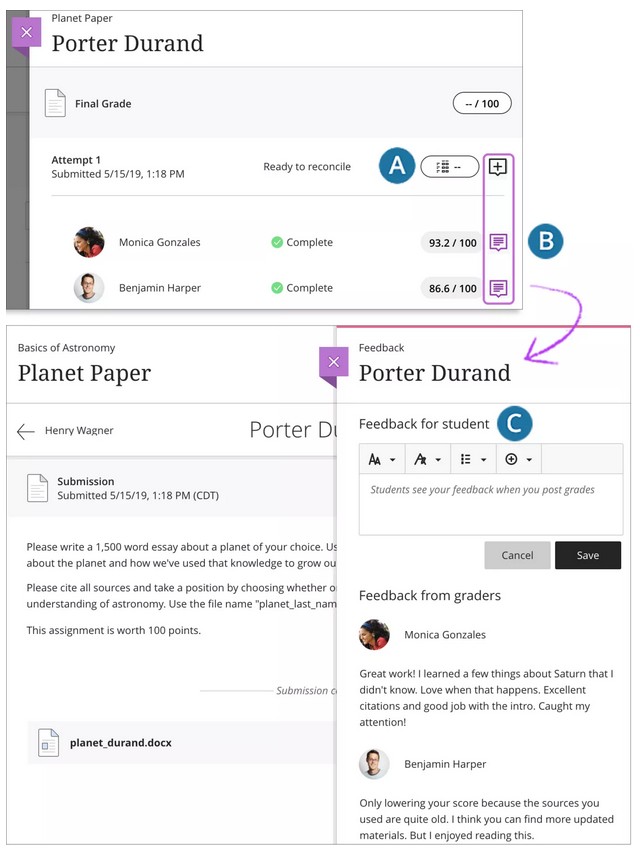
  1. Assign grades. Select the grade pill to assign a grade or open the rubric. Reminder: You can't view a grader's rubric or annotations on student files. You also can't edit a grader's grade and feedback.
  2. Review feedback. Select a feedback icon to open the Feedback panel and review the graders' feedback.
  3. Add your feedback. Students won't see the graders' feedback, but your feedback appears when you post the final grades.

After you post the final grades, graders can only see the final grades and feedback. Graders can't access their evaluations to edit them after final grades are posted. [view screenshot]
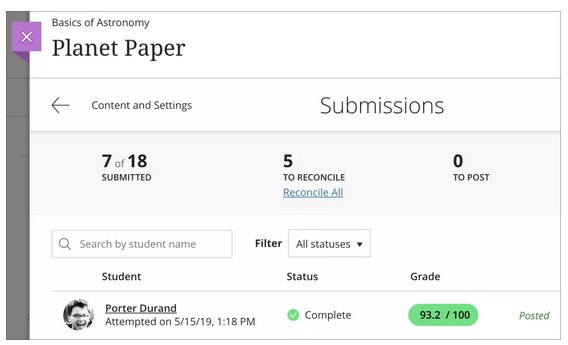
For complete instructions on how to Reconciling Grades, visit the Blackboard Help Center.

You don't have to reconcile grades individually. In one action, you can reconcile all attempts with one or more grades from graders. For example, you can "batch" reconcile if you have confidence in your graders and want to assign the average of their grades to each attempt.

All graders don't have to finish before you reconcile grades. You also don't have to wait for all students to make attempts. You can automatically reconcile the grades for the attempts that exist. This action is irreversible. Reconciliation doesn't override manually reconciled or previously reconciled grades.

On the Submissions page, select the Reconcile All link. Select the grade to use:

  • Average of grades
  • Highest of grades
  • Lowest of grades

You always see that attempts are ready to reconcile if students have made attempts. Graders don't have to assign grades and feedback before the attempts are ready to reconcile. [view screenshot]
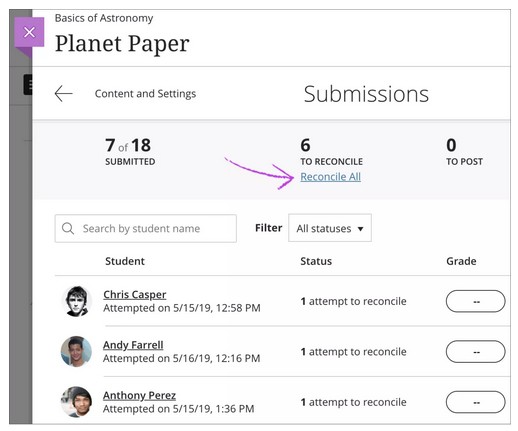
If you choose to reconcile all grades and you've associated a rubric with the assessment, an Override label appears on the Submissions list page only. 

For complete instructions on how to Overriding Grades, visit the Blackboard Help Center.

When you allow multiple attempts for an assessment, you see grades given by graders per attempt. Then, you reconcile grades for each attempt. The final grade for a multiple attempt assessment is calculated based on the Grade attempts setting you chose when you created the assessment.

Select an attempt or the grade pill to view the student's work and reconcile the grades. You can also batch reconcile all the grades for existing attempts. [view screenshot]
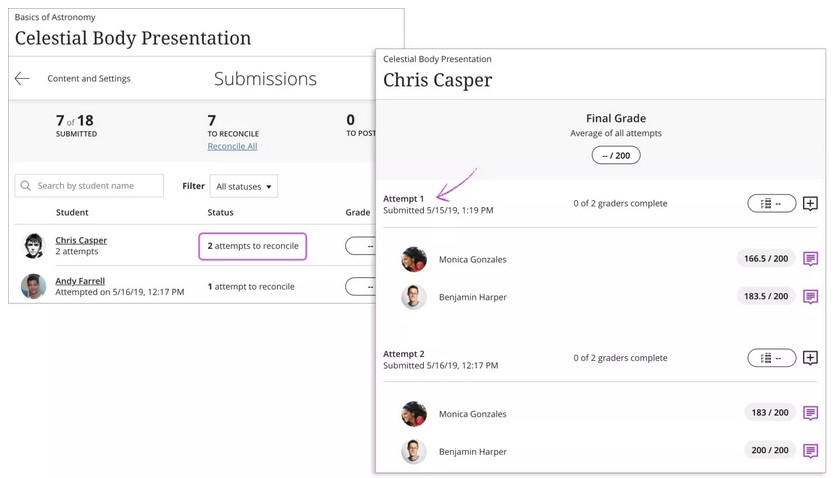
Parallel grading doesn't impact how the final grade is calculated. However, the final grade can't be calculated until attempts are reconciled. The final grade appears in the gradebook when those attempts are reconciled. For example, if the final grade is calculated based on the highest graded attempt, the final grade appears immediately after at least one attempt is reconciled. But, the grade may change as students submit more attempts.

After reconciliation, you can post the final grades for students.

Ed-Tech
  • Accessibility at BCM
  • Teaching and E-Learning Resources
  • Clinical Learning Applications
    • Aquifer
    • Osmosis
    • UpToDate
  • Digital Course Materials
  • Equipment Lending and Rental
  • Exams and Proctoring
    • ExamSoft/Examplify
      • Creating & Posting Exams
      • Creating Questions
      • Disable Operating System Auto-Update
      • Exam Stats & Analysis
      • ExamID & ExamMonitor
      • Releasing Results to Students
      • Reviewing Results
      • Scoring Exams
      • Using iPads with Examplify
    • Respondus
    • SafeAssign
  • Learning Management Systems
    • LMS Troubleshooting Solutions
      • Clearing your web browser's cache
    • Blackboard
      • Blackboard Original Course View
      • Blackboard Ultra Course View
        • Artificial Intelligence (AI) Design Assistant
        • Attendance Tracking
        • Automations
        • Beginning of Semester
        • Blackboard Ally
        • Blackboard Essentials
        • Blackboard Guidelines
        • Blackboard Mobile App
        • Communication
        • Course Content
        • Course Set Up
        • Course Size Limits
        • Discussion Boards
        • Edpuzzle
        • Forms (Formerly Bb Surveys)
        • Gradebook
        • Journals
        • LTI Tool Integration Requests
        • Organizations
        • Portfolios
        • Tests and Assignments
        • Track Student Performance
        • Users and Groups
        • Video Studio
        • Learning Object Repository
    • Comprehensive Academic Management System (CAMS)
    • Leo (DaVinci)
    • MedHub
    • SuccessFactors
    • SimulationiQ
  • Learning Spaces
    • AirMedia
    • Audio Visual Room System Design Services
      • All-in-One Huddle Room
      • Small Conference Room
      • Large Conference Room
  • Lecture Capture
  • Media Steaming
    • vBrick
  • Multimedia Creation Software
    • Adobe Creative Cloud
    • PowerPoint
    • VoiceThread
    • Articulate 360
    • O365
  • Multimedia Services
    • Professional Video Production Services
  • Online Storage
    • Box (for Education)
    • OneDrive
    • SharePoint
  • Polling and Surveys
    • Microsoft Forms
    • Poll Everywhere
    • Qualtrics
    • SmartSheets
    • Survey Monkey
  • Room Reservations
  • Virtual Classrooms
  • Virtual Collaboration
    • Microsoft Teams
  • Other Ed-Tech Apps
  • Ed-Tech News
    • BCM’s Wi-Fi & Auditorium Wired Connection Guide: Initial Connection & Basic Troubleshooting
    • Important ExamSoft: Mandatory Examplify Update - Available Soon (April 15, 2025)
    • Important: ExamSoft and New OS Compatibility
    • MFA is coming to Blackboard
    • New ExamSoft Question Types
    • Poll Everywhere Mac Presenter 4.0.0 is now available
    • SSO is coming to DaVinci Leo
    • SSO is coming to Poll Everywhere
    • SSO is coming to Up-to-Date
    • Transition from Zoom to Microsoft Teams
    • Transitioning to Blackboard Learn Ultra Courses
      • Blackboard Ultra Resources
    • Upcoming Examplify MSR Changes
    • Update: Poll Everywhere Best Practices
    • UptoDate News
    • Voice Thread Visual Redesign 2024
    • Poll Everywhere Visual Redesign 2023

Contact Ed-Tech

Email ed-tech@bcm.edu
get-to-know-houston

America's fourth largest city is a great place to live, work and play. Find out why.
Get to Know Houston

Credit
Visit Houston

Follow Us facebook twitter youtube linkedin instagram rss 

Footer Menu Healthcare

  • Healthcare
    • Specialties
    • MyChart Login
    • For Patients & Visitors
    • For Health Professionals
    • Clinical Trials
    • Find a Physician

Footer Menu Education

  • Education
    • Programs & Admissions
    • Student & Trainee Resources
    • Faculty Resources
    • School of Medicine
    • Graduate School of Biomedical Sciences
    • National School of Tropical Medicine
    • School of Health Professions
    • Tuition & Fees
    • Financial Aid

Footer Menu Research

  • Research
    • Our Research
    • Core Labs
    • Faculty Labs
    • Research Centers
    • Research Offices

Footer Menu Community

  • Community
    • Healthcare Outreach
    • Education Outreach
    • Global Programs
    • Community Events

Footer Menu About

  • About
    • Our Campus
    • Departments
    • Academic Centers
    • Administrative Offices
    • Affiliates
    • Leadership
    • Giving
    • Alumni

Footer Menu Resource Links

  • Resource Links
    • Contact Us
    • Find a Person
    • Careers
    • BCM Team Shop
    • News
    • Title IX Office
    • Compliance
    • Covid Response Site

©1998-2026 Baylor College of Medicine® | 1 Baylor Plaza, Houston, Texas 77030 | 713-798-4951
Have an edit or suggestion for this page?

  • Compliance
  • Privacy
  • Intranet