
Video Studio is an audio/video tool to help you create a more engaging learning experience for students. The lightweight and deeply integrated solution gives users the ability to record or upload audio and video recordings in these areas:
Only instructors can create Video Studio content in these areas. Students can access Video Studio content in these areas.
- Course Content page
- Documents
- Forms
- Journals
- Announcements (Video Studio is embedded within Announcements. Your institution doesn't need a separate Video Studio license to use Video Studio when creating Announcements).
Students and Instructors can record Video Studio content in these areas:
- Tests and assignments
- Discussions topics
Using Video Studio
For the best experience using Video Studio, follow these specifications:
Recording duration: Videos recorded directly with Video Studio have a maximum duration of 20 minutes. However, there is no length limit for videos uploaded from other sources.
Streaming quality: The player supports both HD (1080p, 8Mbps) and SD (480p, 1Mbps) streaming. It utilizes adaptive streaming technology to automatically adjust video quality based on the viewer’s internet speed, ensuring smooth playback with the best possible quality.
Upload file size limit: The maximum upload size for videos is 10GB.
Supported file formats: The player recognizes a wide range of file extensions, including:
- Video: .mp4, .mov, .avi, .mkv, .wmv, .flv, .webm, .3gp, .m4v, .mpg, .mpeg, .m2v, .ts
- Audio: .mp3, .m4a, .wav, .ogg, .flac, .opus, .weba, .aac
- Using Video Studio does not affect your course storage
- Uploading videos to Video Studio does not affect your course storage
Video Studio is available for the Course Content page, in Discussion topics, and within Documents. You can create audio and video files from a camera, audio recording, or from screen recordings. You can also upload audio and video files. Video Studio also has the capability to upload 360° videos that can pan to the left or right. For information about creating documents, visit the Create Documents Help page.
- On the Course Content page. Select + where you would like to add content. Then select Record Audio/Video.
- Enhanced Document. In a created document, in the options for Select a type of content to add a block, select Audio/Video.
In an Audio/Video content block, options include:
- Camera
- Audio
- Screen
- Audio & Screen
- Upload from device
Resizing the display of Video Studio recordings to one quarter size of the default full width display is possible when creating recordings within Documents (navigate to Control display of captions and transcript). On the Course Content page, Video Studio recordings are displayed at full width. If a user reduces the size of the browser window, the recording can be reduced to a minimum of half width of the full size.
Captions and transcripts are automatically generated for a recording. The automated transcription also identifies and segments individual speakers in a recording (up to 30 speakers). You can edit captions, transcripts, and speaker name labels for content created using Video Studio. This allows you to correct minor errors and add clarity to the captions and transcripts that are automatically generated.
For complete instructions on how to Editing Transcripts, visit the Blackboard Help Center pages.
Play your selected recording, then select the transcript button at the bottom corner of the video screen. This opens the transcript panel displaying the text of the transcript. Select the download button at the top of transcript column. The transcript is downloaded as a VTT file that includes time stamps and speaker narration.
For complete instructions on how to Download Transcripts, visit the Blackboard Help Center pages.
Instructors can now embed ungraded knowledge check questions directly into videos in Video Studio. The video pauses at designated points and prompts students to answer a question related to the content they just watched. After answering correctly, the video resumes.
This feature helps instructors confirm that students understand key concepts and keeps students engaged throughout the video.
Instructors
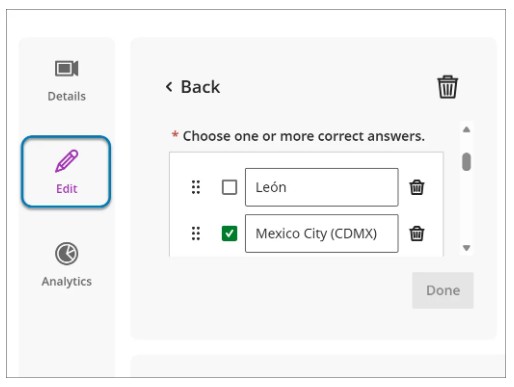
Instructors can add knowledge checks from the Edit screen for a recording. The page shows the number of knowledge checks in use. Instructors can add or edit questions, set multiple-choice options with one or more correct answers, and choose the timestamp where the question appears. Questions are ungraded and designed to validate comprehension, not assess performance. Instructors also have access to general analytics about student responses. [View Screenshot]
Students
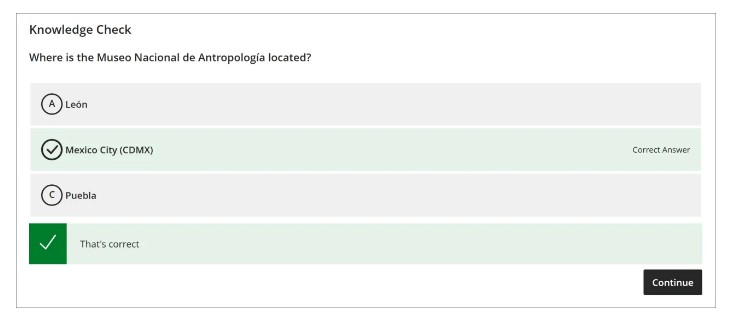
When students watch a video with knowledge checks, the video stops at the specified timestamp and displays a question. Students must answer correctly to continue and can try as many times as needed. Knowledge checks create an interactive experience that encourages active participation and deeper understanding. [View Screenshot]
Steps to Add Knowledge Checks in Video Studio (Ultra)
- Access Video Studio: Open your video in Video Studio from your course content.
- Enter Edit Mode: Go to the edit screen for the recording.
- Add a Block: Click the + (plus) icon where you want the check to appear.
- Select Knowledge Check: Choose the "Knowledge Check" option from the content blocks.
- Create the Question:
- Type your question in the text box.
- Use the "Add Option" button to create answer choices (multiple choice or multiple answer).
- Mark the correct answer(s) by clicking the box next to it.
- Add specific feedback for correct and incorrect answers.
- Set Timing: Specify the exact timestamp where the video should pause for the question.
- Save: Save the knowledge check and then save the overall video.