A course must be made available before students enrolled in the course can view or access the course and its content. However, you may want to make a course unavailable during the building process or after a scheduled course has finished.
If your course is unavailable, access is determined by course role. Blackboard administrators, instructors, course builders, teaching assistants, and graders can see and access unavailable courses from the Courses tab and the course list, but they're marked as unavailable. Students can't access unavailable courses regardless of the course duration. Unavailable courses don't appear in the course catalog. To make a course available:
Course Settings allows you to customize your course to suit your needs and those of your students. Course Settings appears at the top right corner of an Ultra course if the user has privileges to view or manage settings.
You can manage course access state settings through the Course Settings page.
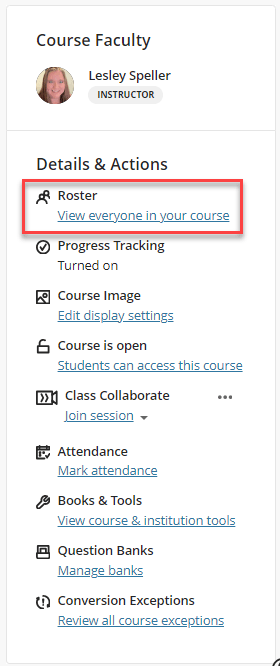
- Close Course. When you select a course as closed, it continues to appear in the course listing, but students cannot access it. When Close Course is not selected, the course is open, and students can access it. This function previously was called Open/Private and found in the Details & Actions panel.
- Complete Course. When the course is completed, students can access the content but cannot participate. Additionally, you can no longer make any changes once a course is completed.
At the top of your course, next to Course Settings, an indicator displays Open, Closed, or Complete based on the course state. Your students also see this indicator at the top of the course.
Additionally, instructors can access Course Settings from the Courses page. From the three dot menu, the instructor can select Course Settings.