Note that you will need to ensure that your students have installed Respondus LockDown Browser before the assessment date. Place a link to the Respondus Installation for Students in your course and share the link in an announcement to remind students.
These settings are applied to each test individually. This is done by clicking on Respondus LockDown Browser under Course Tools in the Control Panel of your Ultra course. If LockDown Browser is required for a test, students can only take the test using LockDown Browser. No other browser option (such as Chrome, Firefox, Safari, etc.) will be accepted.
Students need to take the test using a computer that has LockDown Browser installed. If using their personal computers, students are responsible for downloading and installing the LockDown Browser software from the Respondus LockDown Browser (Student Guide). It can be used on Mac and Windows computers, as well as iPads and Chromebooks. When the Monitor feature is chosen as an additional part of a LockDown exam, students must go through some additional setup steps prior to beginning a test to agree to the process and make sure it is working properly
Enabling LockDown Browser for a Quiz or Exam
- Login into Blackboard.
- Navigate to the Ultra course that you want to use LockDown Browser.
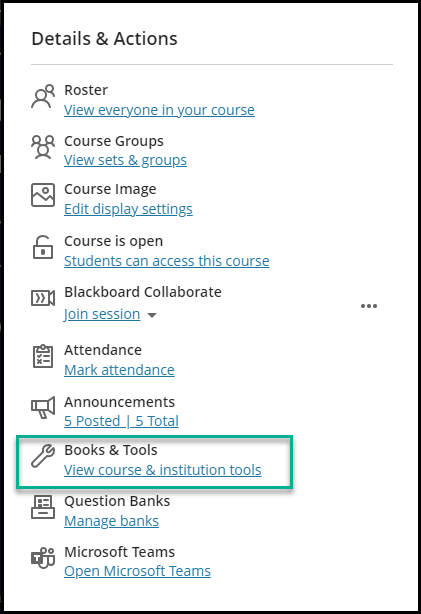
- Under Details and Actions, look for Books & Tools. [view screenshot]
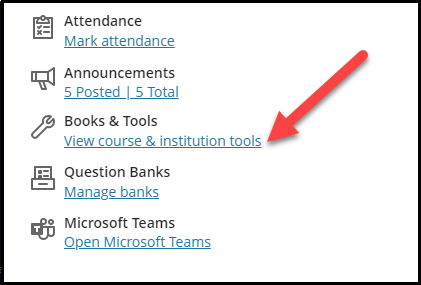
- Click View Course & Institution Tools. [view screenshot]
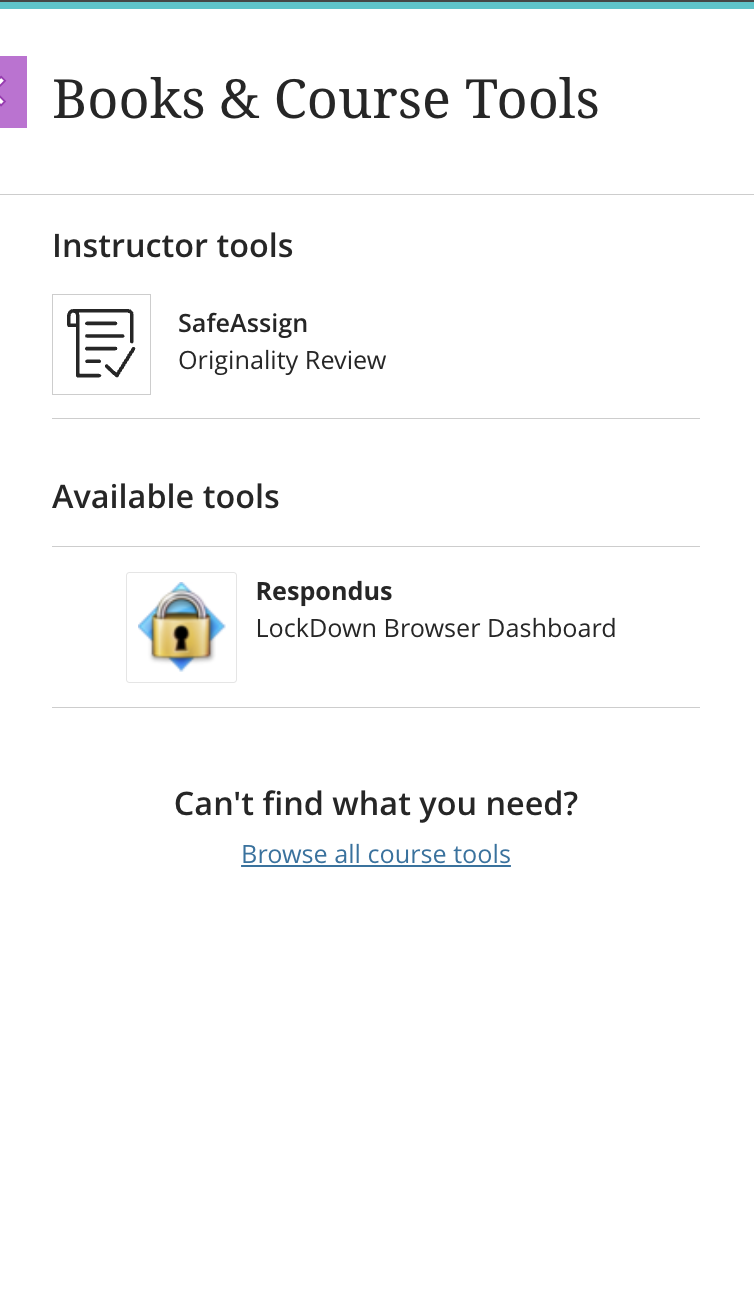
- Under Available Tools, Click Respondus. [view screenshot]
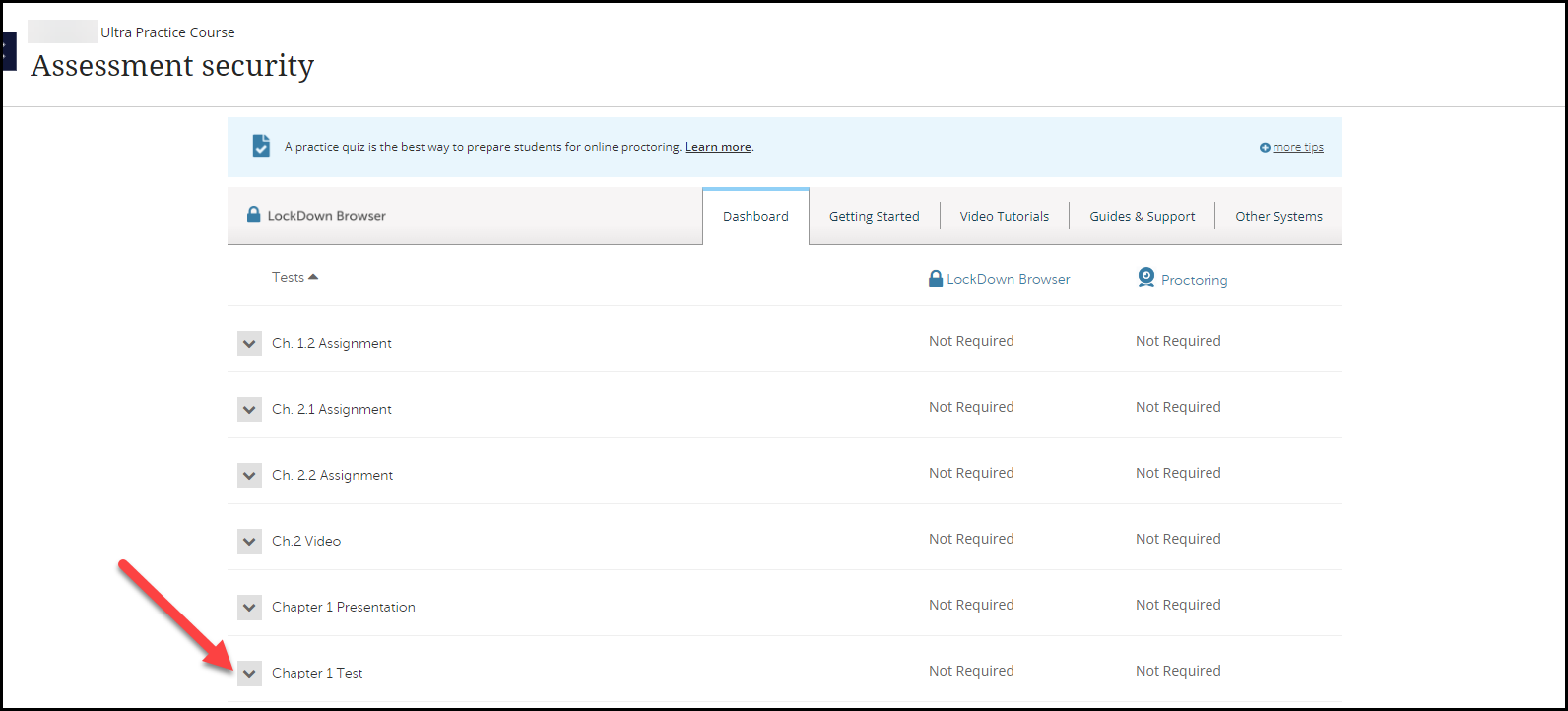
- You will see a list of all your Assessments, find the assessment you want to enable LockDown Browser on.
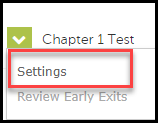
- Click the down arrow to the left of the assessment’s name. [view screenshot]
- On the small drop-down menu click Settings. [view screenshot]
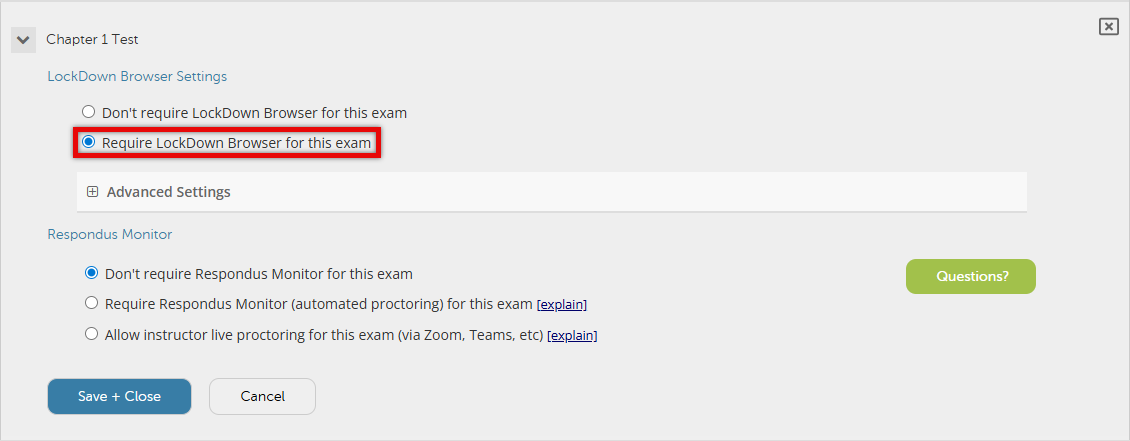
- Under LockDown Browser Settings, check Require Respondus LockDown Browser for this exam. [view screenshot]
- Notice: The iPad Edition of Respondus Lockdown Browser is automatically enabled with the exception of Respondus Monitor where instructors will have to enable it manually.
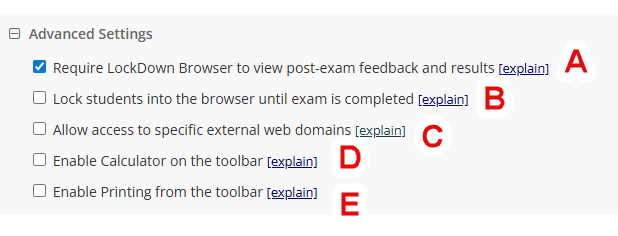
- Optionally, under Advanced Settings, configure any desired options. [view screenshot]
- Require LockDown Browser to view post-exam feedback and results: If enabled, students must access the assessment using LockDown Browser to view test feedback. If disabled, students are still required to use LockDown Browser for taking the assessment, but can view exam results and feedback thought a regular browser. Default is enabled.
- Lock students into the browser until exam is completed: Prevents students from exitingLockDown Browser until they have submitted their exam. This setting is not recommended outside of proctored environments, as if a student has an emergency or experiences a technical issue, they will not be able to close and attempt to re-enter the exam. By default, this option is disabled, and if a student attempts to exit the exam they will be warned twice and prompted to enter a reason, which the instructor can review in the Respondus LockDown Browser Dashboard.
- Allow access to specific external web domains: Allows students to access a specific website while taking the exam. However, instructors must include a link to the website within the exam, otherwise students can’t access the site. Default is disabled.
- Enable Calculator on the toolbar: Allows students access to either a standard 4 function or scientific calculator. Default is disabled.
- Enable Print from the toolbar: Allows students to print while taking the LockDown Browser exam. Default is disabled.
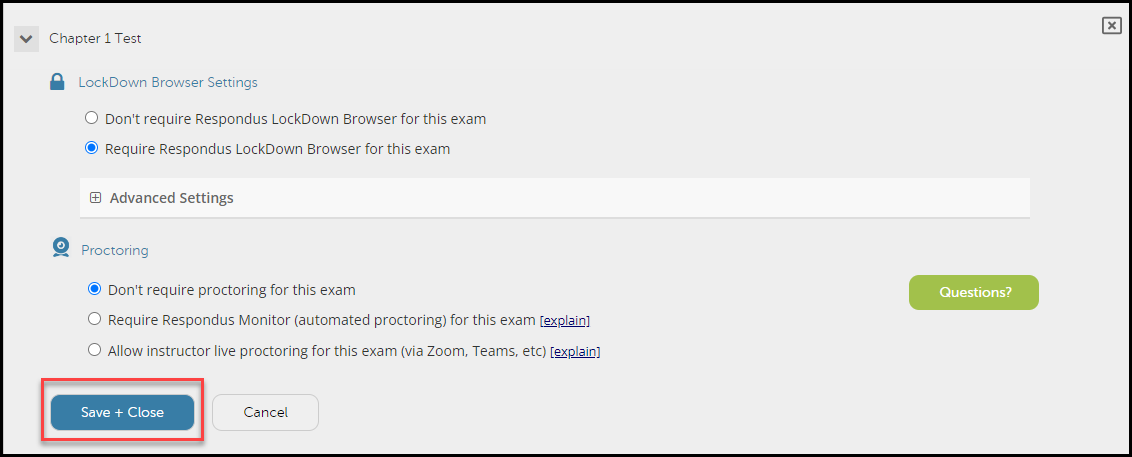
- If the exam will not use any proctoring tools, click Save + Close. If you want to enable proctoring, continue to the next section. [view screenshot]
Make sure to view the tutorials on this page or register for training before starting to use Respondus in your classroom.