

A learning management system is a web application that allows the creation, administration, tracking, and delivery of digital content via course sites. Blackboard Learn can be used in three main ways:
- For the enhancement of face-to-face instruction,
- As an important component of content delivery for blended courses, and
- As a core element delivering and assessing learning in online courses.
As of Fall 2026, School of Medicine courses and electives will be using VidaNovaVLE. All other schools and programs will remain on Blackboard.
Available to: Students
Funding: Institution
Authentication: Single Sign-On (SSO)
Blackboard is also available via mobile app (iOS | Android) using the same credentials.
Blackboard is a web-based course-management system that allows faculty to provide classes online and access to online materials and activities to complement face-to-face teaching. Blackboard enables instructors to provide trainees with course materials, discussion boards, virtual chat, online quizzes and academic resources.
System Requirements
Web browsers used with Blackboard Learn must have Java and Javascript enabled, cookies and third-party cookies enabled, and pop-up blocker disabled. Firefox and Google Chrome are the recommended web browsers. Use the Blackboard Browser Checker to verify whether your browser supports the most recent release of Blackboard Learn.
Accessibility
Blackboard Learn offers accessibility features that allows users to easily navigate and read the Blackboard Learn web interface. The web interface supports screen readers for all available creator and viewer interfaces. The web interface also support keyboard access, allowing you to use the tab key to access all available functions. All sessions fully support adding and displaying captions. For additional information on Blackboard Learn’s accessibility features, visit Blackboard Learn’s Accessibility Conformance Report (WCAG Edition).
Compliance
Blackboard provides secure, private, online communication of FERPA-sensitive information in addition to group spaces where students and instructors can interact and exchange information that is not FERPA-sensitive. Restrictions that apply to your classroom teaching also apply in the Blackboard Learn environment, such as not allowing students to see others’ grades or graded work and not using external email to communicate FERPA-sensitive information.
Blackboard does not warrant or provide any assurances that your use of the Products will comply with the Health Insurance Portability and Accountability Act. For more information, visit the Blackboard Terms of Use page or contact us at ed-tech@bcm.edu.
Logging in through Google Chrome or Mozilla Firefox:
- Open Chrome or Firefox and type https://bcm.blackboard.com/ into the web address bar.
- Click on BCM Users
- The BCM Federated Login page opens and you will put your BCM username and password. Then click Log in.
- If you have issues logging in and you know you have an account, contact the BCM IT Help Desk for assistance by phone (713-798-8737) or visiting https://bcm.edu/myaccount.
Logging into the Blackboard Mobile App:
The Blackboard App for Students is available now in the app stores for iOS, and Android devices. The Blackboard App is designed especially for students to view content and participate in courses using a mobile device. Click here for the Quick Start Guide for the Blackboard App.
- Bring up the mobile app on you mobile device.
- Type Baylor College of Medicine in the University field and click Continue with Web-Login
- Click on BCM Users
- The BCM Federated Login page opens and you will put your BCM username and password. Then click Log in.
- You will be redirected back to the Blackboard app to access your courses.
- Don't forget to logout of your mobile app!
- Open the options menu at the top-left corner of the screen.
- Select Settings.
- From the Settings page select Logout.
Finding your courses
- Click on the 'courses' tab in the Left navigation menu
- You will see a list of all courses you are enrolled in, that have an active course site on Blackboard
- Select the course you would like to access, to open the site
If you can't locate your course
- Your instructor may not be using Blackboard for this course or has not yet made the course available to students.
- You may not be properly enrolled in the course. Verify your enrollment by contacting the course coordinator.
- If you are trying to enroll into an elective, clerkship or sub-i, or other courses, use the self-enroll option to get enrolled.
- If none of the above scenarios applies to you, contact Ed-Tech for additional support by sending an email or submitting an email ticket through the BCM Blackboard Support Center.
If you are trying to enroll yourself in an elective, clerkship or sub-i, or other courses, use the self-enroll option to get enrolled.
To enroll in this course:
- Log into Blackboard at https://bcm.blackboard.com/.
- Click on the Courses link in the left menu.
- Click Course Catalog in the top right.
- Click Browse Categories to see only courses belonging to that category.
- Hover over the name in the ID column and click on the down arrow button that appears.
- Click Enroll. Overview [view screenshot]
- Click Submit on the resulting page, then Ok.
- Click OK.
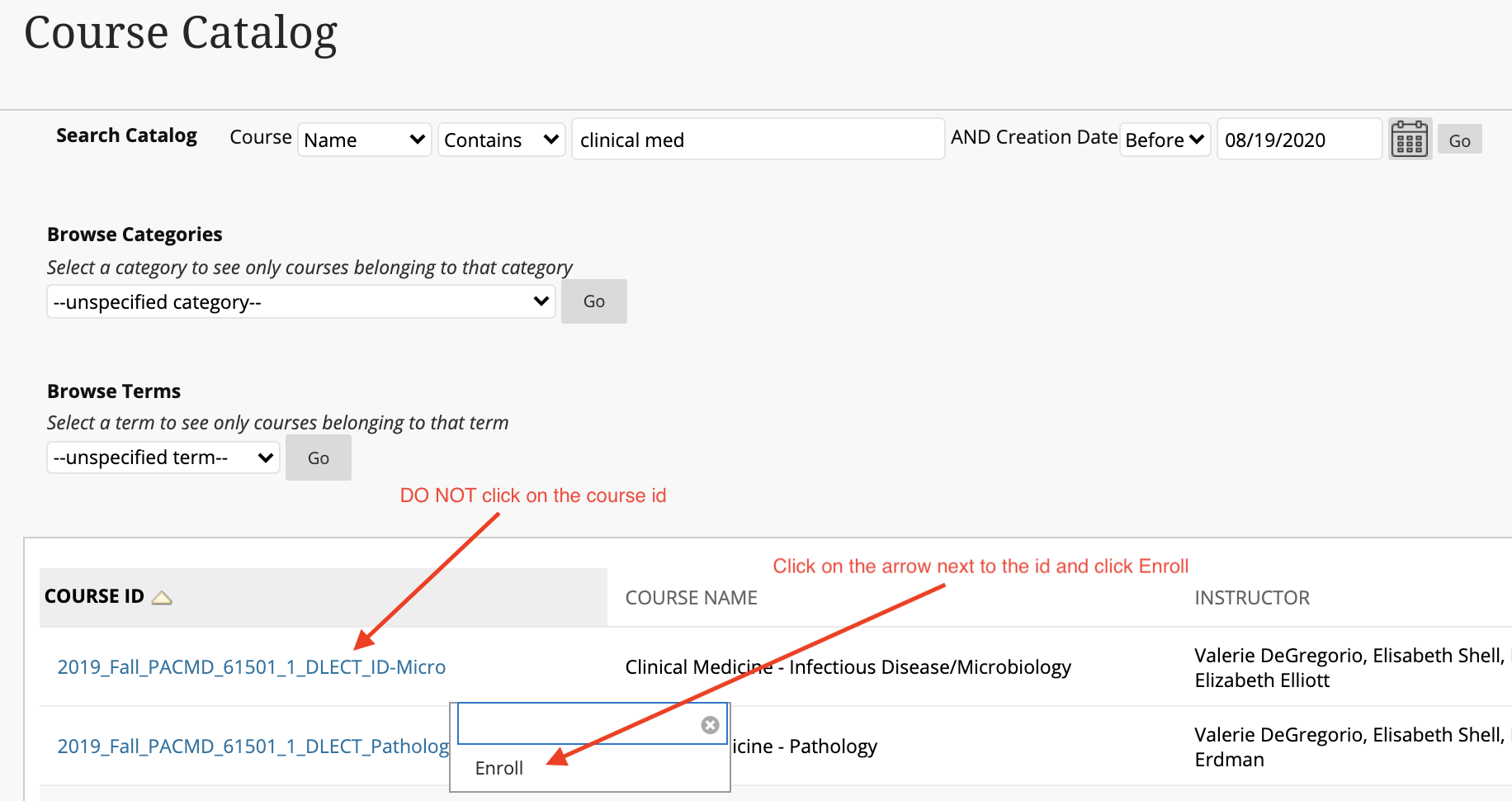
The course will appear under Current Courses.
Guides
- Blackboard Essentials
- Blackboard Collaborate
- Course Work
- Grades
- Communication and Collaboration
- Respondus Lockdown Browser
- Respondus Lockdown Browser creates a restricted test-taking environment. The Respondus LockDown Browser does not allow other windows to be opened during the quiz and helps prevent cheating. When students use Respondus LockDown Browser they are unable to print, copy, go to another URL, or access other applications.
- For students, there is a helpful article including video tutorials: How do I install LockDown Browser?
• Respondus for Students
• Student Quick Start Guide
We've got your back
Please click the link below to submit a service request or resolve an issue. Login using your BCM username and password for access and select Blackboard. For questions, contact Ed-Tech.
Submit an Ed-Tech Form.
- Blackboard uses SSO so you need to use your BCM username and password.
- To change your password you need to visit https://bcm.edu/myaccount or call the BCM Help Desk at 713-798-8737
FAQ Section
BCM has chosen the Microsoft Cloud Storage solution consisting of OneDrive, Teams, and SharePoint online storage as its primary storage for general purpose file sharing and content storage, available at no cost to faculty, staff, and learners.
- In order to view content in Box, users must fill out and submit an IT form to view content. Choose Option #1: No Fee Collaborator Account.
- Once the form has been submitted and approved by the school, then content is able to be viewed.
View the Request new, Retain, or Upgrade a Box.com Account Form.