Home
  • Healthcare
    • Specialties
      • Cardiovascular Care
      • Oncology
      • Neurosurgery
      • Primary Care
      • View All Specialties >
    • For Health Professionals
      • Refer a Patient
      • Clinical Trials
      • Professional Development
      • View All >
    • For Patients & Visitors
      • MyChart Login
      • Accepted Insurance
      • Pay My Bill
      • Patient Information
      • View All >
    • Clinical Trials
      • Autism
      • Cancer
      • Obesity
      • Substance Abuse
      • View All Clinical Trials >
    • Find a Doctor
    • Make an Appointment

    General Inquiries

    Call today to schedule an appointment or fill out an online request form. If requested before 2 p.m. you will receive a response today.

    CALL

    713-798-1000

    Monday – Friday 8 a.m. – 5 p.m.


    ONLINE

    Request Now

    Request non-urgent appointments

    Request an appointment, learn about your rights as a patient, read about what to expect from your appointment, and more.

    As Houston's premier academic medical practice, Baylor Medicine delivers compassionate, innovative, evidence-based care.
    Find a Doctor

  • Education
    • Degree Programs & Admissions
      • M.D. Program
      • Ph.D. Programs
      • DNP Program (Nurse Anesthesia)
      • Genetic Counseling Program
      • P.A. Program
      • Orthotics & Prosthetics Program
      • Baccalaureate/M.D. Programs
      • Dual Degree Programs
      • View All Programs >
    • Financing Your Education
      • Tuition & Fees
      • Financial Aid
      • CARES ACT
    • Schools
      • School of Medicine
      • Graduate School of Biomedical Sciences
      • National School of Tropical Medicine
      • School of Health Professions
    • Advanced Training Programs
      • Residency Programs
      • Clinical Fellowships
      • Postdoctoral Research Positions
      • Continuing Professional Development
      • Diploma in Tropical Medicine
      • View All >
    • Resources
      • Departments
      • Academic Centers
      • Academic Calendars
      • Education Cores
      • View All >
    • Information For...
      • Students
      • Postdoctoral Researchers
      • Faculty
      • Alumni
    get-to-know-houston

    America's fourth-largest city is a great place to live, work, and play. Find out why.
    Get to Know Houston

  • Research
    • Research Offices
      • Advanced Technology Cores
      • Clinical Research
      • Institute for Clinical & Translational Research
      • Office of Research Leadership
      • Research IT
      • Sponsored Programs
    • Research at Baylor
      • Academic Centers
      • Departments
      • Faculty Labs
      • From the Labs
      • News
      • Our Research
      • Research Centers
      • Strategic Research Center
    • Additional Research Services
      • BCM Innovation Institute
      • Service Labs
      • VIICTR
    get-to-know-houston

    America's fourth-largest city is a great place to live, work, and play. Find out why.
    Get to Know Houston

  • Community
    • Healthcare Outreach
      • Community Programs
      • More >
    • Global Outreach
      • Global Health
      • Global Programs >
    • Educational Outreach
      • SMART Program
      • BioEd Online
      • More >
    • General Resources
      • Community Events
      • News
      • Blogs
      • Baylor in the Community
    get-to-know-houston

    America's fourth-largest city is a great place to live, work, and play. Find out why.
    Get to Know Houston

  • About
    • About Us
      • Academic Centers
      • Alumni
      • Careers
      • Departments
      • Giving
      • Leadership
      • Mission, Vision, Values
      • News
      • Our Affiliates
      • Fast Facts
      • Accreditation
    • Offices
      • President's Office
      • Office of Research
      • Ombuds Office
      • BCM Innovation Institute
      • View All >
    • Our Campus
      • Compliance
      • Safety and Security
      • Resource Stewardship & Sustainability
      • Team Shop
      • Find a Person
    get-to-know-houston

    America's fourth-largest city is a great place to live, work, and play. Find out why.
    Get to Know Houston

  • GIVE
  • CAREERS
  • INTRANET
  • Careers
  • Contact Us
  • News
Education
  • Schools
  • Education Programs
  • Academic & Faculty Affairs
  • Tuition & Fees
  • Financial Aid
  • Registrar
  • Academic Resources
  • Office of Accreditation and Education Effectiveness
  • Education Contacts
  • News
  • School of Medicine
  • Graduate School of Biomedical Sciences
  • School of Health Professions
  • National School of Tropical Medicine
  • Cores
  • Schools
  • Education Programs
  • Academic & Faculty Affairs
  • Tuition & Fees
  • Financial Aid
  • Registrar
  • Academic Resources
  • Office of Accreditation and Education Effectiveness
  • Education Contacts
  • News
  • School of Medicine
  • Graduate School of Biomedical Sciences
  • School of Health Professions
  • National School of Tropical Medicine
  • Cores
  1. Baylor College of Medicine
  2. Education
  3. Academic & Faculty Affairs
  4. Student and Trainee Resources
  5. Student/Trainee Tech Resources
  6. Blackboard for Students
  7. Blackboard Portfolios
  • Blackboard Content Editor
  • Blackboard Essentials for Students
  • Blackboard Grades
  • Blackboard Portfolios
  • Blackboard Test and Quiz Best Practices
  • Respondus LockDown Browser (Student Guide)

Blackboard Portfolios for Students

Portfolios use evidence of your education, work samples and skills to tell a carefully crafted story to the world about who you are and what you can do. Portfolios contain an organized collection of artifacts to tell that story. You can use more than one portfolio to tell more than one story.

For more information about Portfolios select from the following:

Your portfolios are stored in the My Portfolios area of Blackboard. To access your portfolios:

  1. Click on your name in the upper right of the display to open the Global Navigation menu.
  2. Click the Tools link.
  3. Select Portfolios.

Artifacts are evidence of learning, frequently accompanied by explanatory text. Artifacts are pieces of content that you can attach to a portfolio and reuse. Course artifacts are graded content from your course and remain available to you even if you no longer have access to your course. Personal artifacts are any content - text, files, links and multimedia items - that you create and upload. You can create artifacts in two ways:

  • Create artifacts ahead of time in the My Artifacts repository so that they are available to use in your future portfolios.
  • Create artifacts while authoring a portfolio. These artifacts are still stored automatically in the My Artifacts repository. You can also reuse them in other portfolios.

Creating Personal Artifacts:

  1. On the My Artifacts page, click Add Personal Artifact.
  2. Provide a title, description, and content for the artifact. The description is visible only to the artifact owner.
  3. Click Submit.

Converting Blackboard Assignments to Artifacts:

  1. On the My Artifacts page, click Add from Course.
  2. Find and select the graded assignments in your available courses.
  3. Click Submit.

Before you begin creating a portfolio, take some time to set a goal for the portfolio and think about the point you want to make and the story you want to tell. Create an outline of the points to highlight and supporting materials (artifacts) to include. You can create artifacts before or during the portfolio creation process. 

Create a shell for the portfolio including a name (required) and description (optional). Then add pages with content.

Create a portfolio:

  1. Access your My Portfolios area.
  2. Click Create Portfolio.
  3. Provide a title and description, click Submit. You will have the option to "Take the Tour" of portfolio features or not.
  4. Click the plus (+) icon at the left of the menu to add pages.
  5. Click the + at the top or bottom of your page, to add another section.

Additional Information & Options:

  • Use pages to structure the portfolio. Each page must have at least one section.
  • The menu on the left shows all the portfolio's pages and sections, you can click to navigate to them. To delete a page, click the trash can icon to the right of a page.
  • NOTE: Deleting a page also deletes all of the sections and content on that page. Artifacts associated with a section remain in the My Artifacts repository, and you can reuse them.
  • Use the drag-and-drop method to rearrange pages and sections in the menu.
  • The Settings option allows you to change the portfolio title and description.
  • The Preview and Customize option allows you to see how the portfolio will look, and make layout and color palette decisions that affect the final design of the portfolio.
  • The Done Editing option allows you to exit the portfolio canvas. If you try to exit without saving new and updated content, you are warned of unsaved changes.

  1. On the My Portfolios page, click More following a portfolio's name.
  2. Click Share.
  3. On the action bar, point to Share a Snapshot with and select one of the user types. Use the following table to determine which sharing option to choose
Who?What Happens?
Blackboard Learn UsersUse Browse to search by first name, last name or email. The portfolio is listed in the user's Shared with Me area.
External UsersA URL is created and emailed to the users you specify so that they can access your portfolio.
CoursesThe portfolio is listed in the portfolios tool in the course. Members of that course can search for your portfolio.
Institution RolesAll users with the role may search for your portfolio.
All System AccountsAny user on the system may search for your portfolio.


  1. Access your My Porfolios page.
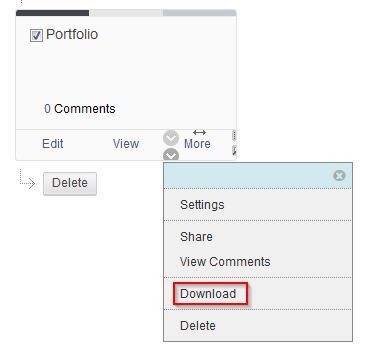
  2. Click the More button for the appropriate portfolio. [View screenshot]
  3. Select Download. [View screenshot]
  4. A dialog box will appear, click on the link to download the portfolio.
Using the Downloaded Portfolio:
The Portfolio is contained in a .zip file. Windows users should double-click the zip file and select Extract. Macintosh users should double-click the zip file. Open the file named index.html to view. If buttons are used in the Portfolio Menu, they will become text links in the downloaded Portfolio.

Instructors can request portfolios be submitted for course assignments. If your instructor created a portfolio template for you to complete, follow the directions and guidelines.

See steps below to create a portfolio. When you have completed your assigned portfolio, click Done Editing. A snapshot of your assigned portfolio at that point in time is shared with your instructor for grading.

After your instructor grades your assigned portfolio, the grade appears in My Grades. The grade does not appear on your My Portfolios page.

You can edit your assigned portfolio at any time from your My Portfolios page. After you click Done Editing, any edits you make are not automatically shared with your instructor. If multiple attempts are allowed, you can resubmit the portfolio assignment.

Portfolio snapshot submissions made through an assignment do not appear in your list of shared portfolio snapshots and cannot be rescinded like other sharing events.

The first time you access the Portfolio Assignment, click the Create Portfolio button. This will provide an easy way to connect to a portfolio template if your instructor has selected a template.

After the portfolio is finished, return to the Portfolio Assignment and use the Select Portfolio button to connect your portfolio to this assignment. When you submit your portfolio, you are submitting a snapshot of your portfolio, as it appears at that time. If an instructor allows unlimited submissions, you will be able to submit snapshots of your portfolio at various times during the term of the course.

For instructions on how to create a Portfolio, see Portfolios.

For more information about Portfolios see Blackboard's Portfolios.

Ed-Tech
  • Blackboard Content Editor
  • Blackboard Essentials for Students
  • Blackboard Grades
  • Blackboard Portfolios
  • Blackboard Test and Quiz Best Practices
  • Respondus LockDown Browser (Student Guide)

Contact Education Technology Staff

Email ed-tech@bcm.edu

Office of Education Affairs

One Baylor Plaza Room 430A Houston, TX 77030
get-to-know-houston

America's fourth largest city is a great place to live, work and play. Find out why.
Get to Know Houston

Credit
Visit Houston

Follow Us facebook twitter youtube linkedin instagram rss 

Footer Menu Healthcare

  • Healthcare
    • Specialties
    • MyChart Login
    • For Patients & Visitors
    • For Health Professionals
    • Clinical Trials
    • Find a Physician

Footer Menu Education

  • Education
    • Programs & Admissions
    • Student & Trainee Resources
    • Faculty Resources
    • School of Medicine
    • Graduate School of Biomedical Sciences
    • National School of Tropical Medicine
    • School of Health Professions
    • Tuition & Fees
    • Financial Aid

Footer Menu Research

  • Research
    • Our Research
    • Core Labs
    • Faculty Labs
    • Research Centers
    • Research Offices

Footer Menu Community

  • Community
    • Healthcare Outreach
    • Education Outreach
    • Global Programs
    • Community Events

Footer Menu About

  • About
    • Our Campus
    • Departments
    • Academic Centers
    • Administrative Offices
    • Affiliates
    • Leadership
    • Giving
    • Alumni

Footer Menu Resource Links

  • Resource Links
    • Contact Us
    • Find a Person
    • Careers
    • BCM Team Shop
    • News
    • Title IX Office
    • Compliance
    • Covid Response Site

©1998-2026 Baylor College of Medicine® | 1 Baylor Plaza, Houston, Texas 77030 | 713-798-4951
Have an edit or suggestion for this page?

  • Compliance
  • Privacy
  • Intranet