

Examplify Reminders
- Use your BCM Username and Password to log into Examsoft and Examplify
- Institution Code: BCM or Baylor College of Medicine
- Disable/turn off your anti-virus to avoid issues
- Make sure your laptop/iPad has a full charge before the exam begins
- To avoid issues, download the exam several hours/days before the exam start time
- For exam taking best practices: (including disabling antivirus programs)
Examplify Resources
Available to: Students
Funding: Institution
Authentication: SSO (BCM username and password)
For Short Answer / Essay type questions, Examplify works as a simplified word processor similar to Microsoft Word. The software blocks access to all applications and stored files on your laptop during the exam. Once the exam begins, you will only be able to work on the exam and will not regain access to your files until you exit the exam.
Examplify automatically saves your exam every 60 seconds and creates multiple backup copies during the examination, all of which are stored in an encrypted format on your hard drive.
At the end of the exam, you will upload your exam answers to a secure server via the internet. From there, your proctor will be able to grade your responses.
Exam ID and ExamMonitor
ExamMonitor is the AI-driven remote proctoring solution that continuously observes exam takers with video and audio monitoring throughout the entire exam, completely eliminating the need for in-person proctoring and providing absolute confidence in the integrity of all your exams.
Resources Articles:
- Examplify: Take an Exam with ExamID and ExamMonitor
- Student Guide – Exam Integrity
- Setting up your Baseline Photo in Exam Integrity
Student Resources
STEP 1: Get Ready (Before Exam Day)
Before exam day, it’s important to take a few steps to ensure your device and Examplify are fully prepared. Completing these tasks early helps prevent last‑minute issues and reduces stress on exam day. In this section, you’ll find everything you need to install Examplify, confirm your device meets system requirements, log in using your BCM credentials, and complete any recommended mock or practice exams so you’re ready to test with confidence.
Device & System Setup
Students and exam-takers downloading the test-taking software, Examplify, should review these Minimum System Requirements (MSRs) to ensure their devices are supported. Examplify works with most modern computers, both Mac and Windows operating systems. To keep Examplify current in the rapidly evolving market, when new technology is introduced, Examplify works hard to timely implement updates that accommodate changes in technologies. It is not always possible, however, to support all hardware or software, unless and until we test and certify updated technologies, including chipsets and operating systems. ExamSoft Minimum System Requirements website.
For Windows:
- Supported Operating System: 64-bit Versions of Windows 10 and 11.
- Alternate versions of Windows 10 and Windows 11, such as Windows RT and Windows 10 and 11S, are NOT supported at this time.
- Supported Operating System: 64-bit Versions of Windows 10 and 11.
- Alternate versions of Windows 10 and Windows 11, such as Windows RT and Windows 10 and 11S, are NOT supported at this time.
- If you are using a Microsoft Surface device, please read this article for important instructions on Windows 10 and 11 “S mode” versus the standard Windows 10 or 11. S mode is not compatible with Examplify.
- Only genuine versions of Windows Operating Systems are supported.
- The versions of Windows certified for use are Windows 10 22H2, Windows 11 23H2, and Windows 11 24H2. If students are using Windows 10 22H2, they can follow these instructions from Microsoft to update their machines.
- The English (United States) Language Pack must be installed
- ExamSoft does not support Tablet devices other than Surface Pro as detailed below
- CPU Processor: Non-ARM based processor supported by your operating system.
- RAM: 4GB or higher
- Hard Drive: highest recommended for the operating system or 1GB of available space.
- Internet connection for Download, Registration, Exam Download and Upload.
- Screen Resolution should be at least 1280×768 or higher. Scaling should be set to 100%.
- Examplify cannot be run within virtualized environments or environments that require persistent network (local or otherwise) connections during secure exams. This includes, but is not limited to, VMWare, Parallels, Citrix workspace, virtual disks, streamed images, etc.
- Webcam: Integrated camera or external USB camera supported by your operating system. Virtual cameras are not supported.
- Microphone (no headphones, no virtual mics)
- Examplify version: 3.7.2
For macOS:
- Supported Operating Systems: Ventura (macOS 13), and Sonoma (macOS 14), Sequoia (macOS 15)
- Only genuine versions of Mac Operating Systems are supported.
- RAM: 4GB or higher
- Screen resolution should be at least 1280 x 768. Scaling should be set to 100%.
- Hard Drive: 1GB or higher available space
- Server version of Mac OS X is not supported
- CPU: Intel, M series processor. Devices using Apple’s M1, M2, & M3 processors and Apple Rosetta 2 are supported. Learn more.
- Examplify is not compatible with virtual operating systems such as Microsoft’s Virtual Machine, Parallels, VMware, VMware Fusion or any other virtual environments.
- Internet connection for Download, Registration, Exam Download and Upload.
- Examplify is not compatible within virtualized environments or environments that require persistent network (local or otherwise) connections during secure exams. This includes, but is not limited to, VMWare, Parallels, Citrix workspace, virtual disks, streamed images, etc.
- Webcam: Integrated camera or external USB camera supported by your operating system. Virtual cameras are not supported.
- Microphone (no headphones, no virtual mics)
- Examplify version: 3.7.2
For iPad:
- Hardware Requirements: iPad 5+, iPad Air 3+, iPad Mini 5+, iPad Pro
- Operating Systems: iPadOS 16, iPadOS 17 and iPadOS 18 (Only officially approved Apple versions of iPadOS are supported).
- 500 MB of free space required to commence an exam
- iPad must not be modified (e.g. Jailbroken)
- Internet connection for download, registration, exam download and upload
- Internet: 2.5 Mbps upload speed
- Hard drive: 2GB or higher available space
If Examplify states your device doesn’t meet system requirements, you likely need to update your operating system, free up space (4GB+ required), or update to the latest version of Examplify. Key fixes include checking for Windows 11 (23H2/24H2/25H2), ensuring you are not in "S Mode," and disabling core isolation/memory integrity.
For more information go to:
Install & Access Examplify
- Prior to downloading Examplify, check that your device meets the Minimum System Requirements.
- To download Examplify, go to
- Depending on the student’s browser, Examplify will download in one of three places. If they do not see it on their screen, open the browser’s Download tab, and locate the Examplify download.
- Run the installer file. Once the installation is finished, they will be able to launch the application from the Desktop or App tray. Next, launch the application. The student must be connected to the internet to register their copy of Examplify and/or download exams.
- Launch Examplify
- When prompted, enter the Institution Code: Baylor College of Medicine. The student must be connected to the internet in order to select Baylor College of Medicine from the drop-down menu.
- Log in using your BCM username and password.
- You'll be prompted to verify your SSO account by using a link. Paste the link into the browser and it will confirm your account. Once this is done, navigate back to Examplify and continue to log in.
- Once you are successfully logged in, open up Examplify to view any assessments available for download.
(NOTE: If you have forgotten your password, please contact the BCM Helpdesk at 713-798-8737 or visit https://bcm.edu/myaccount) PDF: Microsoft Self-Service Password Reset (SSPR)
Exam Preparation
- Download the exam as soon as it is available. View detailed instructions for downloading your exam
- Watch videos on how to use Examplify
- Read the School Examination Guides to get familiar with the software
- Check that your computer’s time and date are accurate
- Charge your laptop battery and bring your power cord
- Disable all antivirus software prior to launching a secure exam
- Arrive at the exam site early
Mock Exam Information
- Mock Exams launched by Ed-Tech:
- Fall or Spring Mock Exam: This mock exam has ExamID and ExamMonitor enabled. If your school or program is not using ExamID or ExamMonitor, then you don't need to complete this mock exam.
- New Student Orientation Mock Exam: This self-paced mock exam is launched only to the incoming students to become familiar with the features of Examplify.
- Download Start: Beginning of Semester
- Number of Downloads: 10
- Resume Code: Contact Ed-Tech or the School/Program
- Download End: End of Semester
- Password: Welcome25
Once you have Examplify downloaded, log in using your BCM username and password. The Mock Exam will be ready to download.
A mock or practice exam is a great way to make sure that you’ve downloaded and correctly installed the software, as well as to familiarize yourself with how Examplify works ahead of your actual test. The mock / practice exam gives you experience downloading, taking, and uploading an exam in secure mode using Examplify. This should help alleviate some of your stress on exam day, since you’ll already know what to do.
Your course coordinator will let you know when you can download the mock / practice exam, and what the password is for accessing it.
If you consulted with Student and Trainee Disability Services and have an accommodation letter to submit for ExamSoft Admin, visit the Ed-Tech Forms page.
- Select ExamSoft under Applications
- Select Request under Request Type
- Choose the ExamSoft Additional Time Request form and submit your request.
NOTE: Your accommodation will be applied to all future exams once it has been applied to your ExamSoft account.
Contact the school and/or your course coordinator.
Required System Changes
ExamSoft recommends disabling your anti-virus software before launching your examination. In some cases, certain anti-virus applications may block Examplify from starting properly or can affect Examplify’s performance during an exam. If your computer is running any of the programs on the list at the bottom of this page, disable them before installing Examplify and re-enable them after the installation is complete. You’ll also need to disable your anti-virus software before taking the exam and re-enable it after exiting your exam. View more information on disabling your anti-virus software.
For Windows users: You can create an exclusion for “Examsoft.Softshield” within your security application, which can be found in the path C:\Program Files (x86)\Examsoft\Services
More information on how to Disable Your Antivirus Software.
BitLocker should not need to be disabled. However, Ed-Tech recommends ensuring that students have their recovery keys available, as they may be required for troubleshooting purposes.
STEP 2: Take Your Exam (Exam Day)
On exam day, Examplify creates a secure testing environment that allows you to focus on your assessment without distractions. Once you launch Examplify and start your exam, access to other applications and files will be restricted until you finish. This section guides you through starting your exam, navigating between questions, using available exam tools, and understanding what to expect while testing so you can complete your exam smoothly and confidently.
Starting & Navigating the Exam
To start your exam, open the Examplify application, and log in. If you haven’t already downloaded your exam, download it. If you have downloaded the exam, wait until your professor gives you the Exam Password to start your exam. Enter in the Exam Password (it’s case sensitive) and click the “Start Exam.” You’ll be prompted to enter a four-character code before you can start the exam. Once you do that, you’re in!
For more information about how to Prepare to Take an Exam.
To navigate between questions on your exam, you can:
- Use the “Next” button at the bottom of the page to go to the next question, or the “back arrow” to go to the previous one.
- Toggle between the next/previous question by selecting the up/down arrows on the left-hand side of your screen
- You can select the question number you would like to navigate to within the navigation pane on the left-hand side of your screen
Answering Questions
To answer a multiple choice question, click the circled letter to the left of the desired answer. The circle will turn blue indicating that it has been selected. Some multiple choice questions will have multiple answers – in this case, click the circle next to all answers you would like to select before proceeding.
You can also cross out answer choices. Hover over the answer choice and click the “X” that appears in order to cross-out that choice. To undo this, click on the crossed-out text in the answer choice.
More information on how to Answer a Multiple Choice Question.
You can set a reminder alarm for yourself – click on the clock icon at the top right of your screen to access this feature. Select “Add Alarm” and set your alarm. Be sure to click “Create Alarm” to activate the alarm.
View a list of the keyboard shortcuts that you can use for different actions during an exam. Includes shortcuts for MacOS and Windows.
A character count is automatically displayed at the top of the page in which you are working. To view your word count instead, click on the page icon that appears next to the character count.
Power & Timing
Laptop users will be required to plug their computers into outlets and may not rely on battery power.
Your course coordinator will let you know when your exam is ready to be downloaded – typically this is 24 to 48 hours ahead of your scheduled exam time. This time will vary depending on which school you are in.
STEP 3: Submit & Confirm (After the Exam)
After you complete your exam, it’s important to ensure your answers are successfully submitted and confirmed. Once you finish testing, Examplify will guide you through uploading your exam file, and you should always verify that your submission was successful before closing the application. This section walks you through the submission process, how to confirm your upload, and where to access your results or review your exam, giving you peace of mind after exam day.
Finishing & Uploading
When you’re all done, click on the “Exam Controls” tab in the top left, and select “Submit Exam.” You’ll receive a warning that you’re about to close your exam, and click that you’re ready to exit the exam. Once you exit the exam, your exam will automatically be uploaded to the ExamSoft website – this might take a minute, so be patient! When your exam is uploaded, your screen will turn green and you’ll see a message that your exam has been successfully uploaded. Show the room proctor the green screen so they know you are finished.
If you get an orange screen, this usually means your laptop is not connected to the internet. Try to reconnect the internet on your laptop and refresh Examplify to submit your exam.
Once an upload has completed, a green “Congratulations!” screen will appear. This means that the file has been successfully uploaded to the server, and is awaiting processing.
It may take several minutes for the confirmations such as the email and text notifications as well as the exam history to reflect your upload. Your files have been uploaded and your content is safe once the green confirmation screen is displayed. You will also notice the blue symbol to download the exam has changed to a green check-mark.
To access your exams history screen, you can click on the “Exam History” at the top of the screen.
More information on how to Confirm Your Answer File Upload.
Results & Review
- When the exam-maker releases the results for an assessment, you can view them in the web-based ExamSoft Portal. ExamSoft Portal: View Your Exam Results
- Log in to the BCM ExamSoft Portal www.examsoft.com/bcm using your BCM username and password
- Navigate to the course.
- Select the assessment.
- Find the assessment in the table, and then select the View Results button. If the button does not appear, this means that the results have not been released.
- View the Report Details in the PDF.
- The Performance Analysis Report shows your performance over time and across the learning categories that were set up for your exams. This information can help you to identify areas where you are excelling and where you need to improve. Legacy Portal: View Your Performance Analysis Report
If your assessment is set up with Secure Exam Review, you'll be able to review the results of your assessment. This review can provide valuable insights about your performance on this assessment and can help you to prepare for future exams.
Note: Contact your instructor, proctor, or exam manager if you have questions about the options that are enabled for your exam.
If your School/Program provides an opportunity for secure exam review, you'll access it in one of the following ways:
TROUBLESHOOTING: Something Not Working?
Technology issues can happen, even when you prepare ahead of time. This section is designed to help you quickly identify and resolve common Examplify problems before, during, or after your exam. Use the headings below to find help based on what you’re experiencing—such as login issues, trouble downloading or uploading an exam, or unexpected behavior during testing—so you can take the appropriate next steps with confidence.
When to get help:
If your issue is related to BCM login credentials, course access, or local exam procedures, contact BCM Ed‑Tech Support; if you’re experiencing a technical problem with the Examplify application itself (such as installation errors, app crashes, or upload failures), you may be directed to ExamSoft Support for assistance.
Examplify (ExamSoft) Support
If you are having issues with your Examplify software of the ExamSoft portal, students can reach ExamSoft by telephone at 866-429-8889 for the fastest support.
You may also email us at examsoft-support@turnitin.com or start a chat from the website Exam-Taker Resource Community.
Ed-Tech Support: We've got your back
Go to the link below to submit a form to resolve an issue. Log in using your BCM username and password for access and select ExamSoft then select Issue. For questions, contact Ed-Tech.
Submit an Ed-Tech Form.
NOTE: If you experience issues with your password, SSO, or MFA, please contact the BCM Help Desk (713) 798-8737 or visit https://bcm.edu/myaccount PDF: Microsoft Self-Service Password Reset (SSPR)
I Can’t Log In
Examplify
If you have been able to log into Examplify recently but now you are unable to or you get sign-on error messages... Examplify uses SSO, which means that all passwords are managed by the BCM Help Desk. If you enter your password wrong 3 times, your BCM account will get locked. To resolve this, call the BCM Help Desk or visit https://bcm.edu/myaccount and chose the option to unlock your account.
DO NOT call ExamSoft or try to reset your password through ExamSoft, they can not help you.
Username: {Use your BCM Username/ECA}
Password: BCM Password
ExamSoft Portal
If you are an exam taker and are having issues accessing examsoft.com/bcm. You can try opening an alternative browser to access examsoft.com/bcm or clearing your cache in your current web browser. If that doesn't work, then open another tab in incognito mode and log into examsoft.com/bcm to upload your exam assessment.
Note: This issue has not been browser consistent so it is recommended to try different browsers.
If you have a problem with one, try the other.
Windows 10/11
- Edge
- Chrome
- Firefox
macOS
- Safari
- Chrome
- Firefox
The next step is to try clearing your browser cache. How to clear browser cache on Windows and on a Mac for different browsers:
The final step is to contact the BCM IT Help Desk at 713-798-8737 or visit https://bcm.edu/myaccount.
This error can arise when a student clicks ‘Start Exam’ and specifically pertains to the actively logged-in User Accounts on the computer. To ensure exam security and to maintain the integrity of the software, only one local user can be logged in at a time. Students Should:
- Log out of all computer profiles
- Restart the computer
- Log back into the main profile and log into Examplify.
My Exam Won’t Download or Appear
To download your exam:
- Connect to the internet
- Open Examplify
- Windows PC: Double click the “Examplify” icon on your Windows Desktop
- Macs: Click the icon from the Applications folder
- The Examplify Launcher window should appear.
- Select the exam you would like to download and click the “Download Exam” button
- You have successfully downloaded the exam when you see a check mark next to the exam name.
For questions or if you have trouble, contact Ed-Tech@bcm.edu.
For more information about Downloading or Removing Exams.
- Confirm with the School/Program the exam download period has started
- Clear your Registration in Examplify (steps below)
- Contact the course coordinator to give you a second download for the exam
- Contact Ed-Tech if the steps above were not successful
Clearing the Registration in Examplify
Note: This procedure applies to Examplify on Windows and Mac. There is no similar process for iPad.
Before You Begin
We recommend that you remove any downloaded exams before you clear the registration.
Examplify: Download or Remove Exams
Procedure to Clear the Registration
- Open Examplify.
- Near the top right corner of the screen, select Home Menu, and then select Settings
- Select Clear Registration.
| Problem | Next Steps | Why This Might Happen |
| My exam is missing. Or My exam is not available for download. | Ensure the exam you're attempting to download is currently available for download and has not expired. Procedure to Clear the Registration
| The exam is unavailable due to instructor not making it available or the download start time hasn’t yet started. |
| My exam was once downloaded but is no longer on the dashboard. | Ask your instructor to verify that the exam is available and provide an additional download. | The instructor may have remotely deleted the assessment or made the exam unavailable. |
For certain other procedures, you might be asked to clear the Examplify registration on your device.
Note: This procedure applies to Examplify on Windows and Mac. There is no similar process for iPad.
Before You Begin
We recommend that you remove any downloaded exams before you clear the registration.
Examplify: Download or Remove Exams
Procedure
- Open Examplify.
- Near the top right corner of the screen, select Home Menu, and then select Settings
- Select Clear Registration.
Note: If you do not see the Clear Registration button, make sure that the window is full screen. For additional help with clearing registration, Examplify: ExamID and ExamMonitor Troubleshooting Guide
- Follow the on-screen prompts to confirm the selection.
Note: If you do not see the confirmation button, make sure that the window is full screen. For additional help with clearing registration, Examplify: ExamID and ExamMonitor Troubleshooting Guide
Something Went Wrong During My Exam
So you’re all ready to rock this final, you’ve studied, have a stupendous outline, now all you need to do is type this essay portion and you’re practically on summer break. You double-click on the Examplify icon to launch the program and watch the load screen run up to 50% and then BOOM… you get a warning that says “The Application’s Service is Unavailable, retry or contact your administrator.” [view screenshot]
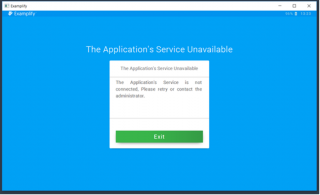
But it’s going to be OK! All you need to do is follow the below steps and you will be back up and running in time to still own this final!
Step1: Right click the Examplify icon on your device, from the menu options, choose Run as Administrator. That’s it, this should fix the problem for most users. However, if you receive the same error message, proceed to Step 2.
Step 2: Navigate to the Services Console [view screenshot]

Click the Start button and type in “Services” in the search field for the local services application. Launch the application
Step 3: Restart the ExamplifyService
In the Services application, find the item named ExamplifyService
Step 4: Double click the ExamplifyService. This will open up a new window. Ensure that the Startup Type is set to Automatic. [view screenshot]
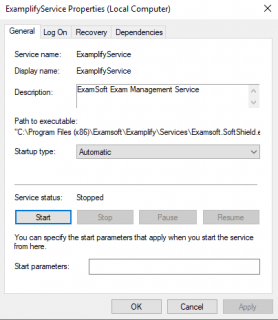
Step 5: Click the Start button on the left. After this service starts, Examplify will open as normal.
Note: If the service is not listed, you will need to re-install Examplify and/or check your antivirus settings to remove it from the quarantine.
MAC USERS
If you find yourself in a similar situation with the same error message, or worse, your Examplify simply won’t launch at all and just bobs up and down without ever loading, then your solution is similar.
Step 1: Simply create a new user profile on your computer. Make sure the new user profile is set as an Admin (Administrator) – For instructions on how to create a new user profile, visit Apple’s support page for setting up new user accounts.
Step 2: Log into the new profile and launch Examplify.
That’s it!
See examsoft.com/support for additional information.
If the device freezes after the student clicks ‘Start Exam,’ shut down the Mac by holding down the power button for 10 seconds. Turn the device back on and resume the exam when prompted.
If a Windows device is missing power options, lost access to the task manager, or has an ExamSoft Background, an application will need to be run to revert the security settings of the device.
- Navigate to C:\Program Files (x86)\Examsoft\Examplify\Services
- Right-Click ‘EsWinsr.exe’
- Click ‘Run as Administrator’.
More information on how to Run ESWinSR to Restore Windows Settings.
More information on how to Resolve a Black Screen, Missing Task Manager, or Missing Power Options on Windows.
If the student opens Examplify (from the dock or by directly opening the application) and it bounces for a few moments and does not respond any further, the application was moved from the ‘Applications’ folder. To resolve this, simply click and drag the application back into the ‘Applications’ Folder.
If a student is unable to access the internet after taking an exam, restart the device. If the internet is still disabled, run ESWinSR to revert the security settings.
- Navigate to this folder in the File Explorer: C:\Program Files (x86)\Examsoft\Examplify\Services
- Scroll down until you see an application file named ‘EsWinsr’.
- Right-click this file and click ‘Run as an Administrator’. This will bring up another command prompt that will revert the security settings of Examplify. After reverting the security settings this window should disappear.
In urgent situations (when a student needs to begin a test), use a backup device. If this isn’t possible, you should restart your computer and try again; if that fails, you should uninstall Examplify and reinstall. If all that fails, you will need to contact ExamSoft support at 866-429-8889, or check your device to ensure it is fully updated.
Examplify: Uninstall on a Mac
Examplify: Uninstall on Windows
How to download Examplify, install the software, and log in for the first time.
Windows: Set Up the Device Permissions for ExamID and ExamMonitor
To ensure that your PC has all of the necessary permissions enabled to prevent "Device access denied" issues for ExamID and ExamMonitor, complete all of these procedures.
Note: These instructions are designed for Windows 10 version 1803 or newer.
Mac: Set Up the Device Permissions for ExamID and ExamMonitor
To ensure that your Mac has all of the necessary permissions enabled to prevent "Device access denied" issues for ExamID and ExamMonitor, complete all of these procedures.
Note: These instructions are designed for macOS 10.13, 10.14, and 10.15.
Some Windows users may be prompted with an MSR warning stating that Examplify is not permissible on Virtual Machines due to core isolation. If internet access is available, you can simply click the link for instructions on how to proceed. If Internet access is not available, you can follow the instructions below:
- Click the start button and type ‘Device Security’. Choose the option at the top for System Settings
- Click ‘Core Isolation Details’ and make sure the toggle slider is in the off position under ‘Memory integrity’ then restart the device.
My Exam Won’t Upload or Failed to Upload
If Examplify is unable to upload your answer file automatically after an exam, you can upload the file by using the ExamSoft Portal instead. View instructions. If you are having issues your exam file to the ExamSoft portal, students can reach ExamSoft by telephone at 866-429-8889 for the fastest support.
Examplify for iPad: Manually Upload an Answer File.
IMPORTANT: Use the same computer that you used to complete the exam.